





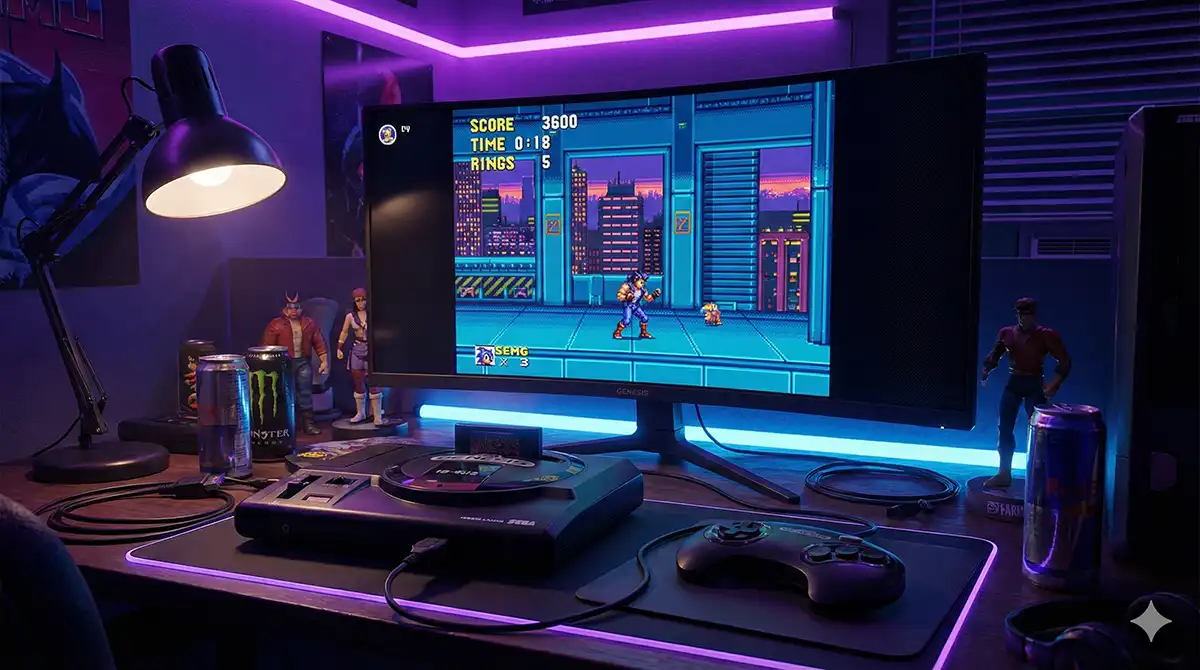
Kega Fusion is still what a lot of people reach for when they want Sega’s 16-bit and 8-bit machines on a PC: it opens in a second, and one executable covers a wide spread of Sega hardware. On Windows 11 it still runs — but several of its defaults, and much of the advice circulating about it, were written for a different era of Windows.
This guide covers where to put the folder, which video and sound settings matter, why the usual “turn on VSync” fix does nothing, how to get a 6-button pad recognised, where your saves end up, and what it means to run a program whose last release was in 2010. One naming note first: in North America the console was the Genesis, the name used throughout this article; in Japan, Europe and Australia it was the Mega Drive. The CD add-on was Sega CD in North America and Mega-CD elsewhere; the Sega 32X kept its name everywhere.
- What Kega Fusion covers, and what its author actually claimed
- Running 2010 software in 2026: where it comes from, and where it stands
- Where to unpack it, and why Program Files breaks your saves
- Video settings that matter on a modern display
- Stutter, speed, and the VSync advice that no longer applies
- Sound: one setting does the work of two
- Controllers: 6-button support is opt-in
- Game data, BIOS files, and where your saves live
- Where that leaves you
What Kega Fusion covers, and what its author actually claimed
Fusion is not Genesis-only. Its Readme lists SG-1000, SC-3000, SF-7000, Master System, Game Gear, Genesis/Mega Drive, Sega CD/Mega-CD, 32X, Sega CD and 32X together, Sega Pico and the Sega Virtua Processor (SVP). The 32X handling is unusual: rather than a separate system you select, it stays permanently attached to the Genesis and only powers up when software initialises it, so you never need to know in advance whether a title requires it.
You will still see Fusion called the most accurate Genesis emulator available. That claim has a source, and the source has a date: the author’s own Readme, where Steve Snake writes that Fusion emulates the Genesis more accurately than any other emulator and that nothing else handles Sega CD and 32X simultaneously. Both are the developer’s description of his own software, published in 2010, not a 2026 third-party assessment.
There is no localisation step to worry about: the interface is English only, and the vocabulary is small — File, Video, Sound, Options, Config. Every menu name below is what you will see on screen.
Running 2010 software in 2026: where it comes from, and where it stands
The last build is 3.64, and the header of the bundled History.txt carries a copyright line reading (C) Steve Snake 2010. The release notes are unusually candid. Paraphrasing the author: the release was unplanned, his equipment was about to go back into storage, and he had largely forgotten what he had changed since the previous build, with some things possibly left half-implemented. That is not a roadmap. That is a developer closing the lid.
The distribution side has quietly collapsed too. The project’s home was Carpe Ludum (Eidolon’s Inn) at carpeludum.com. Checked on 12 September 2026: the front page still answers, but the download page returns a 404. The newest Kega-related post dates from 1 November 2014, the newest post of any kind from 16 July 2018. The official route to the file is, for practical purposes, gone.
That single fact is the root cause of the problem everyone warns about. With no maintained official download, search results fill with aggregator pages, and those pages monetise with fake download buttons — big coloured buttons that are advertisements, placed where the real link should be, with the genuine link rendered as small plain text elsewhere. This is not Kega-specific; it is what happens to any orphaned Windows software, and knowing the cause makes it far easier to spot.
It also means nobody can fix Fusion. The Readme is explicit that Snake wrote all the code himself, mostly in hand-optimised x86 assembly, and the source has never been released. Fusion is not open source, so there is no fork, no compatibility patch for a future Windows release and no security maintenance.
What Windows gives you to check a file before you run it
- SmartScreen reputation. Microsoft Defender SmartScreen checks a downloaded program against a list of files that are well known and frequently downloaded, and Microsoft’s documentation states that an item with no established reputation is marked as higher risk and warned about. An unsigned sixteen-year-old executable has little reputation, so a prompt here is expected and says nothing about whether this copy is clean.
- Mark of the Web. Windows attaches a marker to downloaded files identifying them as having come from the internet, held in a Zone.Identifier alternate data stream. Right-click the file, choose Properties and look at the bottom of the General tab: a security notice and an Unblock checkbox mean it came from an untrusted zone.
- An explicit scan. Right-click a file or folder in File Explorer and choose Scan with Microsoft Defender; Windows Security also offers Virus & threat protection with a Quick scan button. Microsoft states SmartScreen does not cover network shares.
Where Fusion sits next to emulators that are still maintained
| Option | Status | What it is good for |
|---|---|---|
| Kega Fusion | Last release 2010, source closed, no official download page | Instant launch, one binary across many Sega systems, Sega CD plus 32X together |
| BlastEm | Actively developed, free and open source | Sega 16-bit and 8-bit hardware; the project notes it was the first emulator to run Titan’s Overdrive 2 demo properly |
| Genesis Plus GX | Maintained, commonly used as a RetroArch core | States its goal as the most complete and accurate emulation of Genesis/Mega Drive hardware, including sample-accurate emulation of the YM2612, SN76489 and RF5C164 |
No version numbers and no accuracy scores there, deliberately: such claims are easy to repeat and hard to verify, so the table is limited to what each project says about itself. Use Fusion when you want something that opens in a second and handles Sega CD plus 32X without ceremony, and keep a maintained emulator alongside it.
Where to unpack it, and why Program Files breaks your saves
Fusion ships as an archive, not an installer, and keeps its configuration and save data in folders alongside the executable, set per system on the Config tabs. Put that folder under Program Files, which Windows protects from ordinary user writes, and it will be denied access: the emulator launches fine, you play for an hour, and next time your settings or saves are gone.
Extract it somewhere your account can write instead — a folder under your Documents, or a games folder on a second drive — and avoid a OneDrive-synced folder if you use state saves heavily. Then spend thirty seconds in Config pointing each system’s folders somewhere you will remember.
Video settings that matter on a modern display
Window size and fullscreen resolution are separate settings here, chosen independently — if you change one and nothing happens, you changed the other one. The options people get wrong are the aspect ratio controls.
| Setting | What it does | When to use it |
|---|---|---|
| Fixed Aspect (Fit) | Keeps the aspect ratio and fits the image inside your chosen resolution: 1280×960 centred on a 1280×1024 panel, 960×720 centred on a 1280×768 widescreen panel. | Default choice. Nothing is cut off. |
| Fixed Aspect (Zoom) | Keeps the aspect ratio but fills as much of the screen as possible. On a 1280×768 widescreen panel the image becomes 1280×960, so 96 pixels are lost off the top and bottom. | Only if filling the screen beats seeing the whole frame. |
| Use NTSC Aspect | An explicit toggle for NTSC aspect handling, applied automatically by earlier builds. | Switch it and judge by eye. |
The rest of the menu holds brightness, AVI logging, the fullscreen toggle, VSync, renderer selection and No Frame Skipping, covered below. Scanlines are taste, not correctness: the effect approximates one aspect of a CRT rather than restoring one.
Stutter, speed, and the VSync advice that no longer applies
Search for stuttering in Kega Fusion and the answer you will find is “turn on VSync”. On Windows 11, in a window, that does nothing — and the emulator’s own changelog says so. Writing about windowed VSync under Vista, the author calls it “not required, or desired” and notes that Fusion now defaults to ignoring the VSync flag when running windowed, with an INI option to restore it.
Vista introduced the desktop compositor, and every Windows since — Windows 11 included — composites the desktop the same way, so when you tick VSync and play windowed, Fusion is deliberately not acting on it. VSync in Fusion is a fullscreen setting. Windowed, the levers are in the Options menu instead.
| Option | What the Readme says it does | Try it when |
|---|---|---|
| Use Alternate Timing | Fusion normally times itself from the sound card, but some cards and drivers do not report accurate timing. This switches source, possibly costing audio quality. | It runs too fast, too slow or at an inconsistent speed |
| High Priority | Fusion yields time to other applications, so background work such as a virus scan costs you frames. Raising its priority should improve matters considerably. | Frame rate drops or stutters while other things run |
| Sleep While Waiting | Lowers the CPU figure in Task Manager, but Fusion can then miss the moment it should start the next frame: the frame rate looks fine while motion feels jerky. | Almost never — this makes stutter worse, not better |
| Perfect Sync | Fully synchronises the two MC68000 processors inside the Sega CD; leaving it on permanently is normally fine. | Leave it on; required by some Sega CD software |
| No Frame Skipping (Video) | Makes Fusion respect VSync during fast forward, where it is normally ignored. Useful on unusual refresh rates, but audio can get considerably worse. | Only on an unusual refresh rate, and be ready to undo it |
A workable order: High Priority first, since background interference is the most common cause on a modern machine. If the speed itself is unstable rather than merely uneven, try Use Alternate Timing. Confirm Sleep While Waiting is off. Only then experiment with VSync, and only in fullscreen.
Sound: one setting does the work of two
Common advice tells you to set the sample rate to 44100Hz and enable SuperHQ. That is one instruction written as two, which causes confusion when the sample rate control appears to stop responding. The Readme is unambiguous: selecting SuperHQ locks the sample rate to 44100Hz. It recommends the mode whenever your PC is fast enough, because sound chip emulation becomes considerably more accurate and much closer to real hardware — and any Windows 11 machine is fast enough.
- OVERDRIVE doubles output volume, bringing Fusion closer in perceived loudness to emulators built on MAME-derived sound cores. The Readme states the cost plainly: the YM2612 and others clip slightly, which is distortion. For the cleanest output, leave Overdrive off and raise the volume on your speakers instead.
- The hardware filter processes output to sound much closer to an original Model 1 Genesis. The author’s own comment is that it is for nostalgia junkies and the sound is better without it — a flavour effect, not a fidelity improvement.
Controllers: 6-button support is opt-in
This is the setting most likely to convince someone their pad is broken, and it is not a bug. Fusion emulates a 3-button pad until you tell it otherwise. If you are playing a fighting game built around six face buttons and only three respond, the emulated hardware is doing exactly what it was configured to do.
The controls are in Config > Controllers. For each port you pick the kind of controller plugged in and the input device driving it — Keyboard, Joystick or in some cases Mouse — and DEFINE walks you through assigning buttons. The Genesis types are the 3-button pad, the 6-button pad, the Sega Mouse, the Sega Menacer and the Konami Justifier; Master System and Game Gear add a 2-button pad, a paddle and a light phaser. Multitap support covers the Sega TeamPlayer, EA 4-Way-Play and J-Cart, though the Readme warns that enabling these on software that does not support them can break input.
When a pad is not working:
- Confirm Windows sees it at all, using the game controllers panel — failing there is a driver or cable problem, not a Fusion problem.
- Start Fusion after the pad is connected. Older applications frequently enumerate input devices once at launch and never look again.
- Set the port to Joystick rather than Keyboard, then set the controller type to 6 Button Pad.
- Use DEFINE and assign every button deliberately — do not assume a sensible default mapping exists. If you run software that remaps or hides controllers system-wide, disable it and retest first.
On hardware: what suits this job is a pad with six face buttons in the original layout and a d-pad that handles diagonals cleanly — not something a modern controller with an analogue stick and four face buttons will give you. Officially licensed Sega-style USB and wireless pads from manufacturers such as 8BitDo and Retro-Bit exist in exactly this shape; availability and pricing vary by country, so check your local storefront. If you buy wireless, a dongle that presents itself to Windows as a standard gamepad suits a program of this vintage better than anything depending on current driver software.
Game data, BIOS files, and where your saves live
The ground rule first: only dump software you legally own, from your own cartridges and discs, for your own use. This article will not tell you where to obtain game data or BIOS files, will not name sites and will not hint at search terms. The rules covering private copying differ from one country to another. This is not legal advice — if you need certainty about your own situation, check the law where you live or ask someone qualified.
| System | BIOS needed? | Detail |
|---|---|---|
| Sega CD / Mega-CD | Required | The Readme states repeatedly that these files are essential. Without them it will not work. |
| Genesis / Mega Drive | Optional | Not needed to run, but supported if you want to use one. |
| 32X | Optional | Three files are involved (M68K, Master, Slave), none required. |
| Master System / Game Gear | Optional | Neither system requires a BIOS to run. |
Compatibility options for software that misbehaves
- AutoFix Checksums repairs a damaged checksum in the loaded data — but some software has a deliberately incorrect one, and repairing it breaks the game. If a game hangs, often on a red screen, toggle this setting and reload, whichever state it is in.
- Disable SRAM exists because some titles write to SRAM as a copy-protection check: the original cartridge had no SRAM, so a write that succeeds tells the game something is wrong.
Save files, save states, and the folders they land in
Fusion keeps two distinct kinds of save. The first is the game’s own, written as the original hardware wrote it: SRM for Genesis cartridge battery RAM, SxM for Master System and Game Gear, BRM for Sega CD. These appear only when the software itself saves — use the in-game save function, do not just close the window. The Sega CD tab also offers a Built-In RAM choice between Per Game and Per BIOS; the Readme recommends Per BIOS as much closer to real hardware, one shared pool rather than one per title.
The second kind is the save state. The File menu gives you Save State As and Load State As for named files, Save State and Load State for ten numbered slots, and Change State Slot, with slot 0 as the default. A caution on shortcuts: the widely circulated defaults are F5 to save, F8 to load, F6 and F7 to change slot — but neither the Readme nor History.txt contains a key assignment table, so nothing here confirms them. The reliable method is to open the File menu and read the shortcut printed beside each item.
Loading through the File menu is the dependable route; drag and drop is often described as working but is not documented in the Readme. If save states never appear, check the state file path on the relevant Config tab — it is almost always the folder problem from earlier.
Where that leaves you
Extract it somewhere you have write permission, never into Program Files, and set each system’s save folders deliberately before you start. Use Fixed Aspect (Fit), turn on SuperHQ, leave Overdrive off, fix stutter with High Priority rather than VSync, and select 6 Button Pad before blaming your controller. And supply your game data only from hardware you own.
The larger point is the one from the second section. This is a capable program untouched since 2010, whose source was never released and whose official download page now returns a 404. That does not make it unusable — it launches instantly, and the Sega CD plus 32X combination remains genuinely convenient. It does mean obtaining it carefully, checking it with the tools Windows already gives you, and keeping something maintained alongside it.


コメント