








If you searched for a PS1 emulator for Android in 2026, you probably already ran into the awkward part: the app most guides still recommend, DuckStation, is no longer maintained on Android. It is still on the Play Store, it still installs, and on most phones it still runs well. It just is not being updated anymore.
That changes the advice, but not by as much as you might expect. This guide covers the two setups that actually make sense right now, how to get your BIOS and game files off your own hardware, the settings worth changing on day one, and what to do when things stutter, crash, or refuse to boot.
Scope note: this is a PlayStation 1 guide only. Setup for other consoles on Android differs enough that mixing them into one article helps nobody.
- The short version: two setups worth using in 2026
- Before you install anything: BIOS and games come from hardware you own
- Where this sits legally in the US
- The five options, in more detail
- Setting up DuckStation
- Setting up RetroArch with Beetle PSX HW
- Troubleshooting: stuttering, crashes, and audio problems
- Controllers and storage
- Common questions
- Wrap-up
The short version: two setups worth using in 2026
Two options cover almost everyone. Either you keep using DuckStation and accept that it is frozen, or you build on RetroArch with the Beetle PSX HW core and accept a rougher first hour in exchange for something that is still being developed.
| Option | Best for | Where you get it | Still updated? | Trade-off |
|---|---|---|---|---|
| DuckStation (Android) | Getting a game running tonight with minimal fuss | Google Play | No. Android support ended in 2025 | Excellent as it stands, but no future fixes |
| RetroArch + Beetle PSX HW | A setup you expect to still use in three years | RetroArch’s official site (preferred) or Google Play | Yes | Menus are dense; budget 30 minutes |
| RetroArch + SwanStation | People who want DuckStation-like behaviour inside RetroArch | Core downloader in RetroArch | Updated, but behind upstream DuckStation | Fewer reasons to pick it over Beetle PSX HW |
| RetroArch + PCSX ReARMed | Older or low-end phones and cheap handhelds | Core downloader in RetroArch | Yes | Very light, almost no enhancement options |
| ePSXe / FPse (paid) | People who already own them | Google Play (one-time purchase) | Occasional updates | No strong reason to buy in 2026 |
Pick by situation
- You want to play something in the next twenty minutes. DuckStation. The settings screen is organised sensibly and the defaults are close to right.
- You are building a library you will keep adding to. RetroArch with Beetle PSX HW. It is the option that will still be receiving fixes when your next phone arrives.
- Your phone is a budget model or a few years old. RetroArch with PCSX ReARMed. Getting a stable frame rate matters more than upscaling.
- Not sure? Install both DuckStation and RetroArch. They can read the same folder of game files, so switching later costs you nothing but a few taps.
What actually happened with DuckStation on Android
DuckStation’s developer announced in 2025 that the Android version would no longer be supported, and the app has not received a meaningful update since. Accounts differ on the exact date of the final Android release, so treat any specific date you see as unverified.
Three practical consequences:
- The app has not been removed. You can still install it and it still works on the large majority of devices.
- It will not adapt to future Android releases, storage-permission changes, or new GPU drivers. Every OS update is a variable nobody is testing against.
- The desktop version of DuckStation is a separate matter and remains in active development. “DuckStation is dead” is not accurate; “DuckStation on Android is frozen” is.
Frozen software is not automatically bad software. Emulating a console from 1994 is a solved problem, and DuckStation solved it well. The risk is entirely about what happens to your phone over the next few years, not about how the emulator behaves today.
Before you install anything: BIOS and games come from hardware you own
A PS1 emulator needs two things you must supply yourself. Neither ships with any emulator, and no reputable emulator distributes them.
The two files
- The BIOS. This is the firmware from a physical PlayStation. DuckStation’s own documentation instructs users to dump it from a console they own. BIOS images are region-specific — a North American console (the SCPH-100x family) produces a different image from a PAL or Japanese unit — and the emulator will tell you which regions it recognises once you point it at the right folder.
- Your games. PS1 titles shipped on CD-ROM, so you read them with an optical drive and save the result as a disc image (.bin plus .cue, or .chd).
Ripping discs is the easy part
This is the one area where PS1 is friendlier than cartridge-based systems. There is no special hardware to buy. Any external USB DVD or Blu-ray drive plugged into a computer will read a PS1 disc, because it is a standard CD. Basic external drives run roughly 20 to 35 USD from mainstream retailers (checked September 2026; treat this as a ballpark, not a quote). If you already own a laptop with an optical drive or a desktop with a spare bay, you are done.
Scratched discs are the usual failure point. If a rip verifies inconsistently, clean the disc and try again before assuming the drive is at fault.
Convert to .chd and save yourself trouble later
A fresh rip gives you a .bin file plus a small .cue text file that describes the track layout. Converting that pair to a single .chd file is worth doing:
- It compresses the data. The saving varies a lot by title — full-motion-video-heavy games behave very differently from sprite-based ones — so expect a meaningful reduction rather than a fixed percentage.
- It collapses a multi-file set into one file, which makes phone storage far less messy.
- Both DuckStation and RetroArch load .chd directly with no extra setup.
The conversion tool is chdman, which ships with MAME and is also bundled by several front-ends. You run it on a computer, not on the phone. Multi-disc games convert one disc at a time; keep the discs clearly named so the emulator’s disc-swap prompt makes sense later.
Where this sits legally in the US
This section is general information, not legal advice. Copyright law around emulation is genuinely unsettled in places, and nothing here should be treated as a legal opinion about your particular situation. If you need certainty, ask a lawyer.
Two pieces of US law come up constantly in emulation discussions, and both are more limited than the internet usually claims.
- 17 U.S.C. §117 lets the owner of a copy of a computer program make an archival copy under specific conditions. It is the provision people point to when they say backups are legal. Courts have read it fairly narrowly, and it was written with software on floppies in mind rather than modern consoles, so how cleanly it maps onto dumping a game disc or console firmware is not settled.
- DMCA §1201 prohibits circumventing technological protection measures that control access to a copyrighted work. This is the part that complicates things: a copy you are otherwise entitled to make can still raise a §1201 question depending on what you had to bypass to make it. The Librarian of Congress grants narrow triennial exemptions, but those are aimed largely at preservation work by libraries, archives, and museums, not at general consumer copying.
The practical posture that follows from all of this is simple, and it is the one this site takes: dump games you legally own, from hardware you legally own, and keep the copies to yourself. Downloading a BIOS or a game image from a stranger is not a backup under any reading of the law, and knowingly downloading material you know was uploaded illegally falls outside any private-copying argument.
Readers outside the US should be aware that the position is not uniform. The UK has no broad private-copying exception for consumers — the one introduced in 2014 was quashed in 2015 — and Australia’s format-shifting provisions were drafted around music, photographs, and print rather than video games. Again: general information only.
For that reason, this guide names no ROM sites, no BIOS repositories, and no “just search for this filename” shortcuts, and it never will. Please do not ask in the comments.
The five options, in more detail
DuckStation
Still the most polished PS1 experience on Android, which is what makes its status frustrating.
- Strengths: fast, low input latency, save states that behave predictably, and a settings screen that groups options in a way a newcomer can navigate. The English UI is the default, so there is no localisation hunting.
- Weaknesses: no further updates. If a future Android version breaks its storage handling, or a new GPU driver introduces a rendering glitch, nobody is fixing it.
RetroArch + Beetle PSX HW
RetroArch is a front-end that loads emulators as interchangeable modules called cores. Beetle PSX HW is the main hardware-rendered PS1 core.
- Strengths: actively developed, generous enhancement options (internal resolution scaling, PGXP geometry correction, texture filtering), and one app to manage rather than several.
- Weaknesses: the menu system is deep and uses its own vocabulary. Nobody finds it intuitive on the first run. It becomes second nature after an hour or so.
Important: get RetroArch from the official site, not the Play Store. The libretro team itself discourages the Play Store build. Google Play policy prevents the Core Downloader from connecting to libretro’s build infrastructure, so the store version ships a limited, hand-curated subset of cores instead of the full catalogue, and it has historically lagged behind on updates. The APK from the official website is the complete build with the normal Core Downloader. If you install the APK you will have to allow installation from that source in Android’s settings, which is a one-time prompt.
SwanStation
SwanStation is a libretro core derived from DuckStation, forked over a licensing disagreement. It is maintained, but it has generally trailed upstream DuckStation in features. Claims about its input latency circulate widely without clear measurements behind them, so treat those specifically with caution. The honest summary: if you are already in RetroArch, Beetle PSX HW is the better-supported choice, and SwanStation is a reasonable fallback if a particular game misbehaves.
PCSX ReARMed
A lightweight core optimised for ARM processors. It is the pragmatic pick when the hardware is the constraint — older phones, entry-level devices, and a number of inexpensive retro handhelds ship PS1 support built on it. Enhancement options are minimal by design. When Beetle PSX HW stutters no matter how far you turn the settings down, this is where you go.
ePSXe and FPse
Both are long-running paid Android apps from the early days of mobile emulation. Store availability and update frequency have varied over the years, so check the listing yourself before considering either. If you bought one years ago, keep using it — there is nothing wrong with them. But in 2026 the free options match or beat them on accuracy and performance, so there is no strong case for a new purchase.
Setting up DuckStation
About ten minutes, most of it moving files around.
- Install DuckStation from Google Play.
- On first launch, grant storage access when prompted.
- Put your BIOS file in a clearly named folder on the device — for example Internal storage / DuckStation / bios.
- Open Settings, find the BIOS section, point it at that folder, and confirm the emulator reports the BIOS as detected.
- Add the folder containing your game images as a game directory.
- Your titles appear in the list. Tap one to launch.
If nothing shows up, the cause is almost always the BIOS: either the file sits in a subfolder rather than directly inside the folder you selected, or the filename was altered during transfer. Check that first before touching anything else.
Three settings to change immediately
- Internal resolution scale: 2x. Start here rather than at maximum. Many phones handle 2x comfortably and choke at higher multiples, and it is easier to raise a working setting than to debug a broken one.
- PGXP geometry correction: on. This is the single most visible improvement available. The PS1’s rendering hardware had no sub-pixel precision, which is why polygons wobble and warp as the camera moves. PGXP largely removes that. If you change nothing else, change this.
- Lock the screen orientation to landscape. Obvious, but easy to forget until a rotation mid-boss-fight reminds you.
Reusing settings from the desktop version
Configuration files are broadly compatible between DuckStation builds, but the Android version is frozen at an older release than the desktop one, so a config from a current desktop build may reference options the Android build does not have. Copying per-game settings across is usually fine; copying a whole configuration wholesale is more likely to cause confusion than to save time.
Setting up RetroArch with Beetle PSX HW
- Install RetroArch — again, the APK from the official site rather than the Play Store build, for the core-downloader reason above.
- From the main menu, choose Load Core, then Download a Core, and select Beetle PSX HW from the list.
- Go to Settings > Directory, check where the System/BIOS folder points, and put your BIOS file there.
- In the same Directory screen, set the File Browser starting point to the folder holding your game images. This saves a lot of scrolling later.
- Choose Load Content and pick a .chd file.
- Once a game is running, open the in-game menu — the on-screen gear icon, or the L3+R3 combination on a connected controller — and go to Core Options.
Core options worth adjusting
RetroArch renames and reorganises options between versions, so what follows describes options with approximately these names. Read the surrounding entries rather than expecting an exact menu path to match.
- Renderer — choose Vulkan or OpenGL. Try Vulkan first; if you get a black screen or missing effects, switch to OpenGL.
- Internal GPU Resolution — 2x to start. Move to 4x only if 2x is comfortably smooth.
- PGXP Operation Mode — the memory-only setting is the safe default. The more aggressive mode fixes more geometry but breaks a wider range of games.
- Texture Filtering — leave it off if you want the original pixel look. The xBR-style filters smooth textures, which some people love and some find mushy. Purely taste.
Save your core options after changing them. RetroArch offers per-core and per-game override saves in the same menu area. Skip this and your changes vanish on the next launch. This is the most common source of “I set it and it reset itself” reports, and it is not a bug.
If you also emulate other systems
The main structural advantage of the RetroArch route is that one app, one folder layout, and one controller mapping cover everything else you might add later. That is worth something on its own, and it is the reason a lot of people push through the initial menu fatigue.
Troubleshooting: stuttering, crashes, and audio problems
| Symptom | Try first | If that fails |
|---|---|---|
| General stuttering | Drop the internal resolution one step (4x to 2x) | Turn PGXP off, or switch to PCSX ReARMed |
| Crackling or broken audio | Increase the audio buffer size | Set frame skip to 1 |
| One specific game crashes | Use in-game memory card saves instead of save states | Try a different core |
| FMV cutscenes do not display | Switch the renderer to OpenGL | Set PGXP to the memory-only mode |
| Nothing boots at all | Re-check the BIOS folder and filename | Re-rip the disc image |
| Smooth at first, sluggish after a while | Lower the resolution scale; stop charging while playing | Use a clip-on cooler |
Charging while you play
If performance is fine for fifteen minutes and then collapses, heat is the likely cause. Running a demanding emulator while the phone charges produces heat from two sources at once, and Android responds by throttling the CPU and GPU to protect the hardware. Touch the back of the phone — if it is noticeably warm, that is your answer. Charge first, then play, and if you want long sessions look at a clip-on cooler.
Do not rely on save states alone
Save states are convenient and they are not a backup. They are tied to the emulator’s internal layout, and an update can render old ones unreadable. For anything you are playing over weeks rather than an evening, use the game’s own memory card saves as your real save and treat states as a convenience. With DuckStation’s Android build frozen, this matters slightly less for that app specifically — but if you ever migrate to RetroArch, memory card saves are what travels with you.
Controllers and storage
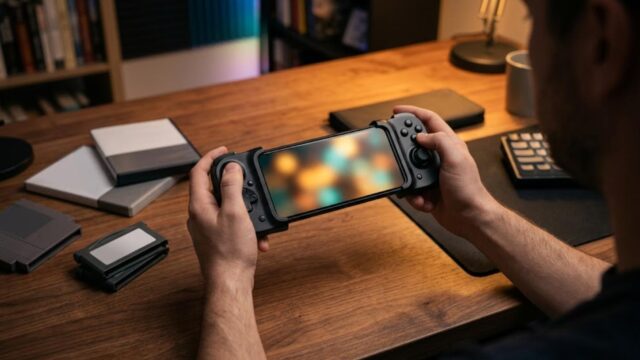
Once the emulator runs properly, the biggest remaining improvement is physical controls. PS1 games were designed around a gamepad with shoulder buttons; touch overlays cover the screen you are trying to look at and make precise inputs miserable. A controller does more for the experience than any amount of settings tuning.
Clamp-style versus standalone pads
- Clamp-style (telescoping, phone slots into the middle). The whole thing becomes one handheld unit. Best for travel, and the wired versions have essentially no added latency. The downside is that a phone in a thick case may not fit, and heavy phones can feel unbalanced.
- Standalone wireless pads. The phone goes on a stand and you sit back. More comfortable over long sessions, and you probably already own something suitable — most modern console-style pads pair with Android over Bluetooth without any extra software.
On connection: USB-C OTG (wired) gives the lowest latency, Bluetooth gives you freedom of movement. For PS1-era games Bluetooth is comfortably good enough; the difference matters more for fighting games and precision platformers than for RPGs. If you go wired, make sure the cable or adapter actually supports OTG data rather than charge-only.
Storage: speed matters more than capacity
A converted PS1 title typically lands somewhere in the low hundreds of megabytes, so a 128 GB card holds a large collection without difficulty. Capacity is rarely the constraint.
What you should look at is the Application Performance Class marking — A1 or A2. That rating covers random read/write IOPS rather than the large sequential transfer speeds printed in big type on the packaging, and random performance is what determines whether a game loads promptly. Choose A1 at minimum, A2 if the price difference is small. Treat manufacturer sequential-speed claims as marketing unless you can find independent testing.
One caveat before you buy: microSD slots are disappearing from mainstream phones. Check your specific model rather than assuming, and if there is no slot, plan around internal storage or a USB-C drive instead.
Common questions
Can I move my saves from the desktop version?
Memory card saves transfer between DuckStation builds and are the most portable option. Save states are far less reliable across versions and platforms. If you are moving a long playthrough, save to the in-game memory card first, then copy that file across.
Which PS1 region should I emulate?
Match the BIOS region to the game where you can. North American releases are NTSC-U and run at 60 Hz; PAL releases from Europe and Australia ran at 50 Hz and are noticeably slower in a number of titles. If you grew up with PAL copies, a game running at NTSC speed will feel faster than you remember — that is correct behaviour, not a bug.
Is DuckStation still safe to install?
The Play Store listing is the developer’s own and the app is unmodified. The concern is longevity, not safety. Avoid third-party sites offering “modded” or “premium” builds of any emulator; the legitimate versions are free or, in the case of ePSXe and FPse, sold openly on Google Play.
Do I need a high-end phone?
No. PS1 emulation is undemanding by modern standards. A mid-range phone from the last four or five years will run most titles at 2x internal resolution without trouble. Upscaling and PGXP are what cost performance, and both can be dialled back.
Wrap-up
Three things to do today:
- Choose your app. DuckStation if you want to be playing in twenty minutes; RetroArch with Beetle PSX HW if you want a setup with a future; PCSX ReARMed if the phone is the limiting factor.
- Supply your own BIOS and game files. Dump the firmware from a console you own, read your discs with any external optical drive, convert to .chd. No download sites, no exceptions.
- Set internal resolution to 2x and turn PGXP on. Two changes, and the visual difference is immediate.
If you land on DuckStation, install RetroArch alongside it anyway. Point both at the same folder of .chd files and the same BIOS folder, and the day DuckStation finally stops working on a future Android release, you switch over in about a minute instead of rebuilding everything from scratch.


コメント