







Most people arriving at Saturn emulation on Android come from the same place: RetroArch is already installed, it already runs the SNES, the Genesis (Mega Drive in the UK and Australia) and the PS1, so the Saturn should just be one more core download. It isn’t. The Saturn is the one 32-bit console where the RetroArch route on Android runs into the core selection itself, not into your phone’s horsepower.
This guide starts there, because it is the question the rest of the setup depends on. Once the emulator choice is settled, the actual work — getting your own discs onto the device, and then tuning four or five settings — is short.
- The short version
- Picking a Saturn emulator on Android: what the RetroArch documentation actually says
- RetroAchievements on Saturn, and what HARDCORE mode costs you
- Getting your own discs onto the device
- Settings, organised by the symptom you have
- Free version, paid version, and the subscription part
- Why the Saturn was hard in the first place — and what changed in 2026
- If Android isn’t the right target
- Where the law sits: a country-by-country note
- Bottom line
The short version
- On Android in 2026, the standalone app Yaba Sanshiro 2 is the realistic choice. The reasoning is in the next section, and it is documented by libretro, not by us.
- You supply the discs. The workflow assumes you own the physical Saturn discs and convert them yourself. The developer recommends the CHD format.
- A Saturn BIOS is optional. The app ships with a built-in BIOS. The official guide’s wording: “Not required as the app has a built-in BIOS, but using an original BIOS can improve compatibility with certain games.”
- Two settings do most of the heavy lifting — CPU Core and Rendering Mode — and one of the recommended options is hardware-restricted, which is covered below.
Picking a Saturn emulator on Android: what the RetroArch documentation actually says
This is the part the English-speaking emulation scene asks about first, and it deserves sourced answers rather than opinion. RetroArch offers two Saturn cores. Here is what libretro’s own documentation says about each.
The YabaSanshiro core: marked outdated by its own docs
The libretro documentation for the YabaSanshiro core describes it in plain terms: “This core is outdated, known for having many issues, and unmaintained.” That is the maintainer-side description, not a user review. Its stated requirement is OpenGL 3.3 or OpenGL ES 3.0, and a BIOS is listed as optional.
The important detail for anyone tempted to install it anyway: this core is a snapshot of an older codebase. The standalone Android app of the same lineage has kept moving — including a rendering rewrite during 2026, discussed further down — while the core has not. Choosing the core means choosing the older engine and inheriting the issues the documentation warns about.
The Beetle Saturn core: not documented as running on Android
Beetle Saturn is the accuracy-focused option, and on a desktop it is a reasonable pick. On mobile, the documentation is the blocker. libretro’s page states: “It currently runs on Linux, OSX and Windows.” Android is not listed as a supported platform. When the project’s own documentation does not claim a platform, that is the answer you plan around — not something to disprove by trial and error on a phone.
Beetle Saturn also requires a BIOS; the documentation names the specific files it expects (sega_101.bin for the Japanese unit, mpr-17933.bin for the North American and European units). Where those files come from is out of scope here and stays out of scope: this guide assumes hardware and discs you own.
What that leaves
| Option | What the official documentation says | Practical result on Android |
|---|---|---|
| RetroArch — YabaSanshiro core | “outdated, known for having many issues, and unmaintained”; needs OpenGL 3.3 / OpenGL ES 3.0; BIOS optional | Runs, but you are running a frozen older engine |
| RetroArch — Beetle Saturn core | “It currently runs on Linux, OSX and Windows.”; BIOS required | Android is not listed as a target platform |
| Yaba Sanshiro 2 (standalone app) | Maintained Android-first app with its own setup guide; built-in BIOS, original BIOS optional | The option actually built and documented for the platform |
So the 2026 answer is not “the standalone app is better than RetroArch” in the abstract. It is narrower and more defensible: on Android, the RetroArch path gives you either a core its own maintainers call unmaintained, or a core whose documentation does not list your operating system. That is why the standalone app wins this particular matchup, and it is worth knowing the reason rather than the conclusion — if the Beetle Saturn documentation ever adds Android, the calculation changes.
One aside that belongs to the hardware rather than the software: the recommended polygon setting in the standalone app is restricted to certain GPUs (details in the settings table), so the phone you own does influence which “recommended” options you can actually select.
RetroAchievements on Saturn, and what HARDCORE mode costs you
RetroAchievements support is one of the main reasons English-speaking players stay inside RetroArch, so it is worth being explicit: Yaba Sanshiro 2 has it too, linked through the app’s Account tab. The app lists it as work in progress, which is how we will describe it here — supported games get achievements and leaderboards, and the feature is still being built out.
The rule that matters before you start a run is the mode restriction. In the app’s own words, “HARDCORE mode prohibits the use of save states and cheats”, and hardcore is required for mastery awards and for leaderboard participation. Read that alongside two other facts from the same app:
- The app’s Account tab can link RetroAchievements and Discord, and supports sign-in with Google or Apple.
- The in-game menu’s Action Replay Code entry (cheat codes, sign-in required) is exactly the kind of feature hardcore forbids.
There is a second wrinkle specific to the Saturn. Because hardcore takes save states away from you, your only safety net is the console’s own in-game saving to backup RAM — which is the correct habit on this platform anyway, since the developer’s documentation openly cautions about save-state reliability (“this may not always work perfectly, so caution is advised” for local states, and the cloud variant is described as “not fully reliable”). Treat in-game saves as primary and save states as a convenience, hardcore or not.
Note also that the in-game menu’s Action Replay Code is not the same thing as the Cartridge setting’s mention of Pro Action Replay. The Cartridge setting is about emulating physical expansion carts, and the official guide states plainly that “Pro Action Replay and Netlink are not supported.” Two unrelated features, similar names.
Getting your own discs onto the device
The Saturn is a CD-ROM console, so the source material is a disc you own, converted by you into an image file. The official guidance is direct about the format: “you need to convert the CD-ROM to an image file. We recommend using the CHD format.” The developer distributes conversion tooling for this. This guide does not discuss obtaining game data any other way, and there is no version of that discussion further down the page.
Android 10 and later restricts free file access, so there are three supported ways to get the resulting files into the app:
- USB (MTP), directly. Copy into Android/media/org.devmiyax.yabasanshioro2.pro/games.
- Via SD card. Launch the app once first so it creates that folder, copy the files on a PC, then put the card back in the device.
- Via cloud storage. Put a CHD file, or an ISO compressed into a ZIP, on SAF-compatible storage (Google Drive, Dropbox, OneDrive) and pick it from the app’s “+” tab.
The Add Game file picker accepts CHD, ISO and CUE among others. Scanning a whole folder at once is a paid-version feature, so on the free version you add titles individually.
Practical notes for the USB and SD routes: a USB-C card reader or an OTG adapter saves a lot of time versus phone-to-PC transfers, and CHD images of full CD-ROMs are large enough that card capacity is worth thinking about before you start converting a shelf of discs.
Once titles are added, the app’s bottom navigation has five tabs — Games, Backup, Add (+), Settings and Account — with search and sorting (Name, Date Added, Recently Played) in the toolbar. You can also create a home-screen shortcut per game, using the box art as the icon and the title as the label; that requires Android 8.0 (Oreo) or later.
Settings, organised by the symptom you have
Start with the recommended defaults and change one thing at a time. The options below are the real entries in the app’s settings screens; the UI labels are given in English exactly as they appear.
Symptom: it runs too slowly
| Setting | Option to use | What the documentation says |
|---|---|---|
| CPU Core | New Dynamic Recompiler (Recommended) | Converts SH2 instructions to ARMv8a at runtime for high-speed emulation; may sacrifice accuracy due to less precise time control |
| CPU Core | Interpreter | High accuracy, but “less than half the speed” of the dynamic recompiler — a troubleshooting tool, not a daily driver |
| Rendering Mode | OpenGL (Recommended) | The default path; Software is “Accurate but slow CPU-based emulation.” |
| Frameskip | On (default) | Leave enabled unless you are chasing a specific visual problem |
| Rendering Resolution | Native / Original before 1080p or 4x | Upscaling is the first thing to give back on a mid-range device |
Two related toggles sit in General: Use SH2 Cache (emulates the SH2 cache for better accuracy) is on by default, and Use CPU Affinity (pinning threads to specific CPU cores) is off by default. Show FPS under Performance is the honest way to tell whether a change helped; Speed Limit offers normal speed, double speed and unlimited.
Symptom: the picture is wrong
| Setting | Options | Notes |
|---|---|---|
| Aspect Ratio | Original (Recommended) / 4:3 / 16:9 / Full screen | Original is the documented recommendation |
| Polygon Generation Type | GPU Tessellation (Recommended) / Triangle using perspective correction | GPU Tessellation is fast because the GPU does the subdivision, but “it can only be used with NVIDIA or the latest Qualcomm GPUs” |
| Filter | None / FXAA / Scanline / Bilinear | “Available only when OpenGL rendering is selected.” |
| Rendering Mode | Vulkan (Experimental) | “Available only on devices with Vulkan hardware support.” Selecting it locks Polygon Generation Type to GPU Tessellation and enables Compute Shader automatically; the Filter option is OpenGL-only |
| RBG Resolution | Original / 2x / 720p / 1080p / Native | Rotated-background resolution is a separate control from Rendering Resolution |
That GPU restriction is the single most consequential line in the settings for buyers: on a device without an NVIDIA or recent Qualcomm GPU, the recommended polygon path is simply not available to you, and the perspective-correction alternative is described in the documentation as looking three-dimensional but differing from how the Saturn actually worked.
Also in Display: Lock Landscape Mode, Hide Status Bar and Navigation Bar, and a 90 Degree Rotation option intended for games whose vertical playfield originally assumed a physically rotated TV — relevant mainly to vertical shooters such as Galactic Attack, the name that title shipped under in North America and Europe.
Symptom: the sound is wrong
Two Sound settings cover most cases. Sound Engine offers Current (Recommended), which emulates the SCSP DSP for accurate effects including ADX but “requires a high-performance Android device”, and Legacy, which skips SCSP DSP emulation for lower accuracy and better performance on weaker hardware. Sound Time Synchronization Mode offers CPU Time (Recommended) — the documentation states it “is required for games like X-Men vs. Street Fighter”, where sound-CPU and main-CPU timing must line up — and Real Time, which keeps audio steady when CPU emulation lags but can break games needing strict synchronisation. If a fighting game’s audio drifts out of step, CPU Time is the first thing to check.
Multi-disc games and analog control
The in-game menu carries Open CD Tray, which opens a virtual tray so you can swap to another image file — this is how multi-disc releases work. The same menu holds Exit, Reset, Memory Manager, Save State and Load State (plus cloud variants), Report, Action Replay Code (sign-in required), and Enable Analog Control, which the documentation ties to titles “such as Nights”.
Free version, paid version, and the subscription part
There is a free version and a paid version. The free version has a cap on how many games you can register and shows ads, and folder scanning is a paid feature. We are deliberately not quoting a price or a game limit here: both vary by store and change over time, so check your country’s Google Play listing for the current figures.
One detail worth reading carefully before you plan around it: the app’s cloud backup feature is described as requiring a Pro subscription — a recurring arrangement, in the app’s own wording, not a one-time unlock. Local backups and the Shared tab (browse, rate and import save data shared by other users, sign-in required) sit alongside it in the Backup Manager, and Cross-Device Sync issues a one-time PIN so you can sign in on a Windows PC with the same account.
The sensible path: run the free version against a handful of the discs you already own, confirm that the titles you actually care about behave on your device, and only then pay.
Why the Saturn was hard in the first place — and what changed in 2026
Short version, because this is background rather than a setting you can touch. The Saturn used two drawing chips: VDP1 for polygons and sprites, VDP2 for background layers and compositing. VDP2 computes a pixel’s colour by reading the value of the next layer down first, whereas a modern GPU’s alpha blending can only reference what is already in the framebuffer. Port that naively and transparency comes out too transparent. That mismatch is a large part of why Saturn emulation lagged its contemporaries for so long.
During 2026 the developer published work on exactly this: a post on 9 May 2026 on reproducing Saturn drawing with compute shaders and making VDP1 rendering more accurate, and one on 31 May 2026 on rebuilding VDP2 to reproduce the console’s read-and-composite pipeline per pixel in real-hardware order. A third post on 2 August 2026 covered rebuilding the Saturn’s development environment on a modern PC.
Two caveats, stated plainly. First, this is development activity, not a switch in your settings screen — the official settings guide lists no “experimental rasterizer” option, so configure only the real entries covered above. Second, on the effects of the VDP1 rewrite we are relying on secondary reporting: segasaturnshiro.com (15 May 2026) described the new approach as running a thread per screen pixel back to the original VDP1 coordinates rather than splitting quads into triangles, reported that raw drawing throughput is higher on the old method while the new one still holds 60fps, and cited improvements to polygon seams in Sega Rally Championship and the 3D flags in Sega Worldwide Soccer. Treat that as a report, not as a measurement we made.
In the same vein: Android is the lead platform for this project, and other platforms tend to follow behind rather than move in step. If you are choosing where to play, that is a point in Android’s favour today.
If Android isn’t the right target
Sometimes the honest answer is that the phone is not the tool. Three alternatives, without pretending any of them is free of effort:
- A Windows PC. SSF is a long-standing Windows-only emulator dedicated to the Saturn, and on the desktop the Beetle Saturn core is a genuine option in a way it is not on Android. Setup for either is a separate topic and is not covered here.
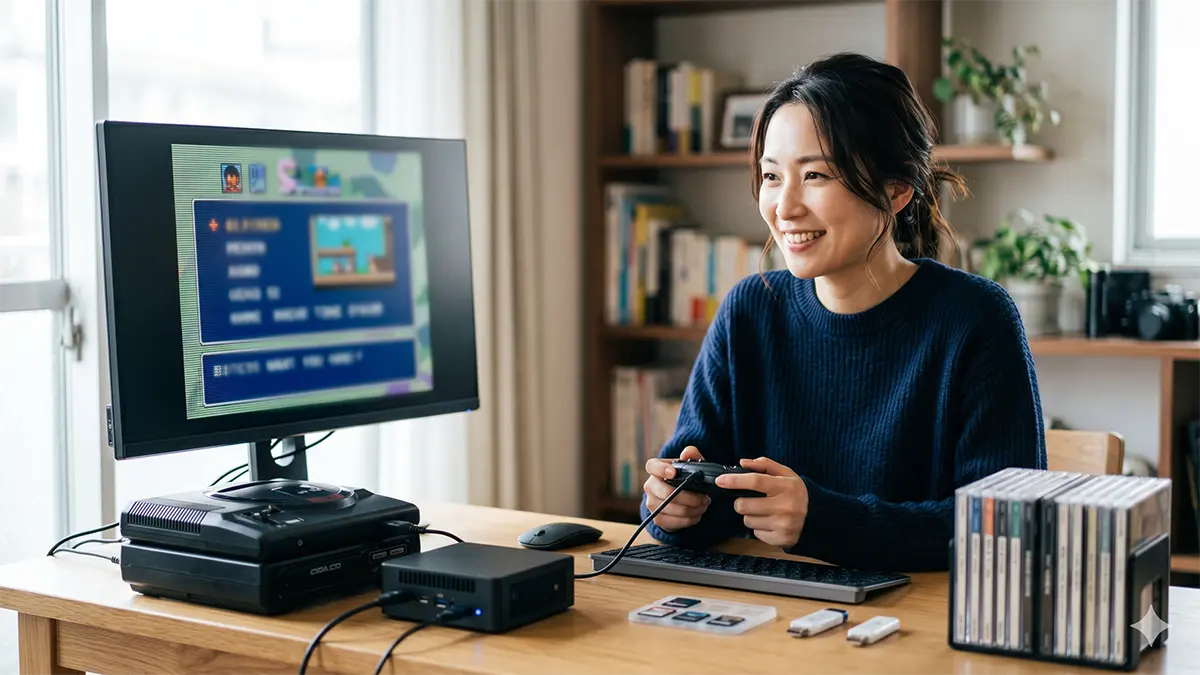
- A small desktop machine as a dedicated box. Compact mini PCs have become cheap enough that a permanently connected emulation machine next to the TV is a reasonable alternative to a phone on a clamp, with a real keyboard and no battery or thermal ceiling.
- Original hardware on a modern TV. A Saturn still works; the problem is the display. Analogue output into a current television needs a converter or scaler, and quality varies enormously across the price range. This is a hardware project rather than a software one.
Where the law sits: a country-by-country note
This is general information, not legal advice. Copyright law differs by country and changes over time. If a specific situation matters to you, consult a qualified lawyer in your jurisdiction.
The working rule throughout this guide has been simple: dump games you legally own, from discs you legally own, using hardware you legally own. Nothing here describes downloading game data, disc images or BIOS files, and that omission is deliberate rather than accidental.
Even under that rule, the position is not a clean “yes” anywhere:
- United States. There is no settled case law establishing that making a personal backup of a game you own is fair use — it is frequently asserted and rarely tested. Separately, the DMCA’s anti-circumvention provisions restrict bypassing technological protection measures, and that question is legally distinct from whether the copy itself would be a fair use. Neither point is resolved by owning the disc.
- United Kingdom. The private copying exception introduced in 2014 was quashed following a 2015 High Court challenge, so the UK has not had a general private-copying exception since.
- Australia. Format-shifting provisions exist but are narrow and media-specific, and separate restrictions apply to circumventing technological protection measures.
- Canada. Some reproduction for private purposes is permitted under the Copyright Act, but circumventing technological protection measures is prohibited separately from the copying question.
What is not in dispute in any of these countries: downloading games you do not own, and distributing game data or BIOS files to other people, is infringement. That is why this guide will not point you at sources for either, in plain terms or in euphemism.
Bottom line
If you want the Saturn on Android in 2026, the emulator decision is made for you by documentation rather than by taste: one RetroArch core is described as unmaintained by the people who maintain it, and the other does not list Android as a platform. The standalone app is what remains, it is actively developed, and it ships with the settings and the save infrastructure to be used seriously — including RetroAchievements, with the hardcore restrictions that come with it.
Start with the recommended defaults. Convert a couple of discs you own to CHD, get them across by USB or SD card, check your GPU against the polygon setting, and adjust one thing at a time from there.
コメント