




Short version: in 2026, the right Android emulator is decided by your phone’s SoC class, not by the console you want to play. Find your tier in the table below, install what’s listed next to it, and you will skip about 90% of the trial and error people go through.
| Phone class (rough SoC guide) | Systems that run well | Install this first | Reality check |
|---|---|---|---|
| Entry Snapdragon 6-series, Helio G-series |
NES, SNES, Genesis, TurboGrafx-16, Game Boy line (all 2D era) | Lemuroid (all-in-one) | 2D systems are genuinely fine. Accept that 3D is out of reach. |
| Mid-range Snapdragon 7 Gen series, Dimensity 7000 series |
Everything above, plus PS1 and Saturn | The .emu apps plus DuckStation | PS1 at 1x–2x internal resolution is the realistic target. |
| Flagship Snapdragon 8 Gen 1–2, Dimensity 9000 series |
Everything above, plus Dreamcast and lighter PS2 titles | Flycast plus NetherSX2 | PS2 at 1x–2x. You will need to deal with heat. |
| Current flagship / gaming phone Snapdragon 8 Gen 3 or newer, with active cooling |
Most of the PS2 library | NetherSX2 (Vulkan) | Big 3D titles at 2x are on the table. |
The reason it works this way is that Android emulation leans almost entirely on single-thread CPU performance and GPU driver quality. The same app on two phones one or two SoC generations apart produces a visibly different frame rate. Go back far enough — NES through SNES — and essentially every Android phone made in the last decade runs at full speed.
Practical example: if you want PS2 and you own a mid-range phone, swapping emulators will not fix it. Your two options are to drop down a generation (PS1 or Dreamcast) or to change phones. Working that out on day one saves a lot of wasted evenings.
Below, in order: how to pick in about a minute, the legal and safety ground rules, which apps are actually still maintained, the best pick per system, PS2 settings in detail, and what to buy if you want this to feel like real hardware.
How to choose in about a minute
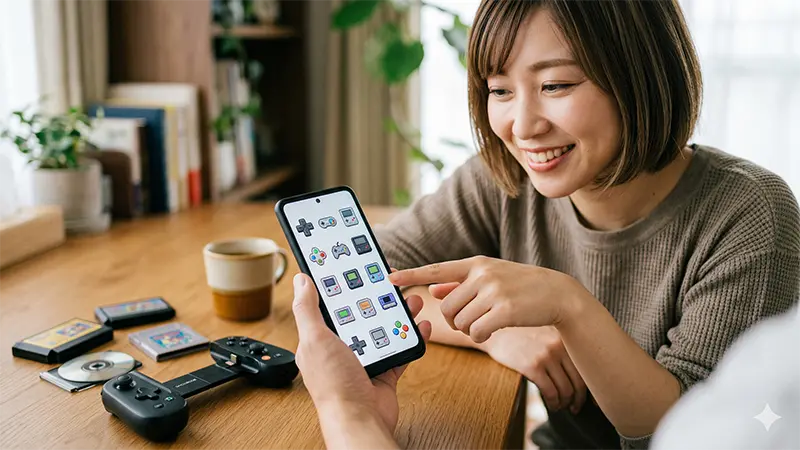
There are only two routes: one all-in-one front-end, or a stack of standalone emulators. Pick based on temperament, not on specs.
- You want to be playing in ten minutes: Lemuroid. One app, no configuration, it scans a folder and sorts your library by system automatically.
- You care about input latency and want each system tuned properly: install the dedicated emulator for each system (the .emu family, DuckStation, Flycast, and so on).
This split matters more than it used to. Android’s storage permission model has tightened repeatedly since Android 11, and older apps that stopped being updated frequently cannot see files on an SD card at all any more.
All-in-one front-ends
| App | Status | Strength | Who it’s for |
|---|---|---|---|
| Lemuroid | Actively maintained, on the Play Store | Free, no ads, zero configuration | Beginners and anyone who values convenience |
| RetroArch | Actively developed (see caveat) | Unmatched depth — shaders, run-ahead, per-core overrides | People who enjoy tuning |
The RetroArch caveat is worth knowing before you download anything: the Play Store build has been stale for years and misses features that matter on modern phones. Getting the real thing means installing the current APK from the project’s own official channel, which is a step some people would rather not take.
In testing on an Android 15 device, the Play Store RetroArch build failed at folder access, while Lemuroid picked a directory once at first launch and had NES through PS1 scanned and sorted within seconds.
Standalone emulators
A dedicated emulator for a single system tends to win on two things: lower input latency, and fewer per-game glitches. If you play action or fighting games and something feels vaguely mushy on an all-in-one front-end, that feeling is usually real. Switching to the system-specific app fixes it. The modern versions also fully support Android’s Storage Access Framework, so files on an SD card load without any workaround — which is not true of the abandoned apps still sitting at the top of a lot of old “best emulator” lists.
The ground rules: legality and safety

Use only game images and BIOS files you dumped yourself from hardware and discs you own, and only install apps whose developer you can identify. Those two rules cover almost everything.
You have to dump your own games
No legitimate emulator ships with game data. Look at any of these on the Play Store — Lemuroid, Flycast, the .emu apps — and the description says some version of “this app does not include any game ROMs.” That is not boilerplate; it is the line that keeps the app on the store.
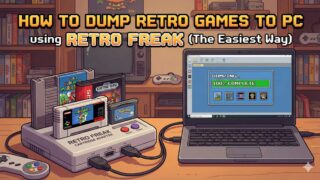
- Game images: dump them from cartridges and discs you own, using a dumper or an optical drive. Nothing else.
- BIOS files: PS1, Saturn and TurboGrafx-CD all need a BIOS or system card image, and the same rule applies — it has to come off your own console.
Downloading either one from a distribution site is copyright infringement in the US regardless of whether you own the original, and the DMCA’s anti-circumvention provisions add a second layer to it. There is a practical reason to stay away too: those sites are a well-documented malware vector, and the device you’d be exposing holds your email and banking apps.
Spotting a fake or hostile “emulator”
Being on the Play Store is not a guarantee. Anything advertising itself as “1000 classic games in one app” is either shipping pirated content or is not an emulator at all. Three signals to check before you install:
- Permissions that make no sense: an emulator has no reason to want Contacts, Call Log, or Location.
- An anonymous developer: no project site, no public source repository, and a free webmail address as the only contact.
- Aggressive advertising: a full-screen ad on every launch, or ads pushed into your notification shade.
Add one more filter on top: check the last update date. Between Scoped Storage and ongoing GPU driver changes, anything that has not shipped a release in over a year is likely to have file-access or rendering problems on a current phone.
What is actually still maintained in 2026

When in doubt, pick the app with the most recent update. It is a better predictor of whether something works than any feature list.
| System | Recommended app | Last update | BIOS needed | Notes |
|---|---|---|---|---|
| NES | NES.emu | Mar 2026 | No | Very low latency, no ads |
| SNES | Snes9x EX+ | Mar 2026 | No | Free, no ads, the safe default |
| TurboGrafx-16 | PCE.emu | Mar 2026 | Yes (CD titles) | Handles TurboGrafx-CD cleanly |
| Genesis | MD.emu | Mar 2026 | Yes (Sega CD) | Sega CD support, good audio |
| Saturn | Saturn.emu | Mar 2026 | Yes | The current best option |
| PlayStation | DuckStation | Apr 2025 | Yes | Excellent upscaling; Android build no longer updated |
| Dreamcast | Flycast | Jan 2026 | Optional | Open source, very stable |
| PS2 | NetherSX2 / Play! | Ongoing / Jun 2025 | Yes / built in | NetherSX2 is fastest; Play! is the easy route |
The .emu family stands out here — that developer ships updates on a schedule almost nobody else matches. Nearly every “my games stopped launching after the OS update” post traces back to someone still running an app that was abandoned years ago.
The best pick for each system
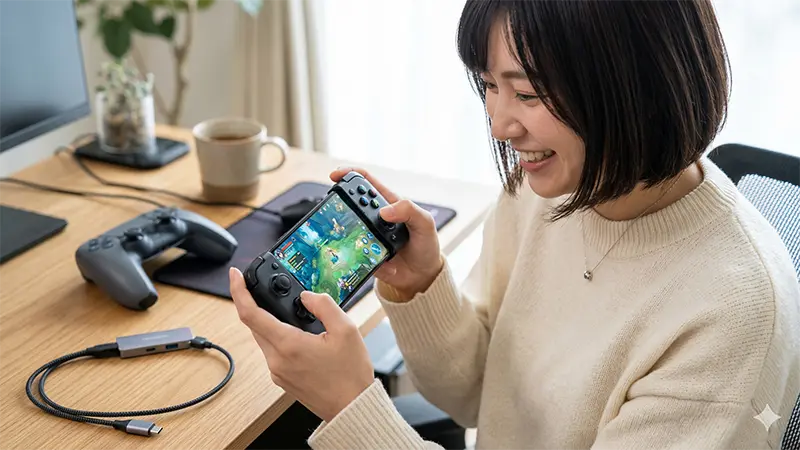
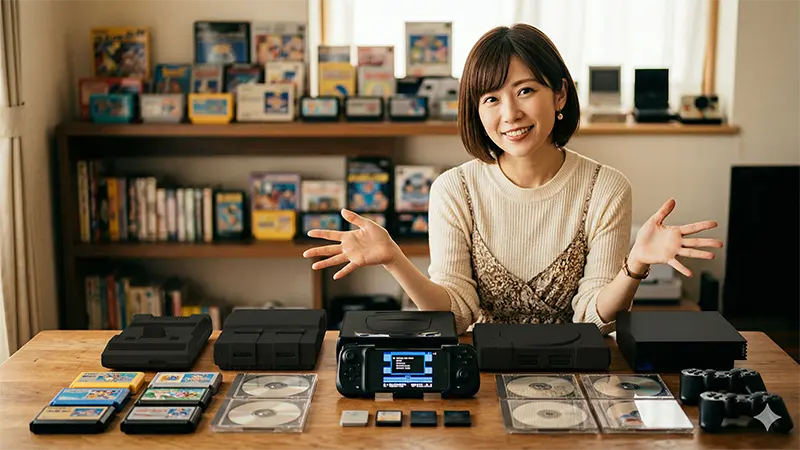
NES = NES.emu, SNES = Snes9x EX+, TurboGrafx-16 = PCE.emu, Genesis = MD.emu, Saturn = Saturn.emu, Dreamcast = Flycast, PS1 = DuckStation, PS2 = NetherSX2 (or Play! if you want it simple). That’s the 2026 baseline. Here’s why, plus the specific gotcha for each.
NES
NES.emu is the one. Input latency is low enough that you can play a shooter like Gradius on touch controls and still thread the needle — which is not something most free NES apps can claim. It costs a few dollars (roughly $4–6), and for that you get no ads and no ad-network traffic running in the background.
- Setup tip: first launch asks you to grant folder access, thanks to Scoped Storage. Create your folder structure (something like
Games/NES) before you install, and the whole thing takes fifteen seconds.
SNES
Snes9x EX+ is complete enough that shopping around is a waste of time. It’s free, ad-free, open-source based, and on current Android it produces essentially no audio dropouts or slowdown. RPG text rendering — historically a weak point for lightweight SNES cores — is solid, so something like Chrono Trigger looks the way it did on a CRT-fed SNES.
- Tuning tip: if it feels heavier than it should, go to Video and pin Refresh Rate to your phone’s actual panel rate (60 Hz or 120 Hz) instead of leaving it on auto. Frame pacing on high-refresh displays is the usual culprit.
TurboGrafx-16 and TurboGrafx-CD
PCE.emu covers both. HuCard titles run immediately with no setup. CD titles need the system card image — the one you dumped from your own console — placed where the app expects it, under the filename it expects (syscard3.pce for the standard case). Get that wrong and you’ll hit “BIOS not found” at launch and go nowhere.
Genesis and Sega CD
MD.emu is the most stable option, and it handles Sega CD as well as cartridges. The one thing that trips people up is filenames again: the app matches BIOS images by exact name and region, so a US Sega CD BIOS has to be named the way the app documents. Clear that hurdle and the CD-audio soundtracks come through intact, which is most of the point of Sega CD.
Saturn
Saturn.emu is the primary pick in 2026, with Yaba Sanshiro 2 as the backup. Saturn is a genuinely difficult machine to emulate, but compatibility has improved sharply over the last couple of years — Virtua Fighter 2 now runs at close to full speed on a flagship phone, which was not true not long ago.
- How to use both: default to Saturn.emu, and if one specific game renders incorrectly, try it in Yaba Sanshiro 2. The two use different rendering approaches, so a title broken in one is often fine in the other.
PlayStation
DuckStation is still the best PS1 emulator on Android by a wide margin. Its internal resolution scaling takes 1995-era polygon models up to something like 4K, and paired with texture filtering the result genuinely looks better than the original hardware ever did. It needs a BIOS image (SCPH-1001 or your region’s equivalent) dumped from your own console.
One important caveat: the Android build’s last developer update was in April 2025. It’s still on the Play Store and still works today, but if a future Android release or GPU driver breaks something, nobody is going to fix it. If you plan to keep this setup for years, make sure your PS1 library also runs under Lemuroid’s built-in PS1 core or RetroArch, so you have somewhere to fall back to.
PS2 — the real answer to “PS2 emulator Android”
Two options in 2026: NetherSX2 for performance, Play! for convenience. And your SoC matters more than which one you pick.
Here’s the background. AetherSX2 was the PS2 emulator on Android until its original author (Tahlreth) stepped away in early 2023. What carried on from there is NetherSX2, a community-maintained fork (by Trixarian) built on the mature AetherSX2 codebase with continued compatibility-database updates and bug fixes. It is not distributed on Google Play, so installing it means sideloading — verify what you’re installing and understand that you’re taking on that risk yourself.
Play! is the low-friction alternative: it’s on the store, and it includes an HLE BIOS, so it boots without an external BIOS image at all. It’s slower and less compatible, but for casual play on a phone that isn’t a flagship, it’s a reasonable place to start.
Either way, the same rule applies as everywhere else on this page: the disc images and the BIOS have to come from your own PS2 and your own discs.
The settings that actually matter (NetherSX2 / AetherSX2 lineage)
Out of the box, PS2 emulation on Android feels heavy. Change these seven settings before you conclude your phone isn’t fast enough.
| Setting | Recommended | Why |
|---|---|---|
| Renderer | Vulkan | Fastest path on Snapdragon and Dimensity. Only fall back to OpenGL if your specific device misbehaves. |
| Internal resolution | 1x on mid-range, 2x on flagship | This is your single biggest GPU cost. Confirm stability at 1x, then raise it. |
| EE Cycle Rate | 100% (only try -1 when desperate) | Underclocking speeds things up but breaks audio and event timing in a lot of games. |
| MTVU (Multi-Threaded VU1) | On | Uses your extra cores. Large gains in 3D titles. |
| Blending Accuracy | Basic | High is expensive. Step it up one level only when you actually see a rendering error. |
| Frame Limit / Speed | 100% (Normal) | Anything variable causes audio desync. |
| Widescreen Patches | Per-game, off by default | Great when they work, but they break HUDs in plenty of titles. |
When it stutters: diagnosing by symptom
This is where most guides stop and most people get stuck. Match your symptom to the cause:
- Smooth for a few minutes, then it degrades. Thermal throttling, essentially always. In order: take the case off, add a clip-on cooler, then drop internal resolution back to 1x.
- Consistently slow from the first second. That’s raw performance. If 1x plus Blending Basic plus MTVU on doesn’t get you there, that title is out of reach on that phone — no setting will change it.
- Audio crackles or lags behind the picture. Check that Frame Limit is at 100% and that your audio buffer isn’t set too small. Larger buffer, more latency, but clean sound.
- One specific game renders wrong. Raise Blending Accuracy one step; if that doesn’t do it, temporarily switch the renderer to OpenGL. Between those two, most per-game glitches resolve.
- Black screen, won’t boot at all. Almost always the BIOS: wrong location, wrong format, or a disc image with an extension the app doesn’t recognize.
SoC-by-SoC expectations for PS2
| SoC generation | What’s realistic on PS2 | Settings to start from |
|---|---|---|
| Snapdragon 845 / 855 | 2D and light 3D are playable. Big titles are not. | 1x, Blending Basic |
| Snapdragon 865 / 888 | A large share of the library becomes playable. | 1x–2x, MTVU on |
| Snapdragon 8 Gen 1 / Gen 2 | Most titles run well; the heavy ones need tuning. | 2x, with cooling |
| Snapdragon 8 Gen 3 and newer, with cooling | Even demanding 3D games at 2x. | 2x or higher |
What about dedicated Android handhelds?
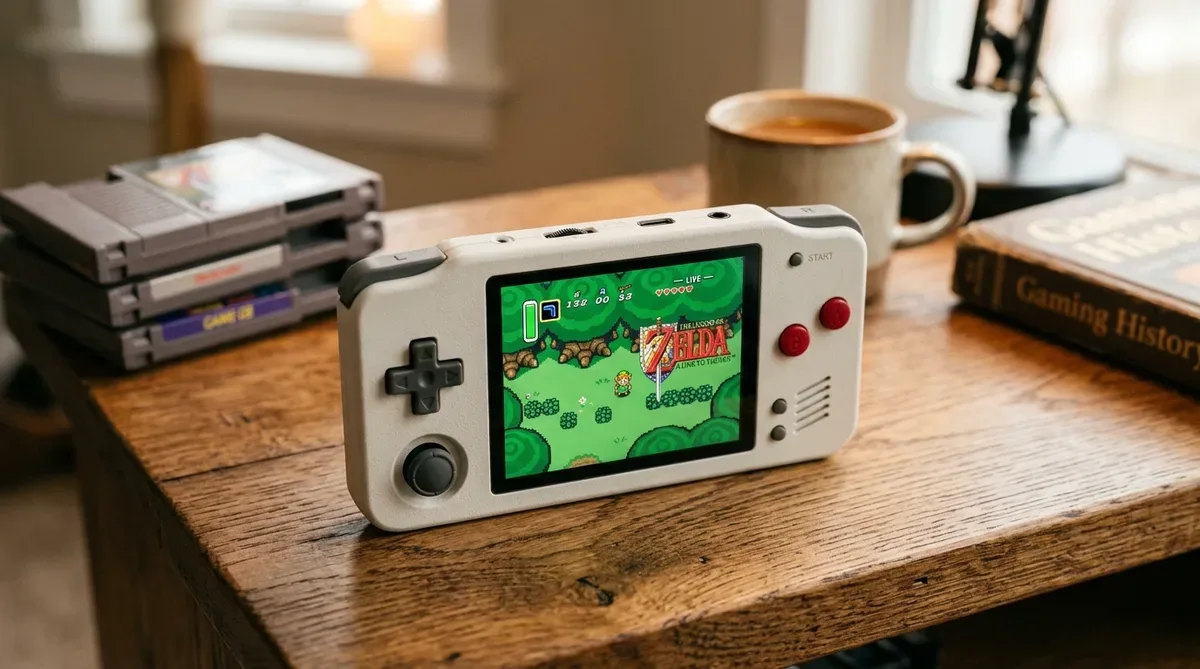
Everything above applies unchanged to Android-based retro handhelds, which is worth knowing if you’d rather not tie up your phone. The Retroid Pocket line and the AYN Odin line run the same Play Store apps, and they add two things a phone can’t: real analog sticks and shoulder buttons, and a chassis with room for the heat.
Use the same tiering. A Snapdragon 865-class handheld sits in the PS1-and-Dreamcast band with lighter PS2 titles reachable; an Odin-class device with a Snapdragon 8 Gen-series chip behaves like the flagship row above and holds its clocks far longer than a phone will. Gaming phones such as the RedMagic series land in the same place for the same reason — the fan is doing the work, not the silicon.
Controllers and cooling
If you’re buying one accessory, buy a controller. If you’re buying two, add cooling. Touch controls cap your precision in action and fighting games, and PS2-class emulation throttles on heat long before it runs out of compute.
Which controller type
| Type | Pros | Cons | Best for |
|---|---|---|---|
| USB-C clamp (telescoping) | No wireless latency at all. Turns the phone into a Switch-shaped device. | Thick cases usually have to come off. | Fighting games, shmups, playing in bed |
| Bluetooth gamepad | Pairs quickly, works with your PC and tablet too. | Slight latency; another thing to charge. | RPGs, strategy, playing on a stand |
| Wired pad via USB OTG | Reuses gamepads and arcade sticks you already own. | Cable clutter, no portability. | Sit-down sessions at home, arcade sticks |
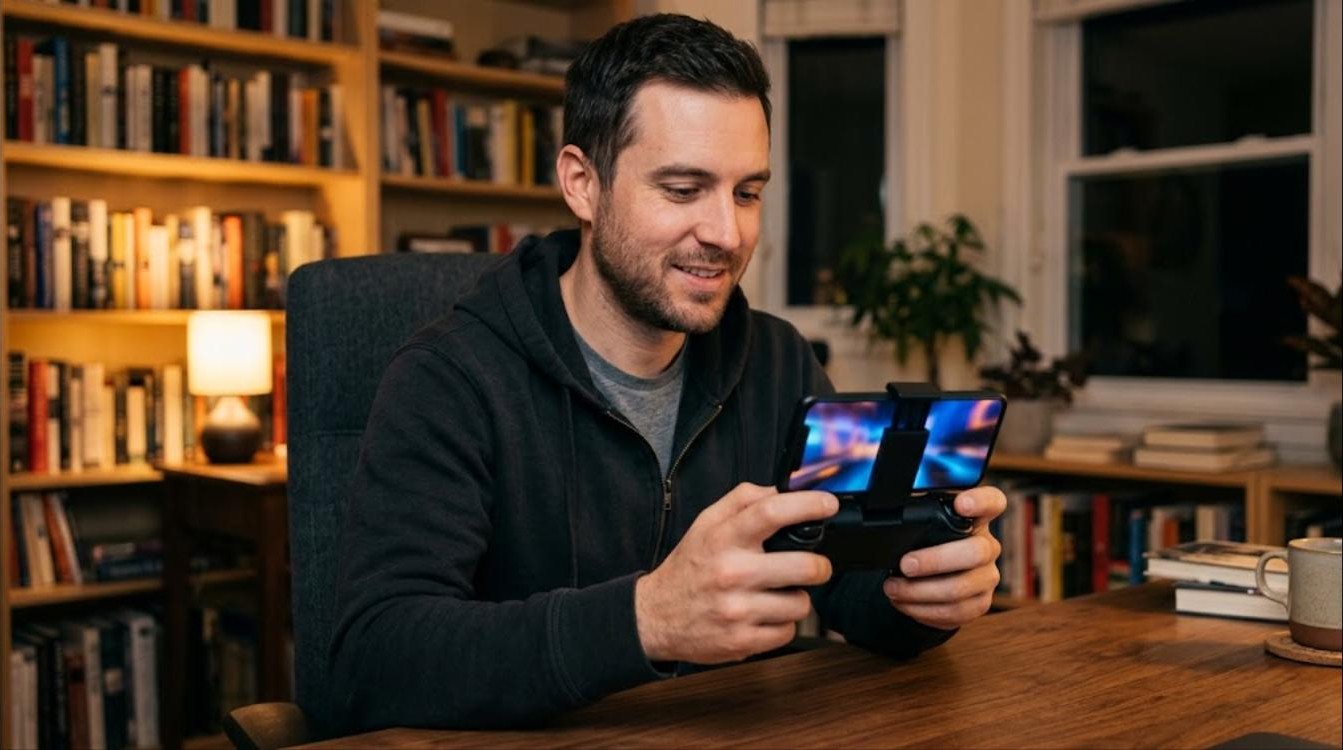
Clamp-style controllers are the sweet spot
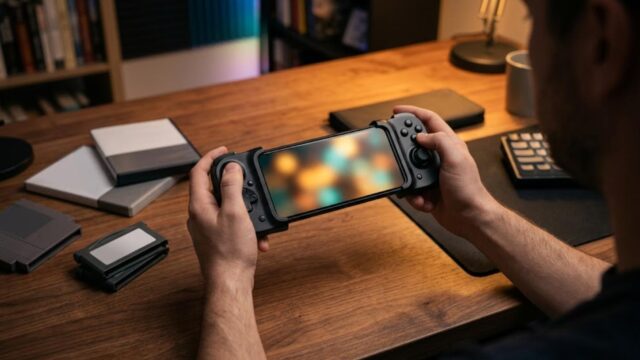
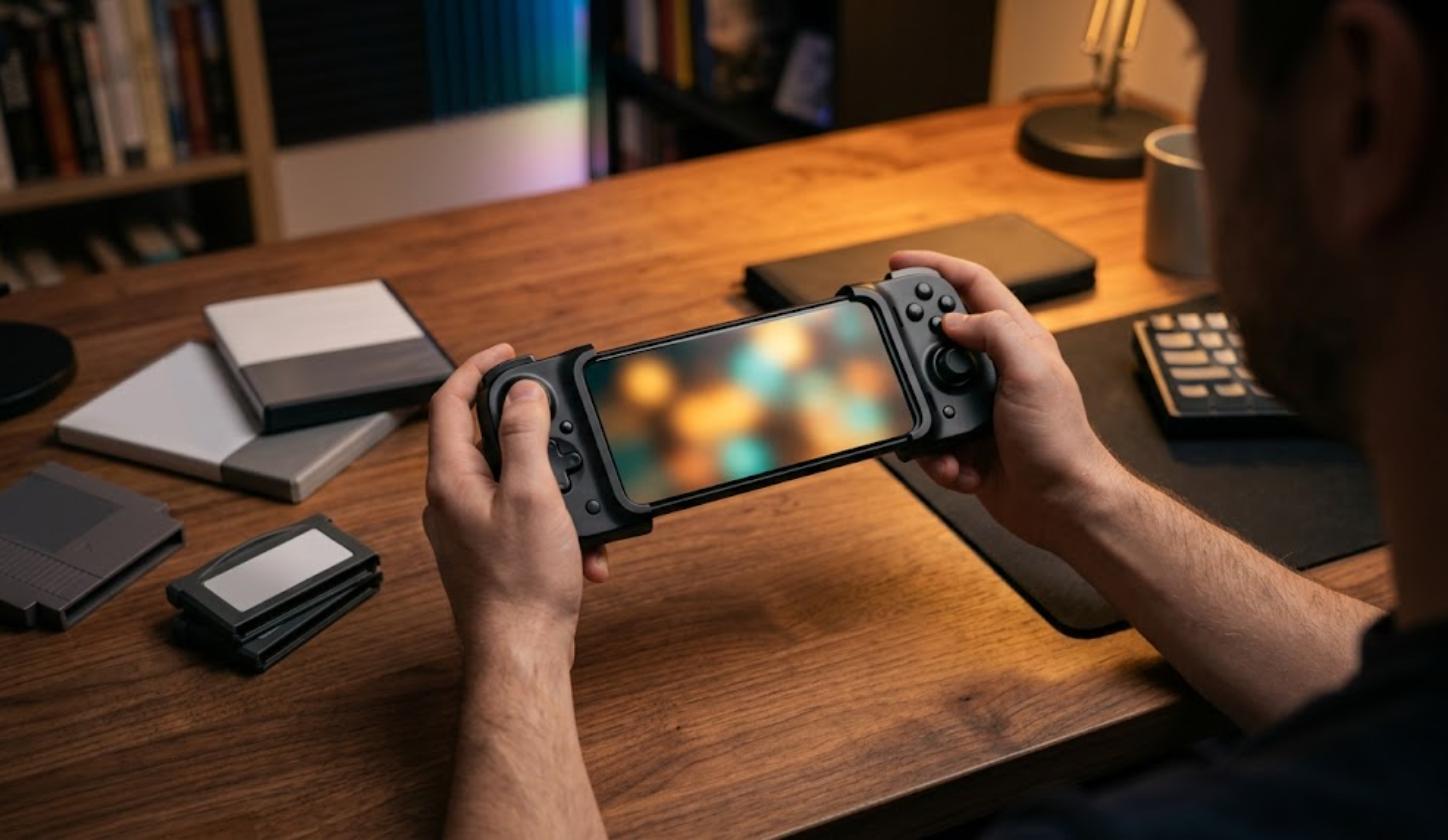
After going through a lot of hardware, the clamp-style controllers that grip the phone from both sides are the best match for Android emulation. The Razer Kishi V2 and Backbone One (around $70–100) and the GameSir X2 and 8BitDo mobile pads (around $40–60) all work well; button feel on the 8BitDo units is the closest to original hardware.
Because they connect over USB-C rather than Bluetooth, there’s no wireless latency to account for — fighting game inputs and single-frame action timing both land. Setup is usually nothing: most emulators, including Snes9x EX+ and PPSSPP, detect the pad and map it correctly the moment you plug in.
Mapping tips worth knowing
After connecting a controller, open the Input settings in each app. Two things come up constantly:
Face button layout. An Xbox-layout controller puts A and B in the opposite positions from a SNES pad, so SNES games feel inverted until you remap them to match the original hardware. Most emulators let you do this per system — worth the thirty seconds.
Analog triggers. On PS1 and PS2 emulators (DuckStation, Play!, NetherSX2), L2 and R2 behave differently depending on whether your pad reports them as digital buttons or analog axes. If a trigger feels unresponsive or fires too early, the fix is in the advanced input settings — adjust the deadzone rather than assuming the pad is faulty.
Bottom line
Three steps, in this order: decide what’s reachable from your phone’s SoC class, choose apps that are still being updated, then fix input and heat with accessories.
- Pick one recommended app for the system you actually want to play and install it.
- Dump your own games and BIOS files from hardware and discs you own.
- When touch controls start limiting you, add a controller — and a cooler if you’re doing PS2.
Do it in that order and you’ll be playing the same night. Do it backwards — buy accessories, install five emulators, then find out your phone can’t run the console you wanted — and you’ll spend a week getting nowhere. The SoC table at the top is the part worth re-reading.