









The console is in a closet. The cartridges are in a shoebox. Nobody has hooked a Super Nintendo Entertainment System to a modern TV in years, and the phone in your pocket is roughly four orders of magnitude faster than the machine those games were written for. Getting them running is not a performance problem. It has not been a performance problem since about 2012.
Three things actually go wrong: you pick the wrong app for what you want, Android’s storage permission model hides your files from the emulator, and the default button mapping feels wrong because a modern gamepad does not agree with a SNES pad about where “A” lives. This guide fixes those three, in that order, using menu paths and file formats taken from the developers’ own documentation rather than from memory.
- The short version: which app, and what it costs you
- Where the game files come from, and where US law actually sits
- The folder problem: why your game list is empty
- Snes9x EX+, start to finish
- RetroArch on Android: do not install it from Google Play
- NTSC or PAL: the stamp on your cartridge still matters
- Picture and sound, in the order that matters
- Controllers: the A/B problem, and how to connect
- Saves: two traps that quietly eat progress
- Troubleshooting
- The checklist
The short version: which app, and what it costs you
Two options are worth your time on Android. Snes9x EX+ is a single-system emulator built around Snes9x by Robert Broglia, part of his EmuEx family of apps. RetroArch is a frontend that runs emulator “cores” as plugins. Both are free, both play SNES cartridge dumps, and they are good at different things.
| What you want | Use | Why |
|---|---|---|
| Running a game inside ten minutes | Snes9x EX+ | Fewest screens between install and gameplay; the folder picker is the only real setup step |
| Fine control over frame pacing and latency | Snes9x EX+ | Exposes input rate, output rate, frame clock, present mode and blank frame insertion directly |
| CRT shaders and heavy post-processing | RetroArch | Large shader library; Snes9x EX+ keeps its video effects minimal by design |
| Swapping between emulation approaches for one game | RetroArch | Cores are interchangeable without changing apps |
| Cycle-accuracy above all else | RetroArch, bsnes-family core | Highest accuracy tier available, and the most demanding on the SoC |
Notice what is not on that list: raw speed. A mainline Snes9x core runs SNES content at full rate on hardware that would struggle to open a modern web page. Choose on features, not on benchmarks.
Where the game files come from, and where US law actually sits
This guide assumes you own the cartridges and are reading data off them yourself. A cartridge dumper (also sold as a cartridge reader) connects to a PC over USB and copies the ROM to a file; a phone alone cannot do this. The output is a .sfc or .smc file, typically a few hundred kilobytes to a few megabytes. A hundred games is still well under a gigabyte, so a microSD card is only worth buying if you are archiving other systems too.
On the legal side, three things are worth knowing if you are in the United States.
- 17 U.S.C. §117 lets the owner of a copy of a computer program make an archival copy, on the condition that all archival copies are destroyed if continued possession of the program stops being rightful. It was written for software, and courts have not neatly settled how it maps onto console cartridges.
- DMCA §1201 separately prohibits circumventing access controls. The Copyright Office revisits exemptions every three years; in the Ninth Triennial proceeding the final rule took effect on 28 October 2024 and runs to 28 October 2027. That round declined to create the remote-access video game preservation exemption that the Video Game History Foundation and Software Preservation Network had asked for. The preservation exemptions that do exist are written for eligible libraries, archives and museums, not for individuals at home.
- Downloading a ROM you did not dump is a straightforward copyright problem regardless of whether you own the cartridge. This guide names no sites and links to none.
This is general information, not legal advice. Copyright law varies by country and by fact pattern, and nothing here has been reviewed by an attorney. If the answer matters to you, ask one.
The folder problem: why your game list is empty
This is the single most common failure, and it has nothing to do with the emulator. Since Android 11, apps cannot freely walk your filesystem. They have to be granted access to a specific folder through the operating system’s document picker, and that grant happens once, in a dialog that is easy to dismiss without reading.
Set up the folder before you open the emulator:
- Create a shallow folder on internal storage — something like Roms/SNES. Depth is the enemy here; a folder buried six levels down is harder to re-grant later.
- Use ASCII-only names for the folder and the files. No accented characters, no CJK, no colons or question marks.
- Put the ROMs there directly. Avoid dropping them loose in Downloads, which is the most permission-restricted location on the device.
- Archives are fine. Snes9x EX+ officially supports .smc and .sfc optionally compressed with ZIP, RAR or 7Z. Keep one game per archive; multi-game archives are where ambiguity starts.
If the list still comes up empty, you almost certainly granted access to the parent of the folder, or dismissed the picker. There is also a documented escape hatch: EmuEx apps support an App Media Folder at Android/media/[app package name] — for Snes9x EX+ that is Android/media/com.explusalpha.Snes9xPlus. Files placed there are readable with no special permission at all. The developer documents this as the workaround for Android TV boxes that ship without the OS document picker, but it works as a general fallback on any device where the picker is fighting you.
Snes9x EX+, start to finish
Snes9x EX+ is on Google Play under Robert Broglia, package com.explusalpha.Snes9xPlus. Check the developer name: there is a legitimate sibling app called plain Snes9x EX, which is built on the older Snes9x 1.43 codebase — faster, less accurate, and it writes save states in a different format. The “+” is the one you want.
- Install, launch, and use Browse For Folder in the file browser. Grant access to Roms/SNES itself, not its parent.
- Load a game and confirm it runs. Then pause and set the rest up while you still remember where things are.
- Under Options → File Paths → Saves, confirm where saves are going before you build up hours of progress.
- In the on-screen input setup, set Stagger to 1. The documentation is explicit that 0 produces an even grid and 1 produces the diamond arrangement of a SNES controller. If you are playing on touch, this one setting does more for muscle memory than anything else in the menu.
- Lock the orientation to landscape and leave the aspect ratio alone. Do not stretch to fill.
Two options worth knowing about, both Android-only. Performance Mode set to Sustained asks the OS to cap peak CPU clock, trading some headroom for less heat and better battery — useful on a phone that thermally throttles into stutter after twenty minutes. Override Screen Frame Rate forces a specific refresh rate; the documentation notes that on a 120 Hz screen, forcing 120 Hz cuts the scan-out latency of 60 Hz content from roughly 16 ms to 8 ms.
RetroArch on Android: do not install it from Google Play
This is the part most guides get wrong, and it is stated plainly on RetroArch’s own download page: the Google Play Store version has not been updated in over a year, and the project recommends the APK from their site or an alternative store instead. Both Play listings are labelled “Outdated” by the developers themselves. The current stable release is 1.22.2.
Legitimate sources, per the official platforms page:
- The signed APK from the project’s own build server (separate 64-bit and 32-bit builds; take 64-bit unless you have a specific reason not to)
- F-Droid, package com.retroarch, GPL-3.0-only, currently 1.22.2
- Amazon Appstore, Samsung Galaxy Store, or Huawei AppGallery
Once installed, the core is downloaded from inside the app — Load Core → Download a Core — and the SNES entries are grouped under Nintendo. Two naming details save you from picking wrong: libretro’s core listing calls the mainline core Nintendo – SNES / Famicom (Snes9x), not “SNES / SFC” as it is often written, while the separate bsnes core is listed as “Nintendo – SNES / SFC (bsnes)”. The naming is genuinely inconsistent across the family, so read the parenthetical rather than the prefix.
| Core | What it is | When to use it |
|---|---|---|
| Snes9x | Port of up-to-date mainline Snes9x. Library name “Snes9x”. Handles .smc, .sfc, .swc, .fig, .bs, .st | Default. Start here and stop here unless something specific is broken |
| Snes9x 2010 | A 2010-era Snes9x snapshot rewritten in C with speed hacks, formerly “SNES9x Next” | Only on genuinely underpowered hardware. The docs say in capitals not to use it otherwise |
| bsnes family | Accuracy-first emulators, shipped in several tiers (Accuracy, Balanced, Performance) plus bsnes-mercury and bsnes-jg forks | Flagship-class devices where you want the most faithful behaviour available |
| bsnes-hd | A bsnes fork by DerKoun adding HD Mode 7 rendering, perspective correction and widescreen. GPLv3 | Making Mode 7 sequences look sharper than the hardware ever managed. Heaviest option here |
Which of these appear in the core downloader varies by platform and build, so treat the list as a menu rather than a promise. Also note that Snes9x 2010’s compatibility table is noticeably longer than mainline Snes9x’s — more black screens, more freezes. That is the trade you are making.
A note on menu paths: RetroArch’s labels move between releases. In 1.22.2 the folder settings live under Settings → Directory; some builds and some docs pages render the same screen as “Directories”. The hotkey combo that lets a gamepad open the menu without touching the screen sits under Settings → Input → Hotkeys. If a label does not match what you see, look for the nearest equivalent rather than assuming you are in the wrong app.
NTSC or PAL: the stamp on your cartridge still matters
If your shoebox came from North America, everything is NTSC and you can skip most of this. If it came from the UK, Ireland, Australia, or most of Europe, you have PAL cartridges, and emulation makes a decision on your behalf that you should make consciously.
The numbers are not approximate. The libretro Snes9x core reports a frame rate of 60.0988118623 fps for NTSC content and 50.0069789082 fps for PAL. That is about a 17% difference in speed. Many PAL releases were never re-timed for the slower refresh, which is why a game you grew up with in Europe can feel oddly brisk on an NTSC dump — and why a US player trying a PAL dump finds it sluggish.
The Snes9x core exposes this as a core option called Console region (Reload core), with auto, ntsc and pal. As the label says, it needs the core reloaded to apply. There is a separate Preferred aspect ratio option offering 4:3, uncorrected, auto, ntsc and pal, which is about geometry rather than timing — the two are independent, and confusing them is a common source of “why does this look squashed”.
Two practical consequences for anyone with European cartridges:
- Known compatibility quirks are region-specific. The Snes9x core’s own compatibility table lists Secret of Evermore’s PAL versions as randomly freezing when the background music changes. The NTSC release is not listed. The Snes9x 2010 core carries the same entry. If a game misbehaves, check whether the report is against your region before assuming your dump is bad.
- Cheat codes are written against a specific ROM build. A Game Genie or Pro Action Replay list compiled for the US release is addressing that build’s memory layout, and PAL and Japanese releases are different builds. Snes9x EX+ supports cheats via .cht files; on the RetroArch side, the Snes9x core supports RetroArch’s own cheat system but not native cheats. Either way, a code list that does not specify a region is a code list you should not trust.
One thing this article will not do is repeat the common claim that PAL SNES games simply play at a lower musical pitch. The SNES audio subsystem runs on its own clock rather than being derived from video timing, so pitch behaviour is not a single rule you can state in one sentence. Speed and video timing are the reliable part of the story.
Picture and sound, in the order that matters
Start conservative. Keep the aspect ratio at 4:3 and do not stretch to fill a 20:9 phone display. Prefer integer scaling even though it leaves black bars — a non-integer scale of a 256×224 framebuffer produces uneven pixel widths that no amount of smoothing hides. Leave bilinear filtering off first and turn it on only if you decide you want it. CRT shaders are worth exploring, but explore them after the game is playable, not before.
For audio dropouts and desync, work through this in order:
- Enable audio synchronisation in whichever app you are using. This is the setting that resolves most crackling.
- Increase the audio buffer by a small amount. Here is a detail that gets mistranslated constantly: in Snes9x EX+ the control is Buffer Size In Frames and it is measured in video frames, not milliseconds. Raise it one frame at a time. RetroArch expresses its equivalent in milliseconds under its audio settings — different unit, same idea, small steps either way.
- Enable vertical sync to remove tearing, which often reads as “stutter” even when the frame rate is fine.
- Suspect your Bluetooth earbuds. Wireless audio latency is introduced downstream of the emulator and cannot be corrected inside it. Plug in wired headphones or use the speaker to confirm before you spend an hour in the settings menu.
If frames are actually dropping rather than audio glitching, the cause is usually one of two things: a bsnes-family core on hardware that cannot sustain it, or a cartridge with a coprocessor on the board. SuperFX and SA-1 are the two you will hear about — extra silicon inside the cartridge itself, which the emulator has to model on top of the console. The fix is to move to the mainline Snes9x core, not to enable frame skipping. Frame skipping is a last resort that makes the game look worse to hide a problem you could have solved by changing cores.
Worth knowing: the Snes9x core exposes a SuperFX Frequency option running from 50% to 500% of stock, with 100% as default — Snes9x 2010 labels the equivalent option in megahertz and documents 10 MHz as the stock clock. Overclocking it smooths out the original hardware’s slowdown, at the cost of running the game outside its designed timing. Treat it as an experiment, not a default.
Controllers: the A/B problem, and how to connect
Here is the mismatch nobody warns you about. On a SNES pad, A is the right-hand button and B is the bottom one. On an Xbox-layout gamepad — which is what nearly every Android-compatible controller imitates — A is on the bottom. Load a game with default mappings and every confirm and jump will be one button off from where forty hours of childhood memory expects it. Remap before you play, not after you have relearned it wrong.
This is also where the regional hardware split gets interesting. North American SNES pads used purple and lavender buttons with two concave and two convex faces, so players there navigate by shape. European PAL pads and the Japanese Super Famicom used four coloured convex buttons, so players there navigate by colour. If you learned on a European pad, the mapping that feels right to you is not the mapping that feels right to someone who learned in the US, and neither of you is misremembering. Map to your own hardware memory and ignore the defaults.
| Connection | Strengths | Costs |
|---|---|---|
| USB-C OTG (wired) | Lowest latency; no pairing; controller draws power from the phone | Needs an adapter unless the pad is USB-C native; cable gets in the way |
| Bluetooth | No cable; works at couch distance; fine with a stand or TV output | Adds latency you cannot tune out; another battery to keep charged |
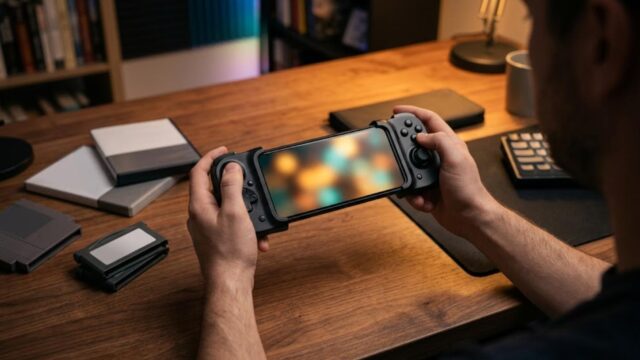
| Telescopic clamp controller | Screen and controls move as one unit; stable in the hands | Fit depends on your phone and case; usually has to come off to charge |
SNES libraries skew heavily toward action and shoot-’em-ups, where input latency is felt rather than measured, so wired is the better default if you have the choice. Snes9x EX+ states support for any HID gamepad or keyboard the OS recognises, explicitly including Xbox and PS4 controllers.
One trap specific to retro handhelds: some Android gaming handhelds present their D-pad and face buttons to the OS as two separate input devices. The EmuEx documentation covers this directly — assign a single custom profile to both devices so the mappings stay linked. If half your controls work and half do not, this is almost always why.
Saves: two traps that quietly eat progress
There are two kinds of save and they behave completely differently.
- Battery save (.srm) is the emulated equivalent of the battery-backed SRAM on the cartridge board. It only updates when you save inside the game, at the game’s own save points.
- Save states are a memory snapshot, an emulator feature the original hardware never had. Snes9x EX+ writes them in Snes9x’s .frz format; RetroArch writes .state files into its own state directory. They are not interchangeable between apps, and a state can stop loading after a core or app update.
Now the two traps, both documented by the developer and both capable of costing you real progress.
Trap one: loading a state overwrites your battery memory. The official Snes9x EX page states that backup memory is overwritten when a state is loaded. So if you save in-game, then later load an older save state, the in-game save is gone — not shadowed, overwritten.
Trap two: dropping in a replacement .srm appears to do nothing. The EmuEx FAQ explains why: with autosave states enabled, which is the default, SRAM is normally loaded out of the state rather than from the standalone file. Copying in a save from a PC emulator and seeing the old data is expected behaviour, not corruption. The documented fix is to temporarily disable loading the autosave state in the system options, or delete the autosave state file, then let the game boot clean.
Snes9x EX+ gives you control over this. Autosave Launch Mode offers Main Slot, Main Slot (No State) — which loads backup memory but skips the state — No Save Slot, and Select Slot. Autosave Content can be set to Backup RAM only, so states are saved manually and never silently. Autosave Timer sets how many minutes of play pass before an autosave is written. If you have ever lost progress to an emulator, spend two minutes in this menu.
The habit that makes all of this moot: save in-game at every real checkpoint. Use states for the boss you keep dying to, not as your primary save system.
Troubleshooting
| Symptom | Most likely cause | Fix |
|---|---|---|
| Game list is empty | Folder permission not granted, or granted to the parent folder | Re-run the folder picker on the ROM folder itself; failing that, use the App Media Folder |
| Crash immediately on load | Truncated dump, multiple ROMs in one archive, or non-ASCII characters in the filename | Re-dump, split the archive to one game each, rename using ASCII only |
| Runs 17% too fast or too slow | Region mismatch between the dump and the emulated console | Set Console region explicitly to ntsc or pal and reload the core |
| Slowdown in specific games only | SuperFX or SA-1 cartridge, or a bsnes-family core on modest hardware | Switch to the mainline Snes9x core before touching frame skip |
| Audio crackles or drifts | Buffer too small, or wireless headphone latency | Enable audio sync, raise the buffer a step, test with wired audio |
| Half the controls respond | Handheld exposes D-pad and buttons as two OS devices | Apply one shared custom profile across both devices |
| Battery drains fast | Screen brightness and a high refresh rate, not emulation load | Cap the refresh rate; try Sustained performance mode |
Two frequently asked questions worth answering directly. Do you need a BIOS? No. Ordinary SNES cartridges need nothing but the ROM. The Snes9x core lists only two optional firmware files, and both are for Japan-only peripherals — the Satellaview and the Sufami Turbo — which is not a scenario most readers will encounter. Are savestates portable between emulators? No. Battery saves often move between emulators of the same lineage; states do not, because they are snapshots of an emulator’s internal structures rather than of the console.
The checklist
- Install Snes9x EX+ from Google Play; confirm the developer is Robert Broglia. Get RetroArch from the project’s own APK or F-Droid, never the outdated Play build.
- Dump the cartridges you own. Keep files in a shallow, ASCII-named folder such as Roms/SNES.
- Grant folder access to that exact folder. This is where nearly every empty game list comes from.
- Stay on the mainline Snes9x core unless you have a reason not to.
- Set the region deliberately if your cartridges are PAL — roughly 17% of the game’s speed depends on it.
- Remap A and B before you play. Match your own hardware, not the gamepad’s silkscreen.
- Read the two save traps above once, then save in-game at every checkpoint anyway.
Everything above is worth doing once. After that the phone is simply a SNES that fits in a pocket, and the shoebox has a reason to exist again.
Menu paths, file formats and version numbers in this article were checked against official documentation on 6 September 2026: the Google Play listing and explusalpha.com pages for Snes9x EX+, docs.libretro.com core pages for the Snes9x, Snes9x 2010 and bsnes families, the retroarch.com platforms page, and F-Droid. Labels do shift between releases; if what you see differs, trust your screen.

コメント