
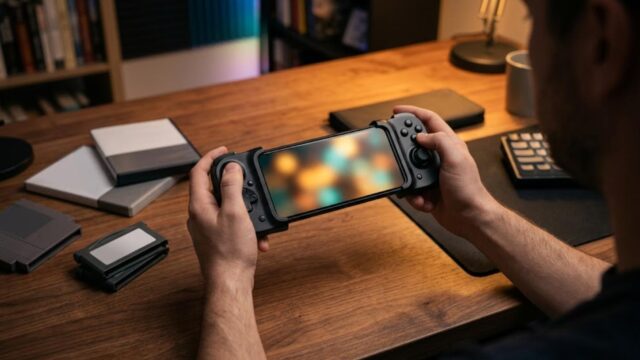



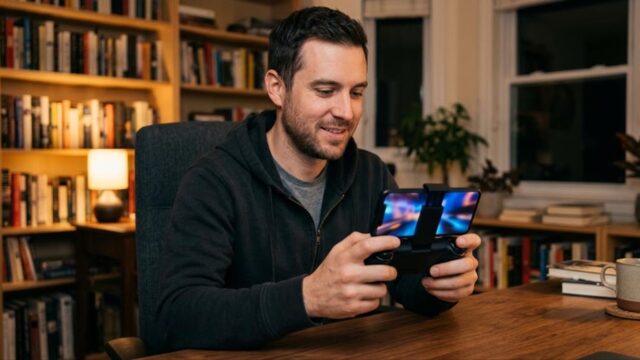

Short answer: the best way to play PC Engine / TurboGrafx-16 games on Android is RetroArch with the Beetle PCE core. If you’d rather skip the setup and don’t mind paying, PCE.emu is a solid alternative. Either way, the app is rarely the problem. Almost every “it doesn’t work” moment comes down to two things: the CD-ROM² System Card (BIOS) and CD audio.
The PC Engine is really two platforms in one. HuCARD games (TurboChip in North America) just work: install an app, open the file, play. CD-ROM² (TurboGrafx-CD) games are a different story. The logo shows up but the game never starts, the music is silent, or you get stuck at “insert Disc 2.” If you don’t know why, you’ll end up installing and uninstalling apps for an afternoon.
This guide walks through it in order: picking an app, installing it, setting up the System Card, CD image formats, fixing common problems, and making it comfortable to play. By the end you’ll know exactly what to install and which file goes where.
One ground rule: this guide assumes you’re playing games and System Cards that you own and dumped yourself. It does not cover where to get BIOS files or game images online.
- The Verdict: RetroArch + Beetle PCE, or PCE.emu for Simplicity
- HuCARD vs. CD-ROM²: Two Very Different Difficulty Levels
- How to Set Up RetroArch + Beetle PCE
- The System Card (BIOS): What You Need and Where It Goes
- CD-ROM² File Formats and Disc Swapping
- Troubleshooting: Sound, Slowdown and Games That Won’t Start
- Controls and Storage: From “It Runs” to “It’s Fun to Play”
- Wrap-Up: Nail the BIOS and CUE Files and the PC Engine Is Easy
The Verdict: RetroArch + Beetle PCE, or PCE.emu for Simplicity
Here’s the big picture first. The reasoning comes right after.
| Option | Best for | Where to get it | CD-ROM² | Verdict |
|---|---|---|---|---|
| RetroArch + Beetle PCE | Players who want CD-ROM² games and one app for many systems | Google Play / official site (free) | Supported | Best overall. More setup, very reliable |
| PCE.emu | Players who want to start fast without tweaking | Google Play (paid) | Supported (loads CUE files) | Excellent. Simple and low-latency |
| RetroArch + Beetle PCE FAST | Low-powered devices | Added from inside RetroArch | Supported | Good. Lighter, but slightly less accurate |
| RetroArch + Beetle SuperGrafx | SuperGrafx-exclusive games | Added from inside RetroArch | Supported | Overkill for standard games |
| Mesen2 | Players who want the same accuracy as on PC | No standalone Android app | Supported on PC only | Not an option on Android |
If you’re not sure, go with RetroArch + Beetle PCE. Three reasons:
- It’s free and handles CD-ROM² end to end. Beetle PCE is a port of Mednafen, a high-accuracy PC emulator, and it covers HuCARD, CD-ROM² and SuperGrafx in a single core.
- Your setup carries over. Controller mappings and the system directory are shared with your NES, SNES and other cores. If RetroArch is already on your phone, adding PC Engine support is just one more core.
- It keeps getting updated. Standalone apps can fall behind new Android versions once development stops. RetroArch cores keep receiving updates.
PCE.emu is a paid app, also based on Mednafen. If RetroArch’s nested menus drive you crazy, it gets you playing faster. It’s tuned for low latency and works well with Bluetooth and USB gamepads. Just don’t expect it to solve the BIOS problem: CD-ROM² games need a System Card on PCE.emu exactly as they do on RetroArch.
Mesen2 has a strong reputation for PC Engine accuracy, but as of 2026 there’s no standalone Android app. It’s a good pick if you also play on a Windows PC.
HuCARD vs. CD-ROM²: Two Very Different Difficulty Levels
Most people who get stuck with PC Engine emulation started without knowing this difference.
| HuCARD (TurboChip) | CD-ROM² / Super CD-ROM² | |
|---|---|---|
| BIOS required | No | Yes (System Card) |
| File format | .pce / .sgx | CUE + BIN (or CHD) |
| Music | Built-in sound chip | CD-DA (audio tracks) |
| Disc swapping | None | Some games |
| How hard it feels | Open the file and play | 80% of your setup time |
HuCARD games need nothing extra. Open the .pce file and it runs, just like an NES game.
CD-ROM² is where things get tricky. On the original hardware, the console couldn’t boot a CD by itself. You had to insert a HuCARD called the System Card first. Emulators work the same way: without System Card data, not a single CD-ROM² game will run. If a game freezes right after the logo or stays on a black screen, this is almost always the reason.
On top of that, many CD-ROM² games store their music as CD-DA, meaning regular CD audio tracks. In other words, the music lives on separate tracks from the game program. Keep that in mind and the “no background music” fix later in this guide will make instant sense.
How to Set Up RetroArch + Beetle PCE
Time for the hands-on part. Follow these steps in order.
1. Install RetroArch
Google Play is the quickest route. It installs the 64-bit build, which is fine for anything but very old devices. If RetroArch asks you to download assets on first launch, say yes. That pulls in the menu icons and other interface files.
2. Find your system directory
Doing this before anything else saves a lot of headaches later.
Go to Settings → Directory → System/BIOS and write down the path shown there. That folder is where your System Card files will go. On Android 11 and later, apps use their own storage areas, so the path is often not what you’d expect. Always check it on screen.
3. Add the Beetle PCE core
Go to Main Menu → Online Updater → Core Downloader and select NEC – PC Engine / SuperGrafx / CD (Beetle PCE).
You’ll see three similar names. Here’s how to choose:
- Beetle PCE: start here. One core covers HuCARD, CD-ROM² and SuperGrafx.
- Beetle PCE FAST: your fallback if you can’t get rid of slowdown. It trades some accuracy for speed.
- Beetle SuperGrafx: for SuperGrafx games only. Most people don’t need it.
4. Copy your game files
Internal storage or microSD both work, but keep folder and file names simple: stick to plain ASCII letters and numbers, and avoid special symbols. Unusual characters in names are one of the top reasons CUE files fail to load. A boring path like /Roms/PCE/ is the safest choice.
5. Launch a game (pick the .cue file)
Use Load Content and select your file. For CD-ROM² games, the golden rule is: open the .cue, not the .bin. Opening the .bin directly and then wondering why there’s no sound is one of the most common mistakes, so it’s worth memorizing.
The System Card (BIOS): What You Need and Where It Goes
If you want to play CD-ROM² games, there’s no way around this step. The right approach is to dump the System Card from hardware you own, using a dumping device, the same way you’d back up your own HuCARDs.
A quick note on the legal side in the US. The DMCA restricts circumventing copy protection, and making backup copies of cartridges, cards or discs you own for personal use sits in a legal gray area. Downloading BIOS files or game images you don’t own is copyright infringement. This is general information, not legal advice. If you have questions about your specific situation, talk to a qualified attorney.
File names and location
| File name | What it is | Do you need it? |
|---|---|---|
| syscard3.pce | Super CD-ROM² System Card 3.0 | Top priority. Start with this |
| syscard2.pce | System Card 2.0 | For some early titles |
| syscard1.pce | System Card 1.0 | Rarely needed |
| gexpress.pce | Games Express CD Card | Only for specific titles |
Put the files directly in the System/BIOS directory you checked in step 2. If you put them in a subfolder, they won’t be found.
There are really only two ways this goes wrong:
- The file name is off. It must match exactly, including upper and lower case. Syscard3.pce may not work.
- The file is in the wrong place. “I left it in my Downloads folder” is the classic mistake. Use the exact path you saw on screen.
To confirm it’s working, launch any CD-ROM² game. If you see the System Card’s startup (menu) screen, the BIOS is being read correctly.
Some games only run with a particular System Card version. Beetle PCE has a core option called CD BIOS that lets you switch which System Card it uses. If one specific game refuses to start while others run fine, check this setting first.
CD-ROM² File Formats and Disc Swapping
Get this part organized and the mysterious “music is missing” problem pretty much disappears.
CUE + BIN is the standard format
A CD-ROM² disc mixes a program track (data) with music tracks (audio). The CUE sheet is a small text file that describes that layout. The emulator reads it to learn which tracks are game data and which are music.
That leads to three simple rules:
- Always load the .cue. Never open the .bin directly.
- Keep the .cue and .bin files together in the same folder. Don’t move one without the other.
- If you rename files, update the file names inside the .cue too. It opens in any text editor.
Images where the audio tracks are split out as FLAC, Ogg or WAV files also work. MP3 is the one format that tends to cause compatibility problems, so if you have the choice, use FLAC or WAV.
CHD makes your library easier to manage
A CUE + BIN set with a pile of audio files gets messy fast. Converting to CHD packs everything into one compressed file. Beetle PCE reads CHD files directly, so it’s worth considering once your library grows. The conversion is done on a PC with chdman.
Multi-disc games: use an .m3u playlist
Getting stuck at “please insert Disc 2” is a classic CD-ROM² headache.
The fix is a single text file. Name it after the game with an .m3u extension (for example, game.m3u) and list each disc’s CUE file on its own line:
- game_disc1.cue
- game_disc2.cue
Then load the .m3u file instead of an individual .cue. When the game asks for the next disc, open Quick Menu → Disc Control in RetroArch and switch discs. Your save data is shared across both discs.
Troubleshooting: Sound, Slowdown and Games That Won’t Start
Nearly every problem you’ll hit falls into one of these four patterns. Work down the list and you’ll usually find the fix.
| Symptom | Check first | Fix |
|---|---|---|
| Freezes after the logo / black screen | System Card | Check the file name and location. Try a different CD BIOS option |
| Sound effects play, but no music | The file you loaded | Open the .cue, not the .bin. Make sure the audio tracks are in the same folder |
| Audio cuts out or crackles | Audio latency setting | Raise Audio Latency to 64–96 ms. If that doesn’t help, turn off audio sync |
| Everything feels slow / dropped frames | Core and video settings | Switch to Beetle PCE FAST. Turn off shaders and set the resolution multiplier to 1x |
A closer look at audio problems
When only the music is missing, about 90% of the time you either opened the .bin directly or the audio tracks can’t be found. Open the CUE sheet in a text editor and check that every file name listed actually exists in the folder. This is also where you’ll spot stray non-ASCII characters or odd spaces in file names.
For crackling or choppy sound, go to Settings → Audio → Output → Audio Latency and raise the value. Higher values make dropouts less likely but add lag between your input and the sound. Start at 64 ms and stop at the lowest value where the crackling goes away.
Dealing with slowdown
The PC Engine is a fairly light system to emulate. Any mid-range phone from 2020 or later should handle it without slowdown. If it still feels heavy, the culprit is usually too much video processing rather than the emulator itself. Turn off shaders, lower the internal resolution multiplier, and if that’s still not enough, switch to Beetle PCE FAST.
Controls and Storage: From “It Runs” to “It’s Fun to Play”
Once everything runs, the last step is comfort. This is what decides whether you actually keep playing.
Choose a controller for its D-pad
The PC Engine library is heavy on shoot ’em ups and action games, so D-pad precision matters far more than analog sticks. Controllers with only analog sticks are at a real disadvantage here.
Both Bluetooth and wired USB-OTG connections work. If you’re serious about shooters, a wired connection is the more stable option.
For microSD, look at speed before capacity
CD-ROM² games are big. Even compressed to CHD, each one can run to hundreds of megabytes, and a few dozen games add up quickly.
A slow card, though, directly stretches out disc loading times, and you probably don’t want to recreate the original hardware’s load screens. A straightforward UHS-I card is all you need.
One thing to watch: save data
On the original hardware, CD-ROM² games saved to backup RAM. Emulators handle it the same way: one save file shared by every game. When it fills up, you can’t create new saves, so clear out data for games you no longer play. Also remember that this is separate from save states, which is a common source of confusion.
Wrap-Up: Nail the BIOS and CUE Files and the PC Engine Is Easy
The key points:
- RetroArch + Beetle PCE is the top pick. PCE.emu if you want simplicity. Mesen2 has no Android version.
- HuCARD needs no BIOS. CD-ROM² requires one. That’s where the difficulty jumps.
- Put syscard3.pce directly in the System/BIOS directory. Get the name and the location right and it works.
- Always load the .cue. That’s the fix for most missing-music problems.
- Use an .m3u for multi-disc games and switch discs from Disc Control.
- If it’s slow, use Beetle PCE FAST and turn off shaders. The PC Engine is light to begin with.
Compared with PS2 or PSP emulation, the PC Engine asks very little of your phone. If you get stuck, it’s a setup step, not a performance issue. Follow the steps in this guide in order and even an older device will do the job.
And one more time: dump your System Card and games from hardware and software you own. Do that, and the stack of HuCARDs in your closet can become your commute entertainment.


コメント