





Here is the short answer: Sega Genesis (Mega Drive in the UK, Europe and Australia) games run perfectly well on Android. Install the free RetroArch app, add the Genesis Plus GX core, and cartridge games boot straight away with no BIOS file required. There are only two real hurdles. The Sega CD (Mega-CD) will not start without a region-specific BIOS, and the 32X is not supported by Genesis Plus GX at all.
This guide walks through the setup in the order you will actually do it, explains why the Sega CD and 32X behave differently, and covers the one setting that trips up almost everyone: six-button controller support. Throughout, we assume you are using game data and BIOS files dumped from cartridges, discs and hardware you own.
- The Bottom Line: The Genesis Works, but Treat Sega CD and 32X as Separate Systems
- Which App to Use: Why RetroArch with Genesis Plus GX Is the Default Pick
- Installation and First-Time Setup: BIOS Requirements and Where Your Files Go
- Why the Sega CD and 32X Change the Picture
- Setting Up Six-Button Controls Correctly (the Most Common Snag)
- Troubleshooting: Slowdown, Audio Lag and Lost Saves
- A Note on the Law in the US (Not Legal Advice)
- Summary
The Bottom Line: The Genesis Works, but Treat Sega CD and 32X as Separate Systems
People tend to lump everything under “Genesis,” but the moment an add-on is involved, the requirements change. Here is the overview.
| Hardware | Core to use | BIOS | Verdict on Android |
|---|---|---|---|
| Genesis / Mega Drive | Genesis Plus GX | Not required (boots without one) | Works out of the box |
| Sega CD (Mega-CD) | Genesis Plus GX | Required (region-specific) | Works once the BIOS is in place; fails to boot without it |
| 32X | PicoDrive (not supported by Genesis Plus GX) | Not needed in HLE mode; required for LLE | Works after switching cores |
Genesis Plus GX is a high-accuracy core that covers the Genesis, Sega CD, Master System (including the Mark III), Game Gear and SG-1000 in a single package, and the official libretro documentation describes its compatibility as essentially complete. That same documentation also states plainly that 32X games are not supported. If your Genesis library runs fine but a 32X game gives you a black screen, the wrong core is almost always the reason.
Which App to Use: Why RetroArch with Genesis Plus GX Is the Default Pick
There are two main ways to play Genesis games on Android.
- RetroArch (free) + Genesis Plus GX core: one app covers the Genesis, Sega CD, Game Gear and Master System. It has a lot of menus, but it costs nothing and the cores are actively maintained. This is the one to try first.
- MD.emu (paid, Google Play): a standalone app built on Genesis Plus, with code drawn from Gens, PicoDrive and Mednafen. Its settings screens are simpler than RetroArch’s, which suits players who just want a dedicated Genesis app without learning a frontend. Check the Play Store for the current price.
If you are serious about 32X games, stay in RetroArch and switch to the PicoDrive core for those titles. RetroArch lets you keep several cores installed side by side, so you can use Genesis Plus GX for cartridges and Sega CD, and PicoDrive only for 32X.
Installation and First-Time Setup: BIOS Requirements and Where Your Files Go
The process is straightforward. Menu names below are from RetroArch’s English interface.
- Install RetroArch from Google Play. Go to Main Menu → Load Core → Download a Core and download Sega – MS/GG/MD/CD (Genesis Plus GX). If you also plan to play 32X games, download Sega – MS/GG/MD/CD/32X (PicoDrive) as well.
- If you only want cartridge games, you are nearly done. Load a ROM (.md, .bin, .gen or .smd) and it will boot immediately without a BIOS.
- For the Sega CD, open Settings → Directory → System/BIOS to see which folder RetroArch uses, and place the BIOS that matches your discs directly in that folder (not in a subfolder): bios_CD_U.bin for North American discs, bios_CD_E.bin for European and Australian discs, and bios_CD_J.bin for Japanese discs. The file name must match exactly, including upper and lower case, or the core will not find it.
- Load Sega CD games as a .cue + .bin pair or as a single .chd file. The file names listed inside the .cue sheet must match the actual .bin files character for character, or you will get a load error. Keeping each game in its own folder, with the .cue and its tracks together, is the safest approach. For multi-disc games, Genesis Plus GX also accepts an .m3u playlist that lists each disc.
The BIOS should come from a Sega CD console you own. This guide does not cover where to find BIOS or game files online, and we will not point you to download sites.
Why the Sega CD and 32X Change the Picture
Why does a Genesis cartridge run without a BIOS while the Sega CD insists on one? Unlike a cartridge, a CD-based system relies on its BIOS to control the disc drive and the boot process itself. Without it, startup stops before the game ever loads. In Genesis Plus GX there is no high-level emulation (HLE) substitute for this part, so the core needs the real BIOS data.
The 32X is a different story entirely. Genesis Plus GX never included the 32X in its scope, as the libretro documentation notes, so you have to switch to PicoDrive. PicoDrive offers two ways of handling the 32X BIOS:
- HLE (High Level Emulation): PicoDrive recreates what the 32X BIOS does in software. No BIOS file is needed, at the cost of some accuracy in certain titles.
- LLE (Low Level Emulation): PicoDrive loads and runs the actual 32X BIOS. Accuracy improves, but you need BIOS files dumped from a 32X unit you own.
The efficient approach is to start with HLE, and only move a game to LLE if it shows glitches or refuses to run properly.
Setting Up Six-Button Controls Correctly (the Most Common Snag)
Out of the box, Genesis Plus GX emulates a standard three-button pad (D-pad, A/B/C and Start). If you are playing a fighting game or another title built around the six-button pad and the X, Y, Z or Mode buttons do nothing, the problem is usually not your controller. It is the core’s input setting.
The fix: open Quick Menu → Controls → Port 1 Controls and change Device Type from MD Joypad 3 Button (the default) to MD Joypad 6 Button. Even if your physical controller has six face buttons, the extra buttons will not register until you change this setting. Menu labels can differ slightly between RetroArch versions, but the option lives under the controls for each port. Once the extra buttons are recognized, map them to your controller and save a core or game remap file (Quick Menu → Controls → Manage Remap Files) so the setting sticks.
One caveat that surprises people: a handful of early Genesis games do not get along with the six-button pad. On original hardware, players held the Mode button while powering on to force three-button mode; Forgotten Worlds is a well-known example that misbehaves otherwise. If an older game acts strangely after you enable six-button mode, set that game’s Device Type back to MD Joypad 3 Button and save it as a game remap file.
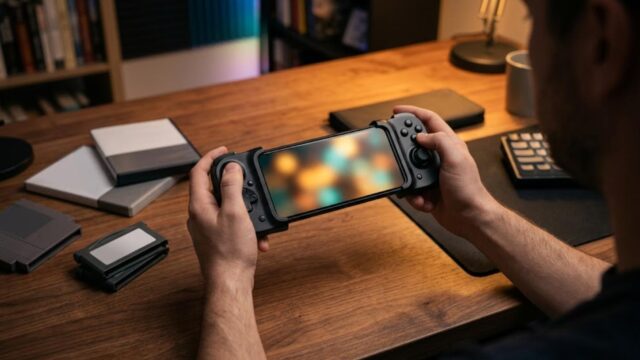
For the controller itself, a Bluetooth pad with a Genesis-style six-button layout that pairs with Android phones and tablets saves you from juggling button assignments. Most modern pads connect through Android’s standard Bluetooth settings and are picked up by RetroArch automatically.
Troubleshooting: Slowdown, Audio Lag and Lost Saves
Here are the most common problems and what to check first.
| Symptom | What to check first |
|---|---|
| Slowdown or stuttering | Turn on Settings → Video → Threaded Video. If it is still heavy, open the Genesis Plus GX core options and switch the FM sound (YM2612) emulation from the high-accuracy Nuked option to the lighter MAME option. |
| Audio out of sync or crackling | Raise the value in Settings → Audio → Output → Audio Latency. Start around 60 to 80 ms and adjust from there. |
| Saves disappear or do not carry over | RetroArch saves battery-backed cartridge memory (SRAM) automatically as .srm files. Make save states as an extra safety net. Sega CD backup RAM is stored as a .brm file in RetroArch’s saves folder, so do not delete it, and copy it along with everything else when you move to a new phone. |
The Genesis itself is a light load for current Android devices; even mid-range phones from several years ago run it at full speed. When a game feels sluggish, the cause is usually a setting rather than your hardware. Accuracy-focused options such as the Nuked FM sound are the usual culprits on older devices.
Keeping your ROMs, CD images, BIOS files and saves organized on a microSD card also makes life easier. When you upgrade phones, you move the card (or copy one folder) instead of rebuilding your library from scratch. A clear layout such as one folder per system, with Sega CD games in their own subfolders, keeps .cue files and their tracks together and avoids broken paths.
A Note on the Law in the US (Not Legal Advice)
Emulators themselves are generally considered legal in the United States. Game files and BIOS files are a different matter, and this section is a general overview, not legal advice. If you need a definitive answer for your situation, consult a qualified attorney.
- Downloading or sharing ROMs and BIOS files you did not dump yourself is generally treated as copyright infringement, even if you own the original game. Owning a cartridge does not make someone else’s copy yours.
- Personal backups are a gray area. US copyright law (17 U.S.C. § 117) allows the owner of a computer program to make an archival copy, but courts have not clearly settled how that applies to game cartridges and discs.
- The DMCA adds another layer. Section 1201 prohibits circumventing technical protection measures, even for personal use, so whether a particular dumping method is permitted can depend on how it reads the media.
The safest practice is simple: dump games and BIOS files from hardware and software you legally own, keep them for your own use, and do not distribute them. Readers in the UK, EU or Australia should check their own country’s rules, which differ from US law.
Summary
- Genesis / Mega Drive: RetroArch plus Genesis Plus GX runs cartridge games right away, no BIOS needed.
- Sega CD (Mega-CD): place the region-matched BIOS (bios_CD_U.bin, bios_CD_E.bin or bios_CD_J.bin) directly in RetroArch’s System/BIOS folder, with the exact file name.
- 32X: not supported by Genesis Plus GX. Switch to the PicoDrive core; HLE needs no BIOS, while LLE needs a BIOS dumped from your own 32X.
- Six-button games: change Device Type under Quick Menu → Controls → Port 1 Controls to MD Joypad 6 Button, or the X, Y, Z and Mode buttons will not respond.


コメント