






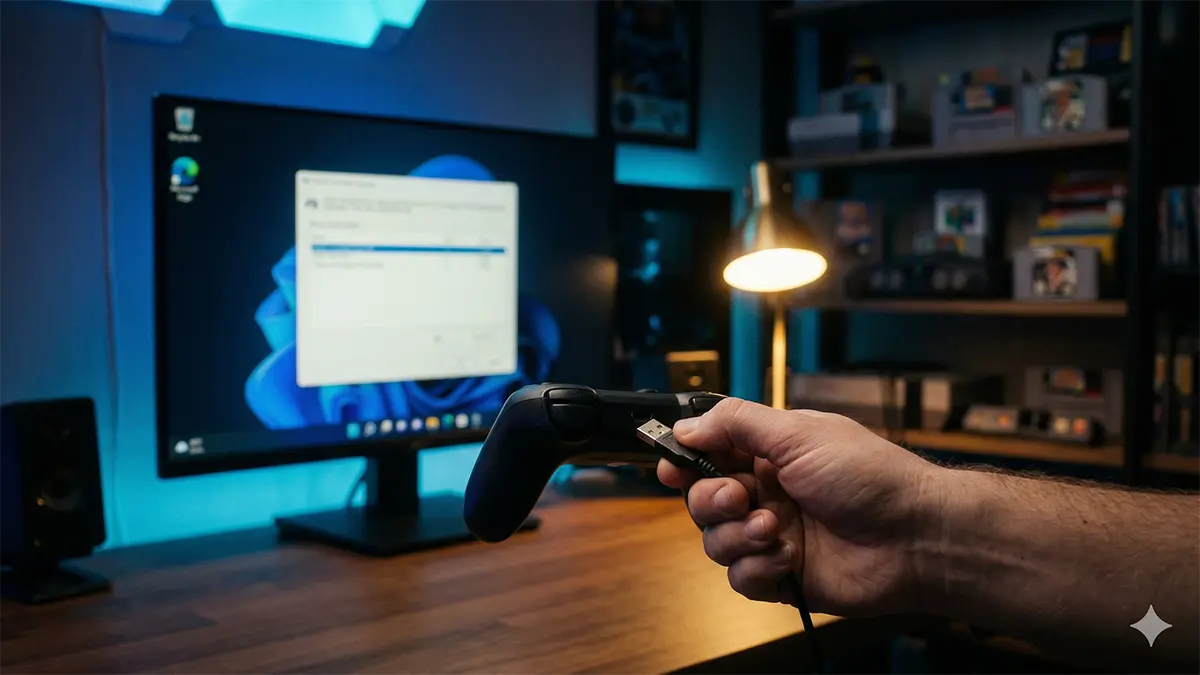
Your controller lights up and Windows plays the connect sound, but the emulator ignores every button. On Windows 11 this usually comes down to one of a few layers between the pad and the program: the physical connection, the pad’s input mode, the driver, or another program (Steam, for example) taking the input first.
This guide works through those layers in order, before you touch any emulator’s input menu, so you know which layer is failing.
- Step one: does Windows see the controller? (joy.cpl)
- Check the connection: ports, cables and the input mode switch
- Steam Input and emulators: when Steam grabs your controller
- Reinstall the driver in Device Manager
- When the pad responds but something is still off
- Remapping buttons: three places it can happen
- Quick reference: symptom, joy.cpl result, first move
- Wrap-up and a note on game files
Step one: does Windows see the controller? (joy.cpl)
The classic Game Controllers window shows what Windows itself receives, with no emulator or launcher involved.
- Press Win + R, type joy.cpl and press Enter.
- In Game Controllers, find your pad under Installed game controllers and check the Status column.
- Select it and click Properties.
- On the Test tab, press every button, move both sticks and the D-pad, and squeeze each trigger. Watch Axes, Buttons and Point of View Hat respond.
If a stick moves on its own, the Settings tab has Calibrate… and Reset to default. Depending on the controller and driver, that tab may not appear at all, which is not a fault.
- Listed, every input registers: Windows is fine. Look above it: Steam Input or the emulator’s device selection.
- Missing, or listed but frozen: check the connection and mode switch, then the driver.
- Triggers behave oddly: read the XInput note below first.
If you use Steam, fully exit it (Steam > Exit) before this test.
Check the connection: ports, cables and the input mode switch
- Plug directly into the PC. Remove hubs, docks, extensions and monitor USB ports from the chain.
- Try another port for the cable or wireless receiver and compare.
- Swap the cable. Some USB-C cables carry power only; a pad that charges but never appears in joy.cpl deserves a known data cable.
XInput, DirectInput and the X/D switch
XInput is Microsoft’s API for Xbox-style controllers; DirectInput is an older API that some pads use. Microsoft notes that under DirectInput the left and right triggers act as a single button, and that you need XInput to read them separately. XInput supports up to four controllers. In joy.cpl, a DirectInput pad’s triggers may show up as one shared axis, which looks like a fault but isn’t.
Some pads have a hardware switch. The Logitech F310 has an X/D switch on the bottom; Logitech calls XInput the modern gamepad standard and uses DirectInput with Logitech Gaming Software for key assignment. Set the switch firmly to one side and retest. The F310’s Mode button swaps the D-pad and left stick while its light is on, so check that light if the two seem reversed.
Bluetooth pads that drop or vanish
Remove the pad in Settings > Bluetooth & devices, restart, and pair again. For an Xbox Wireless Controller: turn it on with the Xbox button, hold Pair for 3 seconds, then Add device > Bluetooth and choose Xbox Wireless Controller. Xbox Support notes it connects to one device at a time and recommends one Bluetooth controller. For a DualSense, with the light off and cable unplugged, hold Create and then PS until the light bar blinks. Sony notes haptics on PC need USB.
If the pad works over USB but not Bluetooth, you have isolated the wireless link.
Steam Input and emulators: when Steam grabs your controller
Check this layer when joy.cpl looks perfect but an emulator reacts wrongly, twice, or not at all. Steam Input can sit between your pad and other programs while the client runs, even for an emulator launched on its own.
What Steam does while it runs
Valve’s Steamworks docs say the Steam Overlay hooks XInput, DirectInput, RawInput and Windows.Gaming.Input and injects an emulated Xbox controller. Valve’s developer docs also acknowledge that double input can occur when a game reads both the physical pad and Steam’s virtual pad. Under Non-Game Controller Layouts, Steam also keeps a Desktop Layout, applied when no game is running.
Test: fully exit Steam and compare
Closing the window may leave Steam running in the background. Use Steam > Exit, then start the emulator alone. If the pad now works, Steam Input is likely involved; if nothing changes, look elsewhere. This is a comparison, not a fix Valve promises.
Global switches in Steam > Settings > Controller
Under External Gamepad Settings:
| Setting | Type | Applies to |
|---|---|---|
| Enable Steam Input for Xbox controllers | Toggle | Xbox pads |
| PlayStation Controller Support | Not Enabled / Enabled in Games w/o Support / Enabled | DualShock, DualSense |
| Enable Steam Input for Switch Pro controllers | Toggle | Switch Pro Controller |
| Enable Steam Input for generic controllers | Toggle | Other pads |
Turning one off affects every game. If your Steam games rely on Steam Input, use the per-program override instead. The Desktop Layout has an Edit button on the same page. Steam’s wording may differ slightly between client versions.
Per-game and per-emulator overrides
Right-click a title in your Library, choose Properties…, open Controller, and set Override for to Disable Steam Input, Use default settings or Enable Steam Input, then restart the game. The Steam Input status line shows what is in effect. Add an emulator via Games > Add a Non-Steam Game to My Library… and it gets the same Controller page, so you can disable Steam Input for that emulator alone.
The reverse case: it only works through Steam
If a pad works when the emulator starts from a Steam shortcut but not from the exe, one possible explanation is that the emulator reads the emulated Xbox device Steam provides but not your pad as it presents itself. Keep the Steam shortcut, switch the pad to XInput if it can, or change the emulator’s input driver.
RetroArch is an example: Settings > Drivers > Controller defaults to xinput on Windows, with dinput and sdl2 as alternatives (restart required). Settings > Input > RetroPad Binds > Port 1 Controls holds Device Index, where you choose which detected device Port 1 uses.
Reinstall the driver in Device Manager
If joy.cpl still shows nothing, or the pad is frozen, have Windows set it up again.
- Open Device Manager. Unplugging and replugging the pad while watching the list helps you spot its entry.
- Right-click it, choose Uninstall device, and confirm in the Uninstall Device dialog.
- Restart, reconnect, and rerun joy.cpl.
For pads that drop after idling, look for a Power Management tab in the device properties. If shown, it has Allow the computer to turn off this device to save power. Many devices lack the tab; Microsoft documents it for USB Root Hub entries under Universal Serial Bus controllers. Clearing it is a troubleshooting step, not a guaranteed cure. If problems persist on a known-good cable and port after a clean reinstall, the pad itself may be at fault.
When the pad responds but something is still off
Buttons land in the wrong place
If the pad’s mode changed after you mapped it, the emulator may be reading a layout meant for the other mode. Run the Steam exit test, since a Steam layout can translate buttons first. If both a physical and a virtual pad are listed in the emulator, check which one is mapped.
Input feels delayed
Compare wired against wireless on the same section. If wireless is worse, re-pair and reduce other Bluetooth devices. Then compare with Steam Input disabled for that emulator.
Mappings don’t stick
The pad may come back as a different device (after flipping X/D, or connecting over Bluetooth instead of USB), so the emulator sees a new controller. Or the emulator can’t write its config. Snes9x keeps snes9x.conf next to snes9x.exe; Mesen2 uses Documents\Mesen2 by default, or the exe folder, and warns during setup if that folder isn’t writable. Keep portable emulators outside Program Files, for example in C:\Games. Windows only redirects writes to VirtualStore for some older 32-bit programs; a 64-bit program running without admin rights just gets access denied.
Remapping buttons: three places it can happen
Windows 11 has no obvious system-wide gamepad remap, so layouts usually change in one of three places.
| Where | Scope | Notes |
|---|---|---|
| The emulator itself | That program | The default for emulation; needs a writable config folder. |
| Steam Input layouts | Where Steam Input is active | Remaps many pads, but is also the layer that interferes. Enable it deliberately, per program. |
| Xbox Accessories app | Xbox One and Series X|S controllers | Button remap, stick and trigger swap, profiles, vibration, firmware. No Xbox 360 or non-Xbox devices. |
Open Start and type Xbox Accessories to get the app. Most features aren’t supported over Bluetooth, so connect by USB or the Xbox Wireless Adapter while configuring. The Elite Series 2 stores up to three profiles on the controller; for standard pads, test the remap in your emulator rather than assuming it carries over.
PowerToys Keyboard Manager remaps keyboard keys, not controllers, and Microsoft advises against it while gaming.
Quick reference: symptom, joy.cpl result, first move
| Symptom | joy.cpl result | Try first |
|---|---|---|
| Nothing responds | Missing or frozen | Direct connection, another port, data cable, then driver reinstall |
| Dead in the emulator only | All inputs register | Steam > Exit and retest, then the emulator’s device selection |
| Inputs register twice | Normal | Disable Steam Input for that emulator; pick one device |
| Works only via Steam | Listed, ignored standalone | Keep the shortcut, or use XInput mode or another input driver |
| Triggers act as one | One shared axis | Switch the pad to XInput if possible |
| D-pad and left stick swapped | Swapped here too | Check the Mode light (F310 and similar) |
| Bluetooth drops or lags | Fine when wired | Remove and re-pair; Power Management tab if shown |
| Mapping lost after restart | Normal | Move the emulator out of Program Files; keep the same mode and connection |
Wrap-up and a note on game files
Work from the bottom up: confirm input in joy.cpl, fix connection, mode or driver if it fails, then fully exit Steam and compare, and set Steam Input per program. Only then dig into an emulator’s input screens, knowing the pad itself is fine.
This guide covers controller setup only. Emulation assumes you play using data you made yourself from games and hardware you own. The rules on making and using copies differ by country, and this article is not legal advice. Check the rules where you live if you are unsure.
コメント