
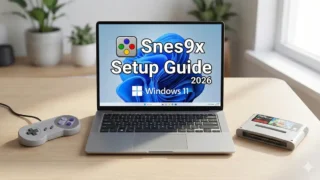




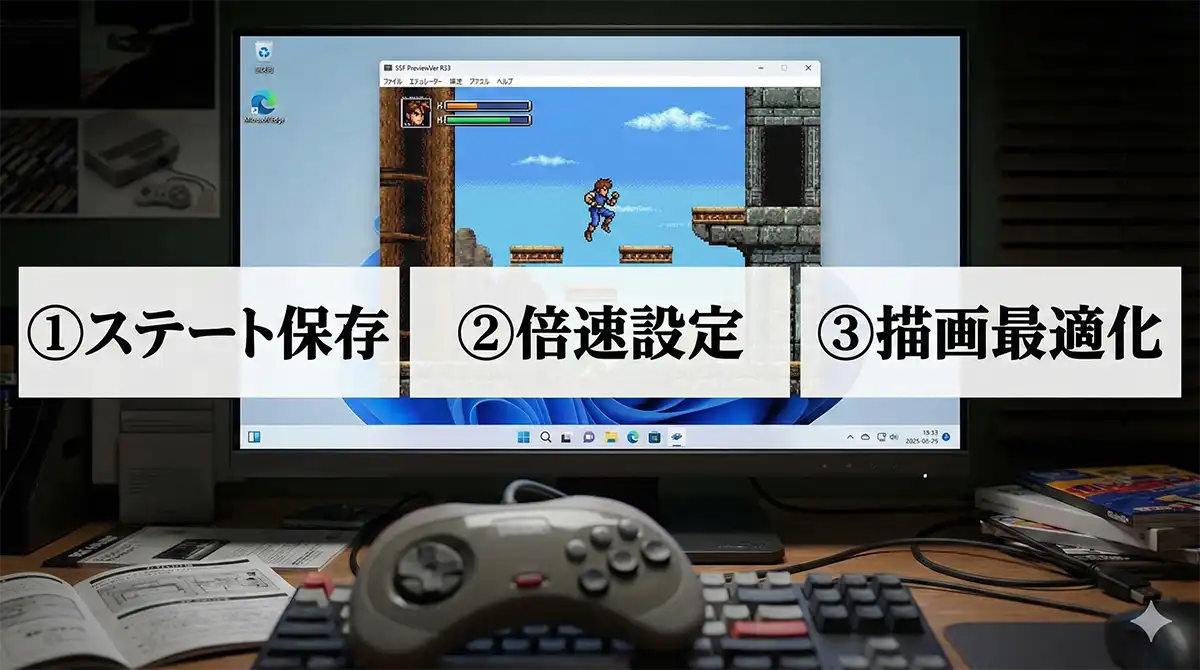
SSF is the Sega Saturn emulator most Windows users end up with, and every step here was checked on PreviewVer R33. This guide covers what comes after installation: which version to have, a five-minute setup pass, save states, fast-forward and the Screen tab. It does not cover dumping discs or installing the emulator.
One correction first, because the opposite is widely repeated: in R33 you do not set fast-forward up by editing a configuration file. The key is already defined. You press it and watch an indicator on screen.
- Why Saturn emulation is a bigger deal in North America
- Which version of SSF should you install?
- The five-minute setup right after installing
- The quick reference (come back to this table)
- Save states: stop anywhere, retry anything
- Fast-forward: the key is already defined, so press it and watch the indicator
- Video settings: everything lives under Option, then the Screen tab
- When something goes wrong
- Hardware that actually removes friction
- On legality
- Frequently asked questions
Why Saturn emulation is a bigger deal in North America
Sega launched the Saturn in North America on 11 May 1995 as a surprise, about four months ahead of its announced date, at US$399. Sony answered with a US$299 PlayStation in September, and the console was discontinued in the United States in 1998. Hence the situation now: a release list a fraction the size of Japan’s, secondhand discs that are expensive and patchily available, and thirty-year-old lasers that may no longer read. Emulation carries more weight for this platform than for a SNES or a Genesis.
Which version of SSF should you install?
SSF comes in two lines: older release builds and the PreviewVer builds the author publishes ahead of them. Unless you have a reason not to, install the newest PreviewVer from the author’s own download page; newer builds run more software and expose more settings. Everything here was verified on R33.
- Menu entries get renamed and moved between versions. When a guide names an entry that is not there, suspect a version mismatch, not a broken install.
- R33 has no fast-forward entry in Option at all. Searching every tab and finding nothing is correct.
Two ways to check the version you have
Read the window title bar after launching; the build is often printed there. Otherwise it survives in the ZIP name and the folder you extracted to, reliable if you never renamed it. Do this before following any guide, including this one.
What carries over when you upgrade
| What you want to keep | How it behaves | What to do |
|---|---|---|
| SSF.ini (your settings) | Copy it across by hand | Back it up first. Options come and go between builds, so if the copied file misbehaves, reconfigure from the new build’s own ini |
| Save states | Assume they will not transfer | They can refuse to load across versions. Take an in-game save before upgrading |
| BIOS file | Works as it is | Point the new build at the same file |
| Disc images | Work as they are | Leave them where they are and repoint the new build |
A version upgrade can cost you your save states, so do not upgrade mid-playthrough. If one game is unstable on the newest build, keep both in separate folders rather than installing over the top: settings and states live inside each folder, so breaking one leaves the other intact.
The five-minute setup right after installing
Do these five while you still remember you have not.
- Point SSF at your BIOS file. It needs a Saturn BIOS image dumped from your own console and will not boot without one.
- Pick one folder for disc images. The file picker then always opens in the right place and your backup is one copy. Choose somewhere your account can write freely, not the root of a drive.
- Map the controller, and count the buttons. A Saturn pad has six face buttons — A, B, C and X, Y, Z — plus Start. A four-button pad does not have enough.
- Test the save state key once, on a title screen. Press Shift + F7 and check that the prompt appears.
- Compare Scanline and Bilinear once. Both are pure taste: toggle each on a real game scene, pick a side, move on.
| # | Step | You are done when |
|---|---|---|
| 1 | BIOS path set | The Saturn boot logo appears |
| 2 | One folder chosen for disc images | The file picker opens in the same place every time |
| 3 | Controller mapped | All six of A, B, C, X, Y, Z respond |
| 4 | Shift + F7 tested | “Select Save No. 0-9” appears in the corner |
| 5 | Scanline and Bilinear compared | You have picked a side |
The quick reference (come back to this table)
| What you want | Keys in R33 | How you know it worked |
|---|---|---|
| Save a state | Shift + F7, then 0-9 | “Select Save No. 0-9” appears at the top left |
| Load a state | F7, then 0-9 | The game jumps back to that moment |
| Change speed multiplier | The key already defined in SSF.ini | The indicator at the top of the screen changes, for example x1 to x3 |
| Toggle scanlines | Shift + L | Horizontal lines appear over the picture |
| Toggle bilinear filtering | Shift + B | Edges go from sharp pixels to smoothed |
Save states: stop anywhere, retry anything
Saturn games predate autosave and dense checkpoints: long dungeon runs, unskippable cutscenes before bosses, one-shot dialogue choices.
Press Shift + F7. SSF prints “Select Save No. 0-9” in the top left corner; press any key from 0 to 9 and the state is written. To load, press F7 alone, then the same number — shift means write, no shift means read.
The prompt is the part people miss. If nothing appears in the corner the keystroke never reached SSF, so do not press a number: the game itself may read it. The same actions also live under File, then State Save or State Load, slower but useful months later.
Give your slots fixed jobs
Assign each slot a permanent role and never improvise.
| Slot | Its job | When you may overwrite it |
|---|---|---|
| 0 | Rolling “most recent” | Always, without thinking |
| 1 | Just before a boss or a hard section | Not until that boss is dead |
| 2 | Before a point of no return: a dialogue choice, a missable item | Not until you finish the game |
| 9 | Where you started today, as insurance | Once, at the start of a session |
Slots 3 to 8 stay free. Use them without deciding what they mean and you will eventually overwrite something that mattered.
Do not lean on save states for progress
States can stop loading after a version upgrade, so they are unsuitable for tracking weeks of progress. In-game saves carry your progress; save states handle stopping mid-scene.
Fast-forward: the key is already defined, so press it and watch the indicator
“I opened every tab in Option and there is no speed setting” is correct behaviour in R33. Fast-forward is not a menu item in this build; it is bound to a key already defined in SSF.ini, and nothing needs editing to make it work. Test it directly:
- Start a game and click once on the game image so SSF is the active window.
- Press the speed key.
- Watch the top of the screen. The indicator moving from x1 to x3, or to whatever is configured, means it worked.
That on-screen change is the only confirmation worth trusting. Judging by whether the game feels faster is how a working feature gets written off as broken.
When it does not work
| Symptom | Cause | Fix |
|---|---|---|
| You press the key and the indicator does not move | SSF is not the active window | Click once on the game image, then press it again |
| Other hotkeys work but the speed key does nothing | The binding in SSF.ini is not what you assumed | Exit SSF completely, then open SSF.ini and read the speed-related key definitions |
| The indicator changes but the game does not speed up | Your PC cannot keep up | Lighten the video settings and close other applications |
Note what SSF.ini is for in that middle row: reading it is a diagnostic step, not a setup step. Copy the file first under another name, and exit SSF completely before opening it — fully closed, not minimised, because SSF writes this file on shutdown and overwrites anything changed while it was running.
Where it helps and where it hurts
- Good for: crossing RPG overworlds, clearing encounters, grinding levels, rewatching cutscenes, load times.
- Bad for: practising a shooter or action game, where learning at the wrong speed teaches you nothing; scenes you want to hear the music in; tight input timing.
Audio drifting or skipping during fast-forward is normal, not a fault: the sound is following the video. The efficient pattern is to fast-forward the filler, save a state before the dangerous part, then drop to x1 and play it.
Video settings: everything lives under Option, then the Screen tab
All three settings are under Option, then the Screen tab. If a change does not take effect, restart SSF before assuming it is broken; some apply only on startup.
Scanlines overlay horizontal lines, approximating the CRT televisions these games were designed for. Toggle during play with Shift + L and judge on a moving scene. Convincing on a large high-resolution panel, closer to a dirty picture on a small one.
Bilinear filtering blends between pixels. On gives smooth edges, which suits the Saturn’s 3D games and its full-motion video; off keeps pixels crisp, which is what most people want for 2D sprite work. The toggle is Shift + B, and because the right answer changes from game to game, the hotkey matters more here than anywhere else.
Aspect ratio has a right answer rather than a preference. Saturn software was built for 4:3, so full screen on a 16:9 or ultrawide monitor can stretch it and leave characters wide and squat. Enable Fixed Aspect Ratio and set 4:3. The black bars at the sides are how it should look, not a defect.
| If you want | Scanline | Bilinear | Best suited to |
|---|---|---|---|
| Period-accurate CRT feel | On | Off | 2D shooters, fighters, sprite-based RPGs |
| Clean and smooth | Off | On | 3D games, racing titles, FMV-heavy releases |
| A middle ground | On | On | Mixed libraries you do not want to keep re-adjusting |
| Playing on a big TV | On | On | 50-inch and larger screens, where coarse pixels are hardest to ignore |
The larger the screen, the more obvious the pixel grid. On a television rather than a monitor, start with both on.
When something goes wrong
The hotkeys do nothing
- The SSF window is not active. Anything else with focus swallows the keystroke; click once on the game image.
- Your laptop needs the Fn key. Where the top row is media controls by default, F7 becomes Fn + F7 and Shift + F7 becomes Shift + Fn + F7.
- A non-Latin input method is active. A Japanese, Chinese or Korean input mode intercepts keystrokes before SSF sees them.
You changed too much and lost the picture
Copy your backup over SSF.ini and restart. Without a backup, moving SSF.ini out of the folder and restarting can let SSF regenerate a default configuration, which varies by setup and is at your own risk.
Sound plays but there is no picture, or it stutters
- Go back to windowed mode.
- Turn both Bilinear and Scanline off and see whether it improves.
- Restart SSF, since some video settings apply only on startup.
- Update your graphics driver and reboot.
- Move SSF.ini aside and start from a default configuration.
Your gamepad runs out of buttons
A Saturn pad carries eight buttons: six on the face plus L and R. A four-face-button pad offers only six in the equivalent positions, so two of the six face buttons end up on triggers or a stick click — awkward in fighting games, some of the console’s best software. A pad with six face buttons maps one to one.
Something behaves oddly specifically on Windows 11
Check two mundane things first: that you are on a current PreviewVer, and that the SSF folder is somewhere your account can write without elevation. A protected system folder is a common cause of settings and states that silently fail to persist.
Hardware that actually removes friction
SSF is not demanding; people are blocked by missing peripherals more often than by a slow PC. These are general categories, widely available from the usual online retailers — Amazon.com and AliExpress, and their equivalents in the UK and Australia — and no specific model is needed for anything here.
A six-button USB gamepad is the only one that changes how the emulator feels.
An external USB optical drive matters if you intend to image your own discs, since laptops no longer ship with one. If you still own an original Saturn pad, a USB adapter for it is worth checking before buying a new controller.
External storage earns its place once you have more than a few images, and gives save states somewhere that survives a new PC. A matte monitor suits scanlines better than a glossy panel, around 24 inches sitting comfortably in 4:3. A powered USB hub helps if a pad, a drive and storage are plugged in at once: controllers dropping out and drives vanishing mid-rip are classic symptoms of a laptop short of USB power.
On legality
This guide assumes you dump games you legally own, from your own discs and hardware, and the same for the BIOS. Sources for game images or BIOS files are deliberately not discussed.
Rules on personal backups differ by country and are not uniformly settled; in the United States the status of a personal backup is less clear-cut than it is usually presented. This is general information, not legal advice. Check the law where you live.
Frequently asked questions
Does SSF cost anything?
The emulator is distributed free by its author; you supply the BIOS and the games, which this site assumes come from hardware and discs you own.
I checked every tab in Option and there is no speed setting
That is normal in R33. Press the key instead and watch the indicator at the top of the screen move away from x1.
Where are save states stored?
Under the folder you extracted SSF into. Separate version folders each hold their own set, so back them up by copying the whole folder.
I upgraded and my save states will not load
States can fail to load across versions and recovery is not realistic, so take an in-game save before upgrading. If you kept the old folder, that build may still read them.
Can fast-forward corrupt my save data?
Not by itself. The risk is changing speed or force-quitting while a save is being written, so stay at x1 for saves.
The picture looks stretched sideways
Turn on Fixed Aspect Ratio and set 4:3 on the Screen tab; Saturn software was built for 4:3 and distorts when stretched.
SSF or one of the other Saturn emulators?
On Windows, start with SSF. The Saturn is one of the harder consoles to emulate and the field is small, so what decides it in practice is how much has been written about a given setup: when you get stuck with SSF, there is something to find. Two concrete reasons to look elsewhere — SSF is a Windows program, so it is no help on Linux or macOS, and a multi-system emulator is the alternative if you would rather run one front-end across several consoles.
コメント