



Hello! I’m Meriji — a retro gaming setup nerd who loves building “modern, comfortable” environments for classic games.
Have you ever thought, “Let’s play some NES/Famicom again,” then tried your old favorites like nnnesterJ or VirtuaNES on Windows 11… only to find weird behavior or instability?
That’s totally normal. Those legendary emulators were created a long time ago, and Windows (and emulation itself) has changed a lot since then.
In 2026, if you want a reliable, accurate, and feature-packed NES/Famicom emulator, the answer is basically one thing:
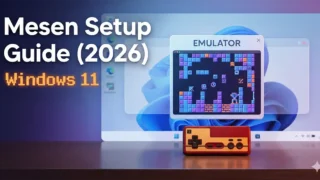
Mesen (current modern builds are often called Mesen 2).
Table of Contents
- Why Mesen is “the one” in 2026 (3 big upgrades)
- Step 1: Download & install Mesen (Windows 11)
- Step 2: First launch & controller setup
- Step 3: Load your dumped ROM and start playing
- Common issues & quick fixes
- Summary
Why Mesen is “the one” in 2026 (3 big upgrades)
Some people say, “If it runs, it’s fine.” But Mesen is on a different level. Here are the three reasons it’s so highly recommended today.
1) Extremely high accuracy
Many NES/Famicom cartridges use special mapper chips. Older emulators sometimes struggle with mapper behavior, causing games to fail to boot or display glitches.
Mesen’s accuracy is exceptionally high — it’s often harder to find a game that doesn’t work properly. Timing quirks and audio behavior are also handled very well, which is why many players call it “better than real hardware” for everyday play.
2) Rewind (the “retro gamer miracle” feature)
Fall into a pit in an action game? Get wiped by a surprise encounter in an RPG? With Mesen’s Rewind feature, you can roll time back seconds (or even minutes) and keep going.
This is one of those modern comforts that makes classic games feel fresh again.
3) HD Packs support
Mesen supports HD Packs created by the community, which can replace classic pixel art with modern high-resolution graphics.
It’s like turning “memory filters” into actual visuals — surprisingly beautiful when it’s done well.
Step 1: Download & install Mesen (Windows 11)
Let’s set it up. Good news: no installer is required for typical Windows builds.
Download source
Use one of these official sources:
Download the Windows ZIP, then:
- Extract the ZIP file
- Move the extracted folder somewhere simple (example:
C:\Emulators\Mesen\orD:\FC_Emu\Mesen\) - Run
Mesen.exe
About runtime requirements (.NET)
Most Windows 10/11 users will be fine with the standard release ZIP.
If you ever see a message about needing a .NET runtime, it usually means you downloaded a build that depends on .NET. In that case, install the recommended .NET Desktop Runtime from Microsoft and try again:
Step 2: First launch & controller setup
On first launch, Mesen shows an initial configuration window.
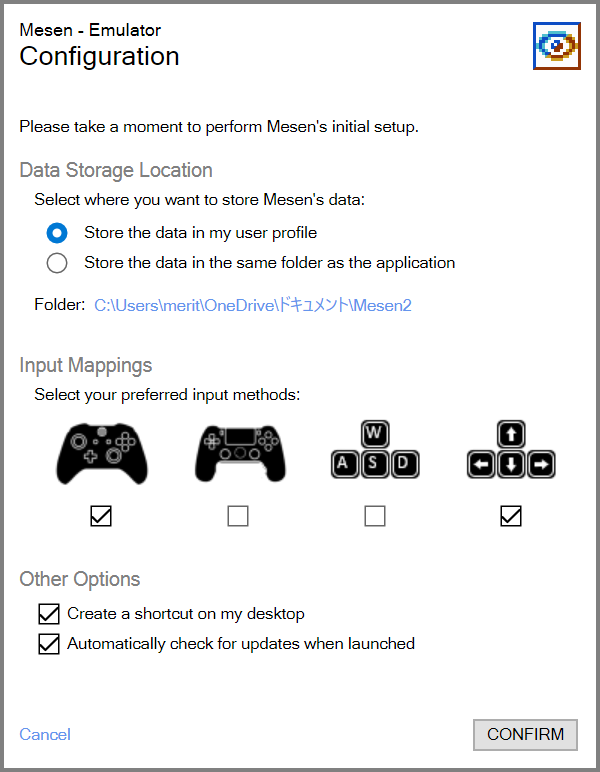
This is where Mesen feels “modern”: you can be ready to play almost immediately.
Controller setup: just check a box
Look for Input Mappings. You’ll see icons for common controllers (Xbox/PlayStation) plus keyboard options.
Simply check the icon for the controller you’re using, then click CONFIRM. Mesen will auto-map the buttons in a sensible way.
Language settings
Depending on your build/version, you may not see Japanese included by default. Fortunately, the menu layout is clean and easy to navigate in English.
If you want to customize button mapping later
You can always adjust it after setup. Open:
Settings > Input
If you want a deeper controller guide, here’s a dedicated article (Japanese):
Mesen Controller Setup Guide (Japanese)
Step 3: Load your dumped ROM and start playing
Mesen alone doesn’t include games — you’ll need a ROM file (usually .nes) made from a cartridge you own via dumping (also called “ripping”).
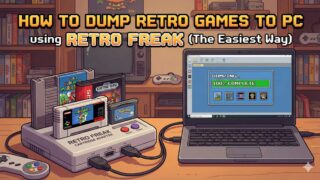
If you’re looking for a practical dumping method using Retro Freak, see this guide (Japanese):
How to Dump Retro Game Cartridges to PC with Retro Freak (Japanese)
How to start a game
Once you have your .nes file ready, launch it in either way:
- File > Open and select the ROM, or
- Drag & drop the ROM file onto the Mesen window
Common issues & quick fixes
Q: Mesen won’t launch / the screen stays black
A: Check these first:
- If you downloaded a build that needs .NET, install the .NET Desktop Runtime and try again.
- If the issue happens only when launching a game, re-check your ROM dump. Cartridge contacts can cause bad dumps — clean the contacts and dump again if needed.
Q: No sound
A: Go to:
Settings > Audio
Then confirm the correct output device (your speakers/headphones) is selected.
Summary
With Mesen, your NES/Famicom setup in 2026 is in great shape.
Classic games come back with modern comfort features (like rewind), and you can build a clean, fast Windows 11 environment that feels better than the old days — while still enjoying the original gameplay.
If you want to go deeper, here are a few related posts:
- Dump retro cartridges to PC (Retro Freak guide)
- Retro Freak basics & safe guidelines (Japanese)
- Mesen controller setup (Japanese)
- Mesen 2 command-line arguments list (Japanese)
Japanese version link (for mutual interlinking):
〖2026年版〗ファミコンエミュレーター「Mesen」導入ガイド(日本語)
コメント