



Disclosure: This post may contain affiliate links.
Sega Saturn was one of SEGA’s best consoles—no question.
But maybe your console no longer works, or you don’t want to hunt down a used unit just to replay your collection.
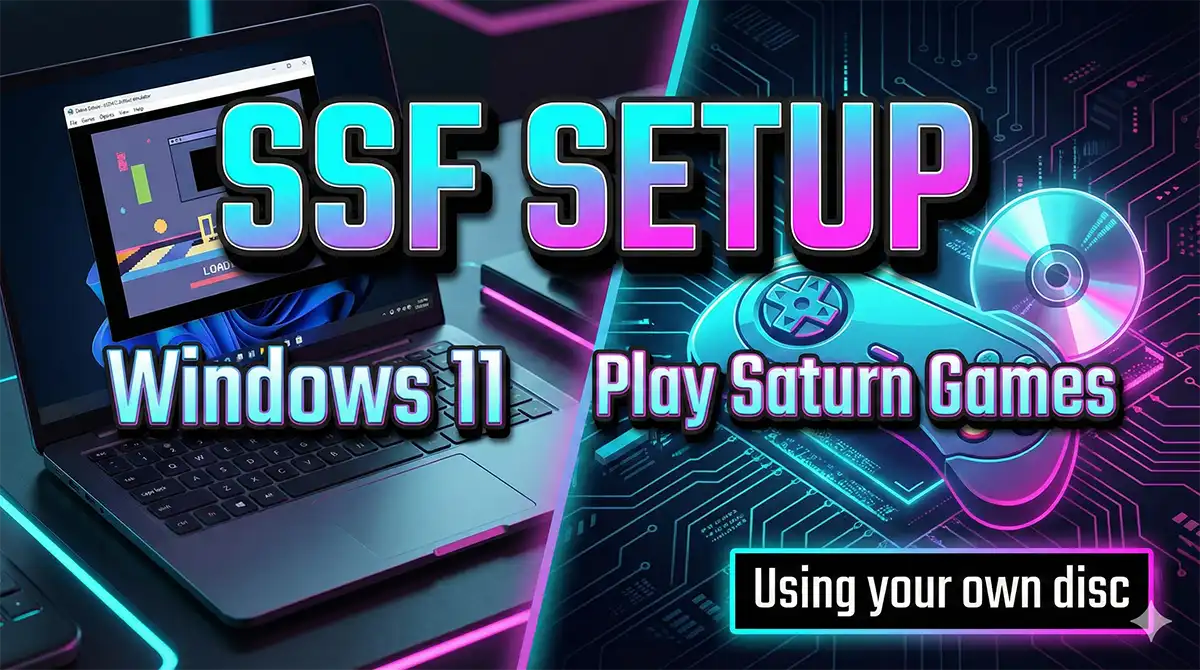
Good news: You can still play Sega Saturn games on a Windows PC using the emulator SSF—as long as you’re using your own original discs (or a disc image you personally dumped for private use).
Tested environment: Windows 11 / Windows 10, SSF PreviewVer R37 (Nov 2025)
Quick conclusion: You don’t need to buy a used Saturn console. You can start playing on Windows in minutes.
- Download SSF
- Extract the ZIP
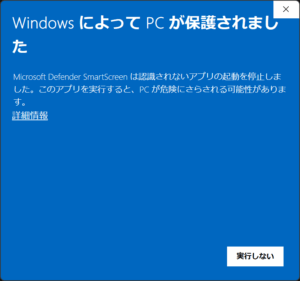
- Run SSF.exe (If SmartScreen appears: More info → Run anyway)
Table of Contents
- 3 Steps to Launch SSF
- What You Need Before Setup
- Step 1: Install SSF
- Step 2: Configure CD Drive + Controller
- Boot a Saturn Disc
- If It Doesn’t Work (Common Fixes)
- Why SSF Is Great: It Can Run Without BIOS
- More SSF Guides
3 Steps to Launch SSF
Getting SSF running is surprisingly simple:
- Install SSF
- Set your CD drive and controller
- Insert a Sega Saturn disc and start SSF
That’s it. Let’s go through it step-by-step.
What You Need Before Setup
A CD / DVD Drive for Your Saturn Disc
Sega Saturn games are on CD media, so you’ll need a CD-capable drive.
Many modern laptops don’t include an optical drive, so you may need a USB external drive.
Link
👉 Check Amazon reviews (external drive)
A Gamepad (Recommended)
You can play with a keyboard and mouse, but Saturn games feel best with a controller.
There are also USB gamepads shaped like the original Saturn controller—great for the full retro vibe.
Link
👉 Check Amazon reviews (Saturn-style USB controller)
Step 1: Install SSF
Installing SSF is basically three actions:
- Download the SSF ZIP
- Extract it anywhere you like
- Run SSF.exe
1) Download SSF
Download the ZIP from the SSF release page (GitHub):
SSF PreviewVer (GitHub Releases)
If the latest version doesn’t run a specific game well, try an older SSF release and test again.
2) Extract the ZIP
Extract the downloaded ZIP to a folder of your choice (for example, C:\Emulators\SSF\).
3) Run SSF.exe
Open the extracted folder and run SSF.exe.
If Windows SmartScreen appears, select More info → Run anyway (use your own judgment).
On first launch, SSF may show a black screen. That’s normal—no settings are configured yet.

Step 2: Configure CD Drive + Controller
Next, you’ll set:
- Which PC CD drive SSF should use
- How your controller buttons are mapped
CD Drive settings
Open Option → Option.
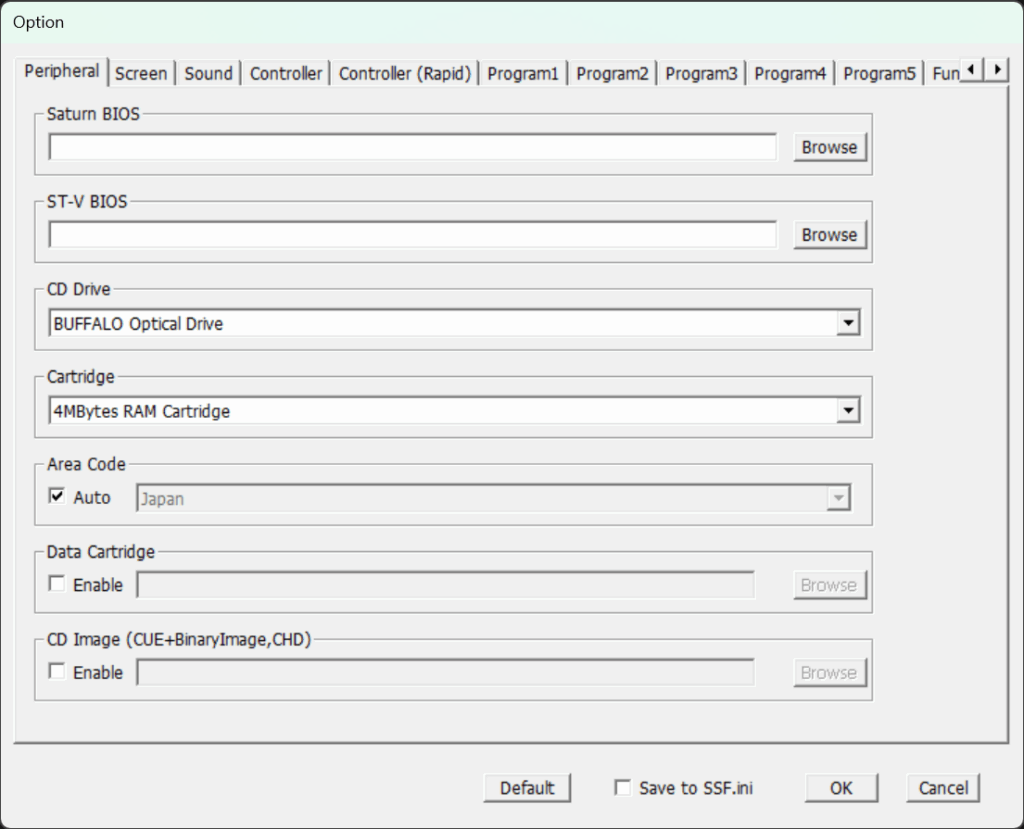
On the Peripheral tab, find CD Drive and select your drive from the dropdown.
Controller settings
Still in the Option window, go to the Controller tab.
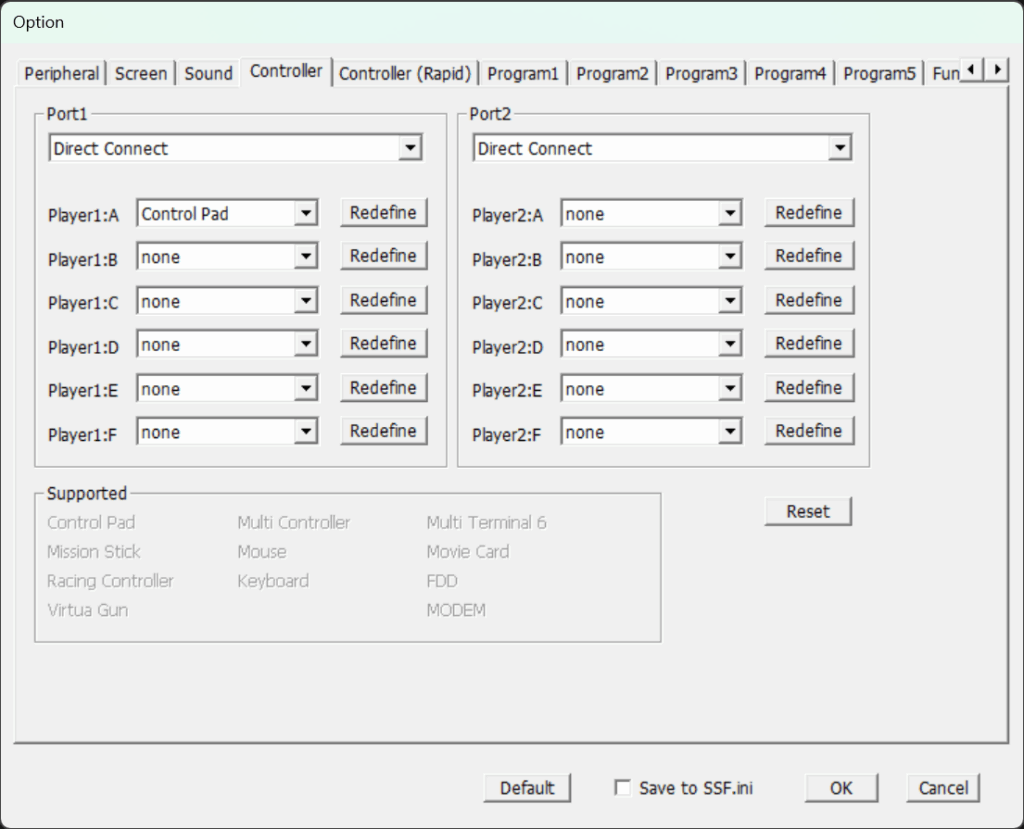
Saturn has two controller ports (Port1 / Port2). For a simple single-player setup:
1) Port1
Leave Direct Connect as-is.
2) Player1:A〜F (Device assignment)
Enable only Player1:A.
For most games, choose Control Pad.
If you want analog input for games that support the Saturn Multi Controller, choose Multi Controller.
3) Redefine (Button mapping)
Without mapping, nothing will respond.
- Set Player1:A to Control Pad
- Click Redefine
- Follow the prompts: select a Saturn button (e.g., “UP”), then press the corresponding button on your USB controller
Boot a Saturn Disc
Insert your Sega Saturn game disc into the selected drive, then restart SSF.
If your settings are correct, the game should boot.

Change window size
If the window feels small, you can scale it:
Option → Window Size → choose a multiplier (2x to 2.5x is a good starting point on many monitors).

On my 4K monitor, I usually play at 2.5x.
At this point you’re ready—go play!
If It Doesn’t Work (Common Fixes)
Stuck on a black screen
- Go to Option → Option → set Area Code to match your game’s region.
- Try a different SSF version (example: R37 → R36).
Controller doesn’t respond
- In the Controller tab: Player1:A → Control Pad → Redefine again.
- Try another USB port / unplug other USB devices temporarily.
No sound / broken audio
- Go to Option → Sound and return settings to default.
Why SSF Is Great: It Can Run Without BIOS
One of SSF’s biggest strengths is that it can run without requiring a Sega Saturn BIOS.
Many high-end console emulators require BIOS files extracted from the original hardware. SSF can often boot games even without that extra step.
That said, using a BIOS you personally dumped from your own Saturn may improve accuracy for some titles. (Do not download BIOS files from the internet—they are copyrighted.)
If you want to go deeper, I also have a separate BIOS dumping guide (Japanese):
Sega Saturn BIOS Dumping Guide (JP)
More SSF Guides
Controller troubleshooting & advanced options
SSF Controller Setup: Fix Detection Issues + Analog/Mouse/Turbo (JP)
Play without swapping discs: dump your own disc image
How to Dump a Sega Saturn Disc Image and Play It in SSF (JP)
YouTube Channel
I also run a YouTube channel where I talk about retro games (Showa–Heisei era) with a relaxed “chat and laugh” style voiceover.
If you’d like more tips and behind-the-scenes stories that don’t fit in blog posts, check it out:


コメント