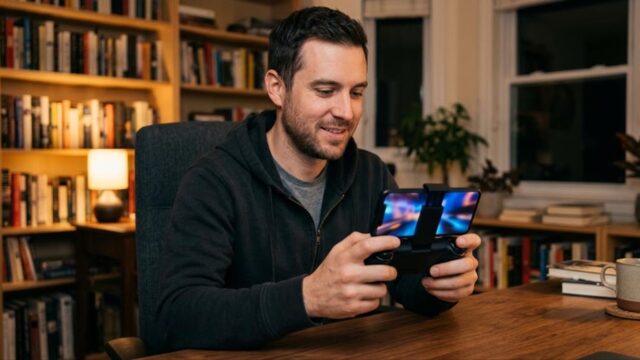
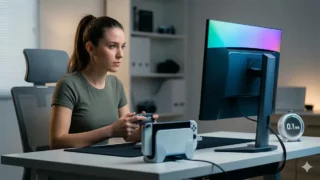





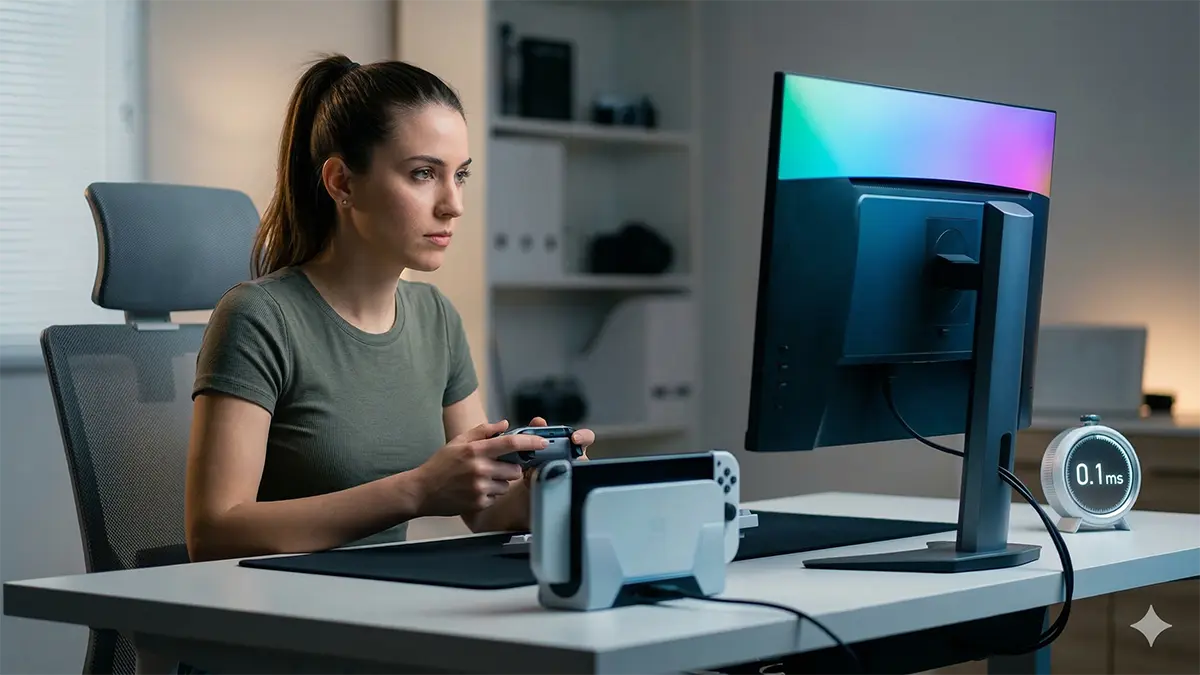
There are two complaints that get lumped together and should not be. One is input lag: you press a button and the picture reacts late. The other is audio delay, also called a lip-sync error: the picture is fine, but the sound arrives after it. They have different causes, different fixes, and different dead ends, and trying to solve both at once is why people end up changing twenty settings and improving nothing.
This guide separates them. It also front-loads the single most useful fact about Switch 2 latency, which comes from Nintendo itself: in TV mode, the console hands a signal to your television, and your television’s own image processing is what adds the delay. Nintendo states plainly in its support Q&A that a delay between your input and what you see or hear in TV mode is not a malfunction, and the fix it points you to is a TV-side feature such as Game Mode that shortens internal processing time (Nintendo’s official support Q&A, checked September 2026 — the same answer is published for both Switch 2 and the original Switch). So the first thing you touch is not the console. It is the display.
Everything below is ordered by how much latency it actually removes, not by how easy it is to find in a menu. Numbers in this article depend on your specific TV, panel and firmware, so treat them as a method rather than a promise, and measure your own setup with the phone-camera method in the measurement section if you want real figures.
- Start here: which of the two problems do you have?
- The five changes that matter, in order of impact
- Set the TV first: where Game Mode lives on the brands sold in the US, UK, Canada and Australia
- ALLM: what it does, and what it does not
- What Switch 2 actually outputs, and why “4K at 120” is not a thing
- Finding the latency in your chain
- Audio out of sync: isolate the output path one stage at a time
- Bluetooth headphones will always lag, and Nintendo says so
- When the controller feels slow: Pro Controller and Joy-Con 2
- Measure it in milliseconds with a phone camera
- When the display really is the bottleneck
- How to shop for a display for Switch 2
- Five HDMI 2.1 displays worth researching
- Does any of this apply to the original Nintendo Switch?
- Frequently asked questions
- My TV is brand new and expensive. Why does it feel worse than my old one?
- Is ALLM worth paying extra for?
- Should I turn HDR off to reduce latency?
- The sound is fine on TV speakers but late through my soundbar. Whose fault is that?
- Can I get rid of Bluetooth headphone delay?
- Why can’t I run 4K at 120 fps?
- Does a more expensive HDMI cable reduce input lag?
- My character drifts when I’m not touching the stick. Is that lag?
- Everything is laggy in handheld mode too. Now what?
- Is a TV or a monitor better for Switch 2?
- Bottom line
Start here: which of the two problems do you have?
Read the row that matches what you are experiencing and jump to that part of the guide. If both rows describe you, fix the input lag first — a TV stuck in a heavy picture mode causes both symptoms, and clearing it often takes the audio problem with it.
| What you notice | Most likely cause | First thing to change |
|---|---|---|
| Everything reacts late — menus, jumps, aiming — but picture and sound match each other | TV or monitor image processing | Turn on the TV’s Game Mode, then enable the full-bandwidth setting on that HDMI input |
| Picture looks fine, voices and sound effects arrive slightly after the action | Audio path: TV speakers, soundbar or AV receiver processing | Isolate the output: play through the TV’s own speakers with everything else disconnected |
| Only laggy when you play in TV mode; handheld mode feels normal | Confirmed display-side problem | Stay on the TV settings — the console and controller are not the issue |
| Laggy in handheld mode too | Controller, wireless congestion or the game itself | Wire the controller over USB-C and compare |
| Delay only when you use Bluetooth earbuds or headphones | Normal behaviour of Bluetooth audio | Nothing will eliminate it — switch to wired for anything timing-critical |
| The stick moves on its own, or inputs vanish entirely | A hardware condition, not latency | Stop stacking latency fixes — this is a separate problem |
The five changes that matter, in order of impact
If you only have five minutes, do these and stop. They are listed from largest improvement to smallest, and in practice the first two account for most of what people feel.
- Turn on Game Mode on the TV or monitor. This is the single biggest change available to you, and on a set that was left in a cinematic or “vivid” preset it can be the difference between a game feeling broken and feeling normal. Nintendo’s own guidance points here first.
- Plug the dock straight into the TV. Remove the AV receiver, the HDMI switch, the capture card, the soundbar pass-through — everything in the middle. Each box in the chain can add processing time and introduce handshake problems, and troubleshooting a chain is far harder than troubleshooting a single cable.
- Try HDR off. Some displays run a slower processing path when HDR is engaged. HDR10 is supported by Switch 2, but if the game is a fast one and your set feels sluggish in HDR, compare both states honestly before deciding.
- Reconsider your output resolution. Switch 2 gives you 4K at 60 fps, or 120 fps at 1080p or 1440p. For competitive play, a higher frame rate at a lower resolution is usually the better latency trade.
- Replace the display. Only after the four steps above. There is a checklist further down that tells you when the panel genuinely is the bottleneck, so you are not buying hardware to solve a menu problem.
Set the TV first: where Game Mode lives on the brands sold in the US, UK, Canada and Australia
This is where a guide written for one country falls apart, because the feature is universal but the label is not. Every major manufacturer implements a low-latency picture mode; almost none of them call it the same thing, and several bury a second, separate setting that has to be enabled before the HDMI port even runs at full capability.
Brand-by-brand setting names
The table below covers the brands that dominate living rooms across the English-speaking markets. Names are as published by the manufacturers and as of September 2026; menu paths shift between model years and firmware versions, so treat the wording as your search term rather than a fixed path.
| Brand | Low-latency mode | Automatic switching (ALLM) | Full-bandwidth HDMI setting |
|---|---|---|---|
| LG | Game Optimizer, with a Game Dashboard overlay for quick access | ALLM toggle sits inside the Game Optimizer menu | HDMI Deep Color, enabled per input |
| Samsung | Game Mode, plus a Game Bar overlay that reports input lag, frame rate and HDR state | Game Mode set to Auto; newer sets add automatic genre detection | Input Signal Plus, enabled per input |
| Sony (BRAVIA) | Game picture mode | Auto Genre Picture Mode exists, but Sony documents it as a PlayStation 5 feature — set Game mode manually for Switch 2 | HDMI signal format set to Enhanced format, per input |
| TCL | Game Mode, marketed alongside Game Accelerator | Auto Game Mode (ALLM) | HDMI Enhanced Mode, per input |
| Hisense | Game Mode picture preset | ALLM supported on gaming-capable models | Look under the HDMI or input format menu for the enhanced or 2.1 option |
| Vizio, Panasonic and others | Game Mode or an equivalent game picture preset | Varies by model year — check the input settings menu | Varies by model year — check the input settings menu |
The Sony row is worth pausing on, because it catches people who read PlayStation advice and assume it transfers. Auto Genre Picture Mode is documented as a PS5 feature: it lets the console tell the TV whether you are gaming or watching a film. A Switch 2 does not participate in that handshake, so on a BRAVIA you select the Game picture mode yourself on that input and leave it there.
The HDMI input setting almost everyone misses
Enabling Game Mode is only half the job. Most televisions ship with their HDMI ports in a reduced-bandwidth state, and the port only runs at its full capability once you switch that input over. Sony calls it Enhanced format, Samsung calls it Input Signal Plus, LG calls it HDMI Deep Color, TCL calls it HDMI Enhanced Mode. Until it is on, that input can be capped at a lower mode with HDR unavailable, and the HDMI 2.1 features — including automatic low-latency switching — may simply not engage.
Two things to know about it:
- It is per-input. Enabling it on HDMI 1 does nothing for the dock sitting on HDMI 3. Enable it on the port the dock is actually plugged into, and re-check it if you ever move the cable.
- Not every port is equal. On many sets only one or two HDMI ports carry the full 2.1 feature set, and one of those is often shared with the eARC port. If you are running a soundbar over eARC and a Switch 2 on the same television, find out which ports do what before you blame the console.
Turn off the processing that is costing you frames
Game Mode normally disables most of this for you, but some sets keep parts of it active, and some users have a custom picture profile that survives the switch. The features to look for, by name where the manufacturers are consistent:
- Motion interpolation / motion smoothing. LG calls it TruMotion, Samsung calls it Auto Motion Plus, Sony calls it Motionflow. This is the most expensive single feature in latency terms, because the set has to hold frames to invent new ones between them. Off, always, for gaming.
- Noise reduction. Samsung labels its version Digital Clean View; other brands use their own wording. It does nothing useful for a clean digital game signal.
- Sharpness and edge enhancement. Adds processing time and makes text and UI edges worse, not better.
- Black frame insertion and motion-clarity options. These improve perceived motion resolution but usually cost brightness and sometimes latency. Test them rather than assuming.
- The picture preset itself. Cinema, Movie, Filmmaker and Standard presets are tuned for image quality over responsiveness. Leaving one of those active is the most common reason a brand-new TV feels sluggish with a console.
One extra trick that works on a surprising number of sets: rename the input. Labelling the HDMI input as “Game” or “PC” makes some televisions apply a reduced-processing path automatically. It costs nothing to try.
ALLM: what it does, and what it does not
Auto Low Latency Mode is part of the HDMI 2.1 specification. When a compatible source starts sending a game signal, the display switches itself into its low-latency mode without you touching the remote. It is convenient. It is not magic, and two misconceptions about it are worth killing off.
ALLM does not make anything faster than manual Game Mode does. It automates the switch. If your set never switches on its own, selecting Game Mode by hand gives you exactly the same result. Do not spend money chasing ALLM support if you are willing to press three buttons on a remote.
Configure ALLM on the television, not the console. As of September 2026 there is no Switch 2 system setting for ALLM that could be confirmed in Nintendo’s published support material, so do not go hunting for one in the console menus. The TV is where this is controlled — on LG, for example, the toggle lives inside the Game Optimizer menu. And as noted above, if that input is not running at full bandwidth, the HDMI 2.1 features including ALLM may stay dormant regardless of what the menus claim.
What Switch 2 actually outputs, and why “4K at 120” is not a thing
The output specification
From Nintendo’s published specifications, checked September 2026:
- TV mode, docked: up to 3840 × 2160 (4K) at 60 fps
- 120 fps is available only at 1920 × 1080 or 2560 × 1440
- HDR10 is supported
The consequence is the one that trips up most new owners: 4K at 120 fps is not possible on Switch 2. If you bought a 4K/120 display expecting to run both at once, you did not buy the wrong TV — you were sold the wrong expectation. You choose one axis or the other, per game, depending on what the game supports.
4K/60 or 1440p/120 — which is better for latency?
For anything where timing decides the outcome, the higher frame rate wins, and not by a small margin. At 60 fps a single frame occupies about 16.7 ms; at 120 fps it is about 8.3 ms. That difference applies to every frame of the pipeline, and it is felt immediately in anything that requires reacting to what just appeared on screen. Resolution, meanwhile, changes how the game looks and has no comparable effect on how quickly it responds.
A workable default by genre:
| Genre | Recommended output | Why |
|---|---|---|
| Fighting games | 1440p at 120 fps | Frame-level timing decides matches; the resolution loss is irrelevant at normal viewing distance |
| Competitive shooters | 1080p or 1440p at 120 fps | Reaction time dominates; keep the pipeline as short as possible |
| Rhythm and music games | 1440p at 120 fps, plus in-game timing calibration | Audio-to-video alignment matters more than pixel count |
| Action and platformers | 120 fps if the game offers it, otherwise 4K/60 | Responsive feel over sharpness, but either is playable |
| RPGs, simulation, strategy | 4K at 60 fps | Nothing is decided in single frames, so take the image quality |
| Scenic and photo-mode-heavy games | 4K at 60 fps with HDR on | Latency is not the priority here |
VRR: do not buy a display on that promise
Variable refresh rate needs a careful answer rather than a confident one. Nintendo’s specification page documents VRR for the console’s own built-in screen at up to 120 Hz. In the HDMI output section, a VRR entry is not present, and reporting at the time (Tom’s Guide) noted that VRR wording had been removed from the page at one point.
The honest conclusion is therefore not “Switch 2 does not support VRR over HDMI” — that is more than the available information supports. It is this: do not make TV-output VRR your reason for buying a particular display. Choose the panel on the things you can verify — how well its Game Mode works, how low its measured lag is at 4K input, how its HDR behaves — and treat VRR over HDMI as a bonus that may or may not apply to you.
Finding the latency in your chain
The handheld-mode test settles the argument
Before you change anything else, undock the console and play the same section of the same game in handheld mode. This is the most informative thirty seconds in the whole process:
- Handheld feels noticeably more responsive → the delay is being added by your display or by something between the dock and the display. The console and controller are fine. Work on the TV.
- Handheld feels the same → the display is not the main culprit. Look at the controller, the wireless environment, or the game’s own engine.
Everything between the dock and the TV
Each device in the path is a place where frames can be held and where HDMI negotiation can go wrong. In rough order of how much trouble they cause:
- AV receivers. Some pass video through with negligible delay; others process it. Many also apply their own lip-sync correction, which is helpful for broadcast and actively harmful for games.
- HDMI switches and splitters. Cheap ones add latency, drop HDR, or renegotiate the link mid-session and black the screen out.
- Capture cards. Even with a pass-through output, a capture device in the chain is one more variable. If you are troubleshooting, take it out entirely and put it back last.
- Soundbar video pass-through. Route video to the TV and audio back over eARC instead of running video through the soundbar, where that is an option.
Test with the dock connected directly to the television and nothing else in between. Once that configuration is known-good, add one device back at a time so you know which one costs you what.
Cables and the dock itself
A cable is rarely the cause of latency, but it is a common cause of an unstable link that gets blamed on latency — random blackouts, a mode that drops to something lower than you selected, HDR that refuses to engage. For 4K/60 with HDR, or for 120 Hz modes, use a cable rated for the bandwidth you are asking for; a certified Ultra High Speed HDMI cable takes that variable off the table, and a short run is more forgiving than a long one. Also check the obvious physical things: the dock’s HDMI port seated properly, the power supply being the one that came with the console, and the dock not sitting in a sealed cabinet where it will heat-soak.
Audio out of sync: isolate the output path one stage at a time
Lip-sync problems are solvable, but only if you stop guessing and start eliminating. The method is to disconnect everything, establish whether the delay exists at the simplest possible configuration, and then add one stage back at a time. The moment the problem appears is the moment you have found the device responsible.
The elimination table
| Audio output path | What to test | If it is out of sync here, suspect |
|---|---|---|
| The TV’s own speakers | Disconnect the soundbar and receiver entirely and listen to the TV alone | The TV’s video processing — go back and set Game Mode |
| Soundbar over ARC or eARC | Compare the soundbar against the TV’s own speakers on the same scene | The soundbar’s audio delay or lip-sync setting |
| AV receiver in the chain | Connect the dock straight to the TV and compare | The receiver’s processing and its lip-sync correction |
| Bluetooth earbuds or headphones | Switch to a wired pair and compare | Nothing is broken — this is how Bluetooth audio behaves |
| Wired headphones in the console or controller | Compare against the TV’s speakers | Very unlikely to be the source; if this is out of sync, it is the video side |
Note the second row carefully. If the TV’s own speakers are already out of sync, your soundbar is innocent and you are looking at a video-processing problem. People spend hours adjusting soundbar delay for a problem that Game Mode would have fixed.
The TV-side settings, by name
On the two brands that dominate these markets the settings are documented and easy to name:
- LG: All Settings → Sound → Additional Settings → AV Sync Adjustment. There is a Bypass option, which sends audio through without added delay; turn it on first to see whether the TV was the one introducing the offset. If you still need to trim, the TV Speaker Delay value is adjustable from there.
- Samsung: Settings → Sound → Expert Settings → Digital Output Audio Delay. The same menu has a sound reset if you have lost track of what you changed.
- Other brands: look for wording along the lines of Audio Delay, AV Sync, Lip Sync or Audio Sync, in the sound or audio output menu.
The order of operations matters more than the exact numbers. Set the TV’s delay to zero or Bypass first, then fine-tune on the soundbar or receiver. If you add correction at both ends you will end up chasing your own adjustments, and the result will be wrong on some inputs and right on others.
Which direction to move the value:
- If the sound arrives after the picture, you need less audio delay, not more — head toward zero or Bypass. If you are already at zero, the video path is the problem and you need Game Mode.
- If the sound arrives before the picture, add delay in small increments of 10 to 20 ms until mouths and voices line up.
Soundbars, ARC and eARC, and receivers
A few things that come up repeatedly with soundbars in living-room setups:
- ARC and eARC do not behave identically. If your TV has both an ARC-only port and an eARC port, which one the soundbar is on can change both what formats get passed and how much processing happens along the way. Move the soundbar to the eARC port and re-test.
- Try forcing PCM. Setting the TV’s digital audio output format to PCM instead of a passthrough bitstream removes a decoding stage. Compare both — on some combinations this alone fixes the offset.
- Turn off the receiver’s own lip-sync correction while testing. Automatic correction designed for broadcast content can work against a game signal. Disable it, establish a baseline, then re-enable it only if it helps.
- Check the soundbar’s app. Several manufacturers expose an audio-sync slider in their phone app that is not present in the on-device menu.
- Wireless subwoofers and wireless rear speakers add their own latency by design. The bar’s own correction normally handles it, but if you are hunting a small offset, it is worth knowing they are in the picture.
Rhythm games are a special case
For music and rhythm games, stop trying to make the hardware perfect and use the tool the game gives you. Almost every rhythm game has a timing or offset calibration screen, and its whole purpose is to absorb whatever delay your particular chain has. Calibrate it on the setup you actually play on, and re-calibrate if you change the audio path.
Beyond that, the reliable fix for rhythm games is to remove wireless audio from the equation altogether: a wired headset into the console or the controller’s audio jack gives you a stable, short audio path that you can calibrate against once and trust thereafter.
Bluetooth headphones will always lag, and Nintendo says so
This section exists to save you from a search that has no answer. Nintendo’s support documentation states directly that with Bluetooth audio, delay and noise can occur because of how wireless communication works, and that this is not a malfunction or a defect (Nintendo’s official support pages, checked September 2026).
What Nintendo actually recommends
The official troubleshooting steps are three, and they are worth doing because they address interference rather than the protocol itself:
- Power the audio device off and on and reconnect it.
- Move the device closer to the console and remove obstacles between them.
- Change the console’s Wi-Fi from the 2.4 GHz band to 5 GHz, because 2.4 GHz Wi-Fi and Bluetooth share the same spectrum and interfere with each other.
If those do not resolve it, Nintendo’s own advice is to try a different Bluetooth audio device or to use wired audio instead. That is the part worth reading twice: the manufacturer’s escalation path for Bluetooth delay ends at “use a cable.” There is no official method for eliminating wireless audio latency, and any guide promising one is not telling you the truth.
The Bluetooth audio specification, as published
| Item | What is supported |
|---|---|
| Profile | A2DP, with AVRCP supported |
| Codec | SBC, with AAC supported |
| Microphone input from a Bluetooth audio device | Not supported — a Bluetooth headset’s mic cannot be used for voice chat |
| Simultaneous wireless controllers | Bluetooth audio cannot connect while three or more wireless controllers are connected |
| During local wireless play | Bluetooth audio is automatically disconnected |
Two clarifications, because both get misreported. First, the microphone limitation is about Bluetooth audio devices specifically — it means the mic on your Bluetooth headset is not available as an input. It does not mean the console has no microphone capability at all. Second, the supported codecs are the two listed above. If you have read that Switch 2 supports low-latency codecs from the LDAC or aptX families, that is not in Nintendo’s published specification, and buying headphones for that reason is buying on an assumption.
The practical answer
Use Bluetooth for what it is good for — podcasts, casual single-player, late-night sessions where convenience beats precision. For fighting games, competitive shooters and anything rhythm-based, use a wired headset or the TV’s audio path. This is not a compromise you can engineer your way out of; it is a property of the transport.
When the controller feels slow: Pro Controller and Joy-Con 2
Work through it in this order
Each step either eliminates a cause or identifies one. Do not skip ahead — step one is the one that tells you whether you are even in the right part of the system.
- Undock and repeat the same action in handheld mode. If it feels better, the display is your problem and the controller is fine. This is the decisive test, and it is first for a reason.
- Connect the controller with a USB-C cable and compare. If wired feels better, the wireless link is the issue and the next two steps are where your fix is.
- Disconnect controllers you are not using. A controller sitting in a drawer still holds a wireless slot. If disconnecting them helps, the link was congested.
- Move the console’s Wi-Fi to the 5 GHz band. Same interference logic as the Bluetooth audio advice: 2.4 GHz Wi-Fi competes with the controller link.
- Check the battery level and the system version. A nearly flat controller and out-of-date firmware are cheap things to rule out.
2.4 GHz congestion in a real home
The 2.4 GHz band is crowded, and in an apartment building it is crowded with your neighbours’ hardware too. Common culprits in the same room as a console: the Wi-Fi router itself, microwave ovens while running, wireless keyboards and mice, smart-home devices, baby monitors, and wireless security cameras. Physical placement matters more than people expect — a dock tucked behind a metal AV cabinet or directly beside a router is working against you. Give the dock line of sight to where you sit if you can.
“Slow to respond” and “moves on its own” are not the same problem
This distinction saves a lot of wasted effort. If your character walks when you are not touching the stick, or inputs drop out entirely mid-action, that is a condition of the stick hardware, not latency. No amount of Game Mode, HDMI configuration or band-switching will address it, and mixing the two investigations together means you will conclude that the latency fixes “did not work” when they were never aimed at your problem in the first place.
Test them separately. For a suspected stick problem, go into a controller test screen or a menu where a resting stick should produce no movement at all, and observe it with your hands off the controller.
Measure it in milliseconds with a phone camera
If you want to compare settings honestly, or decide whether a display is worth replacing, stop trusting your impressions and measure. You need a phone that can record at 240 fps or higher, and a way to make a light source fire at the moment of input.
The method
- Set your phone’s camera to 240 fps or higher.
- Arrange an LED that lights at the instant you press the button, so the input itself is visible on camera.
- Frame the shot so that both the LED and the game screen are in view at the same time.
- Record, press the button, and step through the footage frame by frame.
- Count the frames from the LED lighting up to the first visible change on screen.
The arithmetic
Frames × (1000 ÷ fps) = milliseconds. At 240 fps, one frame is about 4.17 ms (1000 ÷ 240). So a 12-frame gap is roughly 50 ms of total latency from input to visible response.
Because your resolution is about 4.17 ms per frame, a single measurement is not a result. Take a series of them and report the average, the minimum and the maximum. A setting change that moves the average by less than one frame has not been proven to do anything.
Where this goes wrong
- The LED blows out to pure white and you cannot tell which frame it started on. Reduce its brightness or diffuse it.
- Screen reflections make the game image unreadable. Darken the room and change the camera angle.
- Your button presses are inconsistent. Fix your grip and your hand position between takes, and do not use a turbo or rapid-fire accessory.
- You changed two things at once. Change one variable per measurement series, or you have learned nothing about either.
Be clear with yourself about what this number is: it is total end-to-end latency for your setup — console, game engine, cable, display and all — not the display’s isolated input lag. That makes it perfect for comparing before and after on your own equipment, and useless for comparing against someone else’s published figure.
When the display really is the bottleneck
Replace hardware only after you have exhausted the settings. These are the signs that you have:
- Game Mode is definitely on, and it makes little or no difference to how the game feels.
- Turning HDR off does not help either.
- The dock is connected directly to the display with nothing in between, and it is still sluggish.
- 4K input is unstable — intermittent blackouts, the mode silently dropping, HDR refusing to engage — even with a cable rated for the bandwidth.
- The set has no meaningful low-latency mode at all, which is common on older and on budget models.
If several of those are true, the panel is the limit and no further menu work will change it.
How to shop for a display for Switch 2
The criteria that actually matter
Ignore the headline refresh-rate number for a moment. What matters for a Switch 2 is narrower than the spec sheet suggests, because the console caps at 4K/60 and 120 Hz at lower resolutions.
- HDMI 2.1. Present, and on the port you intend to use.
- Verified low latency at 4K input specifically. A panel can be excellent at 1440p/240 for PC use and mediocre at 4K/60, which is the mode you will actually be in.
- A Game Mode that does real work. The gap between a strong and a weak implementation is larger than the gap between two panels’ specs.
- HDR that holds together. If a display’s HDR is dim or washed out, you will end up running it off, and you paid for a feature you do not use.
- A size that suits your viewing distance, which is the criterion people override with their wallet and then regret.
How to use RTINGS without misreading it
For readers in North America and the UK, RTINGS is the most practical common reference for input lag, because it publishes measured figures per resolution and refresh rate rather than marketing claims. Three habits make it much more useful:
- Read the row that matches your mode. The 4K/60 figure with Game Mode engaged is the number that describes your Switch 2 experience. The 240 Hz figure is irrelevant to this console.
- Compare Game Mode on against Game Mode off in the same review. That difference tells you how much the manufacturer’s low-latency implementation is actually doing, which is the thing you cannot learn from a spec sheet.
- Check the exact model and revision. Manufacturers ship regional variants and mid-cycle panel changes under similar names, and the measured behaviour can differ.
27-inch or 32-inch?
| Size | Suits | Trade-off |
|---|---|---|
| 27-inch | Desk use at close range, and anyone who also reads text on the same screen | Less of a sense of scale — it can feel underwhelming after a big TV |
| 32-inch | Setups where you can sit further back, and players who want immersion | Uncomfortable up close — neck and eye fatigue are real at desk distance |
If you are going to a 32-inch panel on a desk, plan the distance before you buy, not after. A monitor arm buys you several inches of depth and lets you set height properly, which for a large panel at close range is the difference between a setup you use and one you tolerate.
Five HDMI 2.1 displays worth researching
These are widely available international models rather than region-locked ones, and the notes below are the trade-offs to weigh rather than an endorsement. Verify current measured figures for the exact revision you are buying before you commit, and note the recurring theme: several of these are excellent displays whose headline feature the Switch 2 cannot use.
| Model | Type | Strength | Watch out for |
|---|---|---|---|
| ASUS ROG Swift OLED PG27UCDM | 27-inch 4K OLED | Strong 4K image quality and strong gaming performance | Black levels can look raised in a bright room |
| Dell Alienware AW2725Q | 27-inch 4K QD-OLED | Well regarded for console use as well as PC | Switch 2 cannot use its 240 Hz — the value is there only if you share it with a PC |
| Acer Nitro XV275K P5 | 27-inch Mini LED | High brightness, which helps HDR look worthwhile | 60 Hz latency behaviour varies by revision and settings — check reviews for your exact model |
| Dell S2725QS | 27-inch | Accepts 4K at 120 and reviews well for low input lag | HDR is not its strength; many owners run it off |
| ASUS ROG Swift OLED PG32UCDM | 32-inch 4K OLED | Large-panel immersion, well regarded for console use | Its 60/120 Hz input lag is sometimes described as slightly higher than rivals |
Where cheap displays let you down
The failure patterns are consistent enough to list:
- No usable Game Mode. Either absent, or present and barely changing anything.
- HDR so dim that you switch it off permanently, which makes the HDR badge on the box decorative.
- Unstable 4K input — intermittent blackouts or a mode that quietly drops to something lower.
Before you buy, and on the day it arrives
Three questions before checkout: is HDMI 2.1 present on the port you will use; what exactly are the return window and warranty terms; and are you going to run a proper check when it arrives. In the US, UK, Canada and Australia the large online retailers and electronics chains all have return policies, but the window is short and it starts the day it lands, so the check is not optional.
Prices move constantly across these markets, so this guide does not quote figures in US dollars or any other currency — check current pricing yourself at the time you buy, and note that a launch-price panel and the same panel six months later are very different value propositions.
On arrival, run through this inside the return window:
- Full-screen solid colours — black, white, red, green and blue — looking for dead or stuck pixels and for uniformity problems.
- 4K input stability over a sustained session, not a two-minute glance.
- Whether Game Mode measurably helps, using the phone-camera method above. This is the one test that tells you whether you bought the right display for this console.
Does any of this apply to the original Nintendo Switch?
Broadly, yes. The fixes are the same; what differs is the ceiling and how much new display technology can do for you.
| Item | Nintendo Switch (original) | Switch 2 |
|---|---|---|
| Maximum TV output | 1920 × 1080 at 60 fps | 3840 × 2160 (4K) at 60 fps |
| Which fixes work | The same ones: TV Game Mode, direct connection, remove intermediate devices, wired audio | The same ones |
| Benefit from an HDMI 2.1 display | Limited — different generation of hardware | Meaningful |
In other words, if you have an original Switch and it feels laggy on a new television, do not conclude that you need to upgrade the console. Set Game Mode and connect the dock directly first. The most common cause is identical on both generations.
Frequently asked questions
My TV is brand new and expensive. Why does it feel worse than my old one?
Because more processing usually means more delay. Premium sets have more image-processing features and often arrive with them enabled in a picture preset tuned for film. A cheaper, simpler television can feel more responsive out of the box for exactly that reason. Turn Game Mode on and the picture disappears as an explanation.
Is ALLM worth paying extra for?
Not on its own. It automates a switch you can perform manually with the same end result. Pay for a good Game Mode implementation and low measured latency at 4K/60; treat ALLM as convenience.
Should I turn HDR off to reduce latency?
Test it. On some displays the HDR path is slower; on others there is no meaningful difference. Switch 2 supports HDR10, so this is a per-display question rather than a universal rule — and it is exactly the kind of question the phone-camera measurement answers in ten minutes.
The sound is fine on TV speakers but late through my soundbar. Whose fault is that?
The soundbar or its connection. Set the TV’s audio delay to zero or Bypass, move the bar to the eARC port if there is one, try forcing PCM output, and then adjust the bar’s own audio-sync setting. Adjust at one end only.
Can I get rid of Bluetooth headphone delay?
No. Nintendo’s documented escalation path for persistent Bluetooth audio delay ends with using a different device or going wired. Reconnecting, moving closer and switching Wi-Fi to 5 GHz can reduce interference, but the transport itself has latency.
Why can’t I run 4K at 120 fps?
Because the console does not offer it. 4K is capped at 60 fps, and 120 fps is available at 1080p or 1440p. Choose per game based on whether timing or image quality matters more for what you are playing.
Does a more expensive HDMI cable reduce input lag?
No. Cables do not add or remove meaningful latency. What an inadequate cable does is make the link unstable — dropped modes, blackouts, HDR that will not engage. Use a cable rated for the bandwidth you are requesting and stop thinking about it.
My character drifts when I’m not touching the stick. Is that lag?
No, and treating it as lag will waste your time. That is a stick hardware condition and needs to be investigated separately from anything in this guide.
Everything is laggy in handheld mode too. Now what?
Then the display is not your problem. Go to the controller section: wire the controller over USB-C, disconnect controllers you are not using, move Wi-Fi to 5 GHz, and check battery and system version. If a specific game is the only one affected, the game’s own frame pacing may be what you are feeling.
Is a TV or a monitor better for Switch 2?
A monitor is generally more responsive for the money and is the better choice at desk distance; a TV gives you scale, better speakers and easier living-room placement. Either works well once Game Mode and the full-bandwidth HDMI setting are configured, which is the point of this whole guide.
Bottom line
Three sentences, if you remember nothing else. Input lag is almost always the display, and the fix is Game Mode plus the full-bandwidth setting on that specific HDMI input. Audio delay is solved by elimination — TV speakers alone first, then add the soundbar or receiver back, and correct at one end only. Bluetooth audio delay is not a fault and has no fix; use wired audio when timing matters.
And when you want to know whether a change actually helped rather than whether it felt like it helped, record it at 240 fps and count frames. One frame at 240 fps is 4.17 ms, measurements vary with your room, your cable, your firmware and your panel, so take several and report the spread. Your numbers will not match anyone else’s, and that is fine — the only comparison that matters is your own setup before and after.
Product specifications, availability and warranty terms change, so confirm current details with the manufacturer or retailer before buying. This article is general information reflecting what could be verified as of September 2026, not professional or legal advice.
コメント