


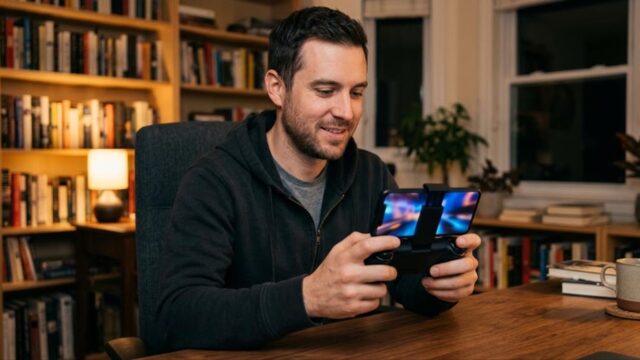


If you want to play Nintendo DS games on an Android phone in 2026, the short answer is: install melonDS and turn on the JIT compiler. DraStic, the go-to DS emulator on Android for years, was removed from the Google Play Store in February 2025, so it is no longer an option for a new install.
The DS is unusual hardware, with two screens and a touchscreen. If you set it up the way you would any other emulator, you tend to hit the same problems: the bottom screen is awkward to tap, or a save seems to vanish. This guide covers installation, BIOS and firmware files, dual-screen layouts, save management and fixes for common problems.
This guide assumes you are playing DS cartridges you own and have dumped yourself. It does not cover downloading or sharing ROMs.
- Short Answer: melonDS Is the DS Emulator to Use on Android in 2026
- DraStic Removed from the Play Store: Why melonDS Replaced It
- melonDS Android Setup: Install and First Settings
- DS BIOS and Firmware Files: What You Actually Need
- OpenGL vs. Software Renderer: Upscaling DS Games
- Dual-Screen Layout and Touch Controls
- Managing Save Files (and Not Losing Them)
- melonDS Not Working or Running Slow: Fixes by Symptom
- Is DS Emulation Legal in the US?
- Summary: Three Things to Do First
Short Answer: melonDS Is the DS Emulator to Use on Android in 2026
There are really only three options, and one of them is clearly the best choice.
| Option | Availability (September 2026) | Dual screens and touch | Verdict |
|---|---|---|---|
| melonDS (Android port) | Free on Google Play, still updated | Dedicated UI with custom layouts | Install this one |
| DraStic | Removed from the Play Store in February 2025 | Good, but no longer updated | Not an option for new installs |
| RetroArch (melonDS DS core) | Play Store or the official site | Built around a single screen, so dual-screen setup takes more effort | Only if you want every system in one app |
The reason is simple: melonDS is the only DS emulator on Android that is still being actively developed. The main melonDS project is on PC. The Android version is an unofficial port by Rafael V. Caetano, available free on Google Play. It is still updated, most recently with version 2.0.1 in May 2026. Recent updates made the OpenGL renderer faster and added layout options that let you place buttons in the notch (the camera cutout).
If you’d rather use RetroArch, choose your core carefully. RetroArch has an older “melonDS” core and a newer “melonDS DS” core. Pick melonDS DS, because the old melonDS core is no longer updated. The DeSmuME core also works, but it does not support DSi mode, and most development work has moved to melonDS.
To get started, you need three things:
- An Android device (DS emulation is fairly light; more on that below)
- melonDS (free on Google Play)
- .nds files dumped from cartridges you own
DraStic Removed from the Play Store: Why melonDS Replaced It
A lot of people search for “DraStic” because they remember it as the best DS emulator, so here is what happened.
DraStic was sold as a paid app for more than ten years. In March 2024, developer Exophase made it free and said it would be pulled from the store later. In February 2025 it was removed from Google Play, as he had said it would be. Nintendo did not take it down. The developer removed it himself. He also said he wanted to release the source code, but that had not happened when we checked.
That means DraStic is now in this state:
- There is no official way to install it anymore, because it is not on the Play Store.
- It is no longer updated, so there is no guarantee it will keep working on future Android versions.
- APKs posted on unofficial sites come from unknown sources and could be modified. Don’t install them.
melonDS is the opposite on every point: it is free, it is still updated, and it is on the Play Store. If you bought DraStic years ago and it is still installed on your phone, you can keep using it. If you are starting fresh, there is no reason to choose it.
Performance has also caught up. Version 1.10 of the Android app (March 2025) added an OpenGL renderer that can raise the internal resolution up to 8x. The old view that “DraStic is faster” is out of date in 2026.
melonDS Android Setup: Install and First Settings
After installing, you really only need to do two things: set your ROM folder and check that JIT is on.
- Install “melonDS” from Google Play (developer: Rafael V. Caetano). Some other apps use similar names, so check the developer name.
- Choose a folder for your game files. Something like Internal storage/ROMs/NDS/ works well. Keeping one folder per system makes things easier later.
- On first launch, tap “SET ROM DIRECTORY” and select that folder. If you skip this, the game list stays empty.
- Go to Settings, then Emulation, and turn on JIT Compiler.
Step 4 matters most. JIT (just-in-time compilation) translates the DS’s CPU instructions into your phone’s CPU instructions as the game runs. It makes a clear difference to speed. If you only change one setting, change this one.
If you keep your games on a microSD card, the card’s speed affects loading times. A very cheap, slow card can make the emulator feel sluggish.
What kind of phone do you need? The DS is much easier to emulate than the PS2 or GameCube. Any mid-range phone or better from the last few years should run games at native resolution at full speed. You’re most likely to hit limits with 3D-heavy games or when you raise the internal resolution, and both depend on your phone’s GPU.
DS BIOS and Firmware Files: What You Actually Need
In short, you don’t need BIOS files just to play DS games. melonDS includes a built-in replacement called FreeBIOS, and most games boot with it.
You do need real BIOS and firmware files, dumped from your own hardware, in these cases:
| What you want to do | Files required | Notes |
|---|---|---|
| Play DS games normally | None (FreeBIOS works) | A few games may behave strangely |
| Boot to the DS system menu (firmware boot) | bios7.bin / bios9.bin / firmware.bin | Must be dumped from a DS or DS Lite you own |
| Run in DSi mode | DSi BIOS, firmware and NAND set | The DS BIOS files must also be set |
The expected file sizes are bios7.bin: 16 KB, bios9.bin: 4 KB, and firmware.bin: 128 KB, 256 KB or 512 KB. The file names must match exactly.
The source of your firmware.bin is where most people go wrong. A 128 KB firmware.bin dumped from a DSi or 3DS only contains settings data and cannot boot the DS system menu. It only works for direct boot, which starts the game directly. To boot into the system menu, use firmware dumped from an original DS or DS Lite.
In melonDS, you set separate BIOS folders for DS mode and DSi mode. DSi mode still needs the DS BIOS files set. Some games are unstable in DSi mode, so get things working in DS mode first.
OpenGL vs. Software Renderer: Upscaling DS Games
The safest approach is to start with the software renderer, then try OpenGL once the game runs well.
The OpenGL renderer added in version 1.10 of melonDS for Android can raise the internal resolution up to 8x. The DS runs at only 256×192 per screen, so upscaling noticeably reduces jagged edges on 3D models.
There are some requirements and trade-offs:
- If your device doesn’t support OpenGL ES 3.2, the OpenGL option won’t appear. That is a hardware limit, not a setting you missed.
- The OpenGL renderer is less accurate than the software renderer, so some games show graphical glitches. If a game looks wrong, switch that game back to software.
- At 1x (native resolution), OpenGL runs at about the same speed as software. It’s only worth using when you raise the resolution.
- 8x usually isn’t practical. Start at 2x and only go higher if your phone can handle it.
If a game runs too slowly, try these in order: turn on JIT, lower the internal resolution, then switch back to the software renderer.
Dual-Screen Layout and Touch Controls
How comfortable DS emulation feels comes down mostly to your layout. melonDS lets you customize the layout in detail, so it’s worth spending five minutes on it first.
Start by deciding whether you’ll hold the phone upright (portrait) or sideways (landscape).
| Orientation | Best for | How to set it up |
|---|---|---|
| Portrait (screens stacked) | Touch-heavy games | Keep the default. Move the screens so the bottom one sits where your thumbs can reach it |
| Landscape (screens side by side) | Action games and RPGs played with the D-pad and buttons | Put the two screens next to each other and place buttons in the space on each side |
| One main screen | Games that barely use the bottom screen | Make the main screen large and put the other one small in a corner |
Two features are worth knowing about:
- Add a Swap Screens button. You can place it as one of the on-screen buttons. Keep the top screen large most of the time, then swap when you need to use the touchscreen.
- Layouts are saved separately for each orientation. Make one for portrait and one for landscape, then just turn your phone to switch. Starting with version 2.0.1, you can also place buttons in the notch area.
Some games are hard to play with a finger, such as puzzle games with handwriting input or rhythm games with small tap targets. A thin-tip stylus makes a real difference. Disc-tip styluses with a fine point feel closest to the original DS stylus.
For games that barely use the touchscreen, a physical controller is often more comfortable than on-screen buttons.
Managing Save Files (and Not Losing Them)
melonDS has two kinds of saves, and they work very differently. If you mix them up, it can look like your progress suddenly disappeared.
| Type | What it is | How it behaves |
|---|---|---|
| In-game save | A .sav file with the same name as the ROM | The same as saving on real hardware. This is your main save |
| Save state | A snapshot of the emulator’s current state | Save and resume anywhere, but it may stop loading after an emulator update |
Follow three simple rules:
- Always make a regular in-game save at checkpoints. Don’t rely only on save states.
- Back up your .sav files regularly. By default they are saved in the same folder as the ROM, though you can choose a different save folder in settings. Copy that folder to a PC or cloud storage so you can restore it if needed.
- Back up before updating the app. Updates are when save states may stop working.
Uninstalling the app deletes the app’s internal storage. Keep your ROMs and .sav files in your own folder, outside the app’s storage.
melonDS Not Working or Running Slow: Fixes by Symptom
Here are common problems and what to try first.
| Symptom | What to try first |
|---|---|
| The game list is empty | Check the ROM directory setting. If a file is still a .zip, extract it to get the .nds file |
| Games run slowly or the audio crackles | Make sure the JIT compiler is on, then set the internal resolution back to 1x |
| Graphics glitches or missing graphics | Switch from OpenGL to the software renderer |
| No OpenGL option in the video settings | Your device doesn’t support OpenGL ES 3.2. Use the software renderer |
| Only one specific game won’t boot | Set BIOS files dumped from your own hardware instead of FreeBIOS and try again |
| The DS system menu won’t boot | A firmware.bin from a DSi or 3DS won’t work. Use one dumped from a DS or DS Lite |
| The bottom screen is hard to tap | Make a portrait layout, or add a Swap Screens button |
| Games slow down after playing for a while | Your phone is overheating and slowing down. Let it cool and try again |
If the game only slows down after a while, the cause is heat, not your settings. Changing melonDS settings won’t fully fix it.
Is DS Emulation Legal in the US?
Emulators like melonDS are generally considered legal software. The legal risk comes from the game files. In the United States, downloading ROMs of games you don’t own, or sharing them, is copyright infringement. Even making backups of cartridges you own is a gray area. US copyright law, including the DMCA’s rules against bypassing copy protection, doesn’t clearly allow it.
The cautious approach is simple:
- Only dump games you legally own, using your own hardware.
- If you use real BIOS or firmware files, dump them from your own DS, DS Lite or DSi. Or skip them and use FreeBIOS.
- Don’t download ROMs, BIOS files or emulator APKs from unofficial sites.
This section is general information, not legal advice. Laws vary by country and state and can change. If you need a definite answer for your situation, talk to a qualified attorney.
Summary: Three Things to Do First
If you’re not sure where to start, do these in order:
- Install melonDS from Google Play. DraStic was removed from the store in February 2025, so don’t consider it.
- Set your ROM folder and turn on the JIT compiler. JIT has the biggest effect on speed.
- Set up a dual-screen layout for the way you hold your phone. This is what makes DS emulation comfortable.
You don’t need BIOS files, so start with FreeBIOS and only use files dumped from your own hardware if a game gives you trouble. For graphics, start at native resolution, then try OpenGL at 2x if your phone can handle it. This avoids most setup problems.
FAQ
Q. Can I install a DraStic APK from a download site?
We don’t recommend it. An APK from an unknown source could be modified. melonDS is free on the Play Store, so use it instead.
Q. Do I need BIOS files for melonDS?
No. FreeBIOS lets most games run without them. You only need BIOS and firmware dumped from your own hardware to boot the DS system menu, to use DSi mode, or when a specific game won’t run with FreeBIOS. Whether a file is required and whether it is legal are separate questions. See the legal section above.
Q. Can I use local wireless multiplayer or trading?
melonDS itself added local multiplayer in November 2022, but it’s hard to get working reliably on the Android version. Treat the app as single-player only.
Q. Can I use RetroArch so all my systems are in one app?
Yes, but choose the “melonDS DS” core. The older “melonDS” core is no longer updated. The standalone melonDS app still gives you more control over dual-screen layouts.
Q. What kind of phone do I need?
The DS is fairly easy to emulate. Any mid-range phone or better from the last few years should handle native resolution without trouble. At higher internal resolutions, performance depends mostly on your GPU.
Versions and app availability in this guide were checked as of September 2026. App availability can change, so check the current listing before you install.


コメント