





If you still have a shelf of UMDs, PSP emulation on Android is one of the least painful projects in the hobby. There is one emulator worth installing, it does not ask you for a BIOS dump, and the PSP’s native output is low enough that a mid-range phone can hold 60fps in a lot of titles. This guide covers installation, the settings that actually change how the emulator behaves, a fix-it order for stutter, and the US legal picture.
Every menu name below was checked against the official PPSSPP documentation on 8 September 2026, against the 1.20.x release series. Labels do move between versions, so treat them as a starting point rather than gospel.
- Why PPSSPP is the only PSP emulator worth your time on Android
- What you need before you start — and why there is no BIOS step
- The legal picture in the US: two separate questions, neither of them settled
- Installing PPSSPP and pointing it at your games
- The settings that actually matter
- Stutter and slowdown: five things to try, in this order
- How far you can push it on your phone
- Controllers: the one upgrade that changes everything
- Storage and audio latency
- The short version
Why PPSSPP is the only PSP emulator worth your time on Android
There is no shortlist to work through. PPSSPP is the PSP emulator on Android, in continuous development since 2012, and nothing else comes close on compatibility or feature depth. Henrik Rydgård is credited as the creator on the project’s repository, with code from many contributors, and the project states it is licensed under the GPL 2.0 or later — the source is public and you can build it yourself.
The Play Store carries two listings: PPSSPP and PPSSPP Gold. The project’s own FAQ is blunt — Gold is functionally the same emulator, and buying it funds development, the buildbot and the website. Nothing is locked behind it. Start free, and buy Gold later if the app earns it. Prices vary by store region and change, so check your own listing rather than trusting a number in an article.
One more thing up front: PSP is a comparatively light target. The handheld’s screen was 480×272 across every model, so even upscaled you are asking far less of your GPU than a PS2 title would.
What you need before you start — and why there is no BIOS step
This is where PS1 and PS2 emulation on Android makes people give up, and PPSSPP simply skips it. The official FAQ states that PPSSPP does not require a BIOS file, because it simulates the BIOS and the PSP’s internal operating system rather than running the real firmware. Nothing has to be extracted from a console before you boot a game. Your entire prep list is the app and your own game data.
PPSSPP reads several formats, per the official documentation:
- ISO — a raw copy of a disc. The default output when you dump a UMD.
- CSO — compressed ISO, decompressed on the fly during play. Smaller on disk, with a small CPU cost. How much smaller depends heavily on the title, so do not plan storage around a fixed percentage.
- CHD — supported from PPSSPP 1.17 onwards. MAME’s archival format, repurposed for disc systems; the project describes its ratio as slightly better than CSO.
- EBOOT.PBP — if you have digital PSP purchases on a real PSP, the docs say the folder containing the EBOOT.PBP can be copied across and used directly.
Two details that are specific to how the PSP was sold in North America, the UK and Australia, and that come up constantly in English-language forums:
UMD game discs were region-free. A US PSP would run a European or Japanese game disc. UMD Video — the movie format — was the exception and did carry region coding. If you are working through a mixed shelf of imports, the game discs themselves were never the obstacle.
PSP Go owners are in a different position. The Go launched in 2009 with no UMD drive, using internal flash storage instead, so a Go library is entirely digital. That is where the EBOOT.PBP route above matters most — and it is worth checking what is still accessible on your own hardware before assuming anything about re-downloading old purchases.
The legal picture in the US: two separate questions, neither of them settled
This is general information, not legal advice. Copyright law here is genuinely unsettled in places, and your situation may differ. If it matters to you, talk to a lawyer.
People collapse this into “is emulation legal?” when US law has at least two distinct issues, governed by different statutes.
Question one: may you make a copy of software you own? 17 U.S.C. §117(a)(2) lets the owner of a copy of a computer program make an archival copy, subject to conditions — including that all archival copies are destroyed if you cease to have rightful possession of the original, and that such copies cannot be transferred separately from it. Whether that cleanly covers dumping a console game disc is not something courts have settled, and reasonable lawyers disagree.
Question two: may you get past the protection in order to make that copy? Separate statute. DMCA §1201 prohibits circumventing technological measures that control access to a copyrighted work, and has no general “but I own it” exception written into it. This matters practically, because PPSSPP’s own dumping documentation lists a PSP running custom firmware as a prerequisite for reading a UMD. A private-copying argument under §117 does not automatically answer the §1201 question, and that gap is where the uncertainty lives.
The Copyright Office does grant narrow exemptions to §1201 through a triennial rulemaking — the most recent final rule took effect on 28 October 2024. The exemptions touching video games were written for libraries, archives and museums doing preservation work, not individual players, and carried conditions such as use on the institution’s own premises. Do not read press coverage of “the video game exemption” as a green light for consumers.
What is not ambiguous: downloading game files someone else has put on the internet is not covered by any of the above. This site does not name or link to ISO distribution sites, and does not publish custom firmware instructions, tool names or sources. Those are deliberate omissions.
The clean starting point is homebrew. Freely distributed PSP homebrew — games and utilities the authors released for anyone to use — is legally uncomplicated and boots in PPSSPP like anything else. It is also the sane way to confirm your install, folder permissions and controller mapping work.
Installing PPSSPP and pointing it at your games
Three steps, done once.
- Install the app. Use Google Play, or the APK from the project’s own site at ppsspp.org. Nothing else — repackaged APKs from mirror sites are a known vector for injected ads and tampering, and there is no build you can only get that way. The 1.20.x line is current as of mid-2026.
- Set up the Memory Stick folder. PPSSPP simulates the PSP’s Memory Stick with an ordinary folder. On Android 10 and older this was simply /PSP on shared storage. On Android 11 and newer you have to create and choose the folder yourself — modern Android no longer grants blanket external storage access, so permission is per folder. PPSSPP offers “Create or choose a PSP folder” on first run, and the official recommendation is a PSP folder at the root of your storage. Change it later under Settings → System → PSP Memory Stick.
- Drop your game files in and set the graphics options. Once titles appear, work through the table below.
The settings that actually matter
PPSSPP has a lot of options, most of which you should not touch. These are the ones that move the needle, named as they appear in the current official documentation. All live under Settings → Graphics.
| Setting | Section | Start with | Why |
|---|---|---|---|
| Backend | Rendering mode | Vulkan | The official docs say Vulkan will likely help performance where available. It is not universally faster — GPU and driver combinations vary — so if one game misbehaves, switch that game to OpenGL and compare. |
| Rendering resolution | Rendering mode | 2x | The PSP output 480×272, so 2x already looks clean on a phone. Pushing this too high is the most common cause of “PPSSPP is slow”. |
| Software rendering | Rendering mode | Off | A debugging and accuracy tool, not a performance option. Leave it alone. |
| Antialiasing (MSAA) | Rendering mode | Off | Vulkan-only, and a luxury. Turn it on last, if you have frames to spare. |
| VSync | Display | On | Prevents tearing. Note the trade-off: the official recommended-settings page suggests turning VSync off when chasing minimum input latency. |
| Display layout & effects | Display | No postprocessing shaders | Where screen effects and shaders live — the second-biggest performance sink after resolution. |
| Frame skipping | Framerate control | 0 / off | Establish a stable baseline first. Skipping frames hides the problem instead of identifying it. |
| Auto frameskip | Framerate control | Off | Same reasoning. Enable only once you know the game cannot hold speed. |
| Skip buffer effects | Speedhacks | Off | A speed hack, and the docs are explicit that it can cause rendering issues — some PSP effects only draw correctly with buffer effects intact. For very weak hardware only. |
| Texture Scaling | Texture Scaling | Leave at default | Upscaling makes sprites sharper and costs a great deal of performance. An end-of-tuning experiment, not a starting point. |
| Show FPS Counter | Overlay Information | On | Non-negotiable while tuning. Without a number on screen you are guessing at whether a change helped. |
Start conservative, confirm stability, then add quality one option at a time. Enable six things at once and you learn nothing about which one broke the game.
A note on version drift, because it catches people out. Older guides tell you to set a “Rendering mode” dropdown to “Buffered rendering” and to enable a “Multithreaded” option. Neither appears as a named option in the current official documentation — the buffering concept is now expressed inversely as the “Skip buffer effects” speed hack, which you leave off. If a guide sends you looking for a setting that does not exist in your build, the guide is out of date, not your install.
Stutter and slowdown: five things to try, in this order
Almost every performance complaint traces back to one of five causes. Work down the list in order.
- Drop Rendering resolution one step. 3x to 2x, or 2x to 1x. This resolves more cases than everything else combined, and because the source material is 480×272 you lose less visual quality than you expect.
- Turn off texture scaling and postprocessing shaders. Set Texture Scaling back to default and clear any effects under Display layout & effects. Reintroduce them one at a time if you have headroom.
- Swap the Backend. Vulkan to OpenGL, or back. Test the same scene in the same game and read the FPS counter — do not go by feel. The winner genuinely differs between GPU and driver combinations.
- Deal with heat. If the first ten minutes are perfect and it degrades after that, you are hitting thermal throttling, not a settings problem — the phone is protecting itself by lowering clocks. Take the case off, and consider an external clip-on cooler for long sessions. Effects vary by phone and ambient temperature, so treat published numbers as marketing.
- Only now, use Frame skipping — and save it per game. Set Frame skipping to 1 or 2. PPSSPP stores per-game configuration, so you can compromise on the one heavy title that needs it without dragging your whole library down to its level.
Two things outside the emulator are worth checking before you blame it. Battery saver modes cap CPU and GPU clocks, sometimes severely — turn them off while playing. And close background apps; on a phone short on RAM, that is not superstition.
How far you can push it on your phone
Find your chipset first — Settings → About phone, or any free hardware-info app. The table below is judgement, not benchmark data: a starting configuration, not a prediction. Two phones on the same chipset can behave differently depending on cooling, and a demanding title can invalidate a whole row on its own.
| Rough device class | What to expect | Rendering resolution to start at | Approach |
|---|---|---|---|
| Flagship (recent Snapdragon 8-series, Dimensity 9000-series generation) | Most titles at full speed, quality options available | 3x | Turn things up; MSAA and texture scaling are on the table. |
| Upper mid-range (Snapdragon 7-series, Dimensity 8000-series generation) | The large majority of the library runs comfortably | 2x–3x | Drop the heaviest titles to 2x; leave the rest alone. |
| Mid-range (Snapdragon 6-series, Dimensity 6000/7000-series, Helio G99 class) | Light and mid-weight 3D is fine; heavy titles need tuning | 2x | Keep shaders and texture scaling off from the start. |
| Entry level (Snapdragon 4-series, Helio G85 class) | 2D and light 3D run; demanding titles will struggle | 1x (native) | Native resolution, and accept frame skipping on heavy games. |
The diagnostic shortcut: drop to 1x and see whether the frame rate moves. If 1x still will not hold speed, that title is beyond your hardware and no settings work will fix it. If 3x holds at 60fps, you have room to spend on image quality. Establish the floor first, then build upward.
And to state the obvious, because a lot of buying advice online is quietly circular: you almost certainly do not need a new phone to run PPSSPP. Chasing PS2 or GameCube is a different conversation. If PSP is where you stop, mid-range is enough.
Controllers: the one upgrade that changes everything
If you are going to spend money on this hobby, spend it here rather than on a faster phone. The reason is structural, not taste: PSP games were designed around an analogue nub and physical L/R shoulder buttons. Touch controls put your thumbs over the picture and give no positional feedback, which makes action games and racers effectively unplayable.
Two connection routes, and the difference is small but real:
- Bluetooth. Pair at the Android level first, then open Settings → Controls → Control Mapping in PPSSPP to check the assignments. Most mainstream gamepads are recognised without manual work.
- USB-C wired (OTG). Slightly lower latency, no battery to run down, no pairing to lose. For fighting or rhythm games where a single frame matters, wired is safer.
Two things to do while you are in the controls menus. Calibrate analog stick is worth running once — a stick with a different resting range than the PSP’s nub can make movement feel wrong in a way that is hard to diagnose later. And Analog trigger threshold matters if your controller has travel-based triggers, because the PSP’s L and R were digital buttons; the threshold sets when a squeeze registers as a press.
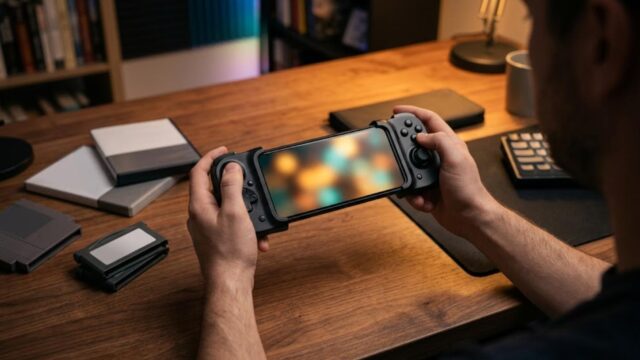
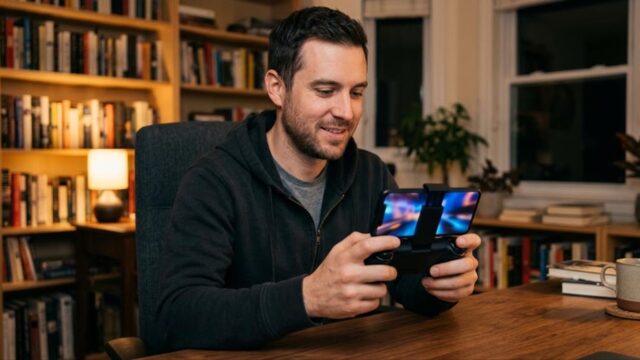
A telescopic clamp-style gamepad — the kind that grips the phone between two halves — gets closest to the original ergonomics, with the screen between your hands the way the PSP’s was.
Storage and audio latency
PSP ISOs typically run from a couple of hundred megabytes up to around 1.8GB each, so a modest library adds up fast. If your phone has a microSD slot that is the easy answer; many recent phones do not, so check before buying anything. Otherwise CSO or CHD compression buys space at a small CPU cost, and USB-C external storage works too.
On audio, one genuinely useful setting. Under Settings → Audio, Playback mode offers a “Classic” mode the documentation describes as the lowest-latency choice, with the alternative trading latency for fewer glitches at speeds other than 100%. Rhythm game players should look there first. Separately: wireless audio adds latency by design — a property of the transmission, not a fault in your headphones or the emulator. For timing-critical games, use wired.
The short version
- Install from Google Play or ppsspp.org, nowhere else. Free and Gold are the same emulator; Gold funds development.
- No BIOS required. The biggest practical difference from PS1 and PS2 emulation on the same phone.
- On Android 11 and newer you create and choose the PSP folder yourself — root of your storage is the official recommendation.
- Starting configuration: Vulkan backend, Rendering resolution 2x, Frame skipping 0, Skip buffer effects off, no shaders, FPS counter on.
- When it stutters: lower the resolution, kill the effects, swap the backend, deal with heat, then frame skipping — saved per game.
- Buy a controller, not a phone. Mid-range hardware is fine for PSP.
- Legally: §117 private copying and DMCA §1201 circumvention are separate questions, and neither is settled for console game discs. Homebrew is the uncomplicated place to start. This is general information, not legal advice.
コメント