





Old games look better on a modern PC than they ever did on a CRT in your parents’ living room — if you set them up properly. You get integer scaling on a 4K panel, save states, rewind, and input latency that can measure lower than original hardware thanks to run-ahead. You also get one library instead of a shoebox of cartridges.
This guide covers the whole path: what hardware you actually need, how to get your own games onto the PC legally, which emulator to run per system, and the settings that separate “it works” from “it feels right.” Written for readers in the US, UK, Canada and Australia — product availability and legal notes are framed for those markets.
- Why a PC instead of a mini console or handheld
- The three things you need
- Setting it up: four steps
- Which emulator for which system
- A note on PAL versus NTSC
- The legal side, for readers in the US
- Where save files live — and backing them up
- Common problems
- Where to ask
- Summary
- FAQ
- Is dumping my own cartridges legal?
- Can I just download ROMs for games I already own?
- Do I always need a BIOS file?
- What file format should I store discs in?
- How do I choose between two emulators for the same system?
- How do I make games look best without wrecking performance?
- Is a handheld like an Anbernic or Miyoo a better buy than a mini PC?
Why a PC instead of a mini console or handheld
1. Image quality you control
Emulators upscale to whatever your display is. You can keep pixels razor-sharp with nearest-neighbour integer scaling, or run a CRT shader (RetroArch ships crt-royale, crt-lottes and crt-guest-advanced) to get back the scanlines and phosphor bloom the artists were actually drawing for. For 3D systems, emulators like DuckStation let you raise the internal rendering resolution above native, which cleans up PS1 polygon wobble dramatically.
Practical advice: don’t jump straight to 8x internal resolution and a heavy shader. Raise internal resolution one step at a time and confirm a stable frame rate first. Shaders are usually more GPU-expensive than the emulation itself.
2. Lower latency than the original hardware
This is the part most guides skip. Run-ahead (built into RetroArch and into Mesen) works by simulating one or more frames into the future and discarding the intermediate states, which cancels out the internal input lag that many original games had baked into their code. One or two frames of run-ahead is typical; more than that causes visual glitching in some titles. It costs CPU, because the emulator is effectively running the core multiple times per frame — another reason a slightly stronger CPU is worth it.
Pair that with exclusive fullscreen and a low-latency audio driver, and a 1980s game can feel more responsive on your PC than on the console it shipped on.
3. One library, real backups
Hundreds of titles in one browsable frontend with box art, plus save files that live on a drive you control and can sync to cloud storage. Cartridge battery saves die. Files don’t, if you back them up.
The three things you need
1. A PC — a mini PC is enough
You do not need a gaming rig. A small-form-factor mini PC built around an Intel N100 / N150-class processor is the sweet spot for retro emulation: fanless or near-silent, roughly 6–15 W under load, and it fits behind a TV. Approximate street price is USD $150–$220 for 16 GB RAM and a 512 GB SSD (reference figure, checked September 2026 — these move constantly).
Be realistic about the ceiling. Here is where an N100-class box actually lands:
| System | N100-class result | Notes |
|---|---|---|
| NES, SNES, Genesis/Mega Drive, GB/GBC/GBA | Full speed with headroom | Room for run-ahead and CRT shaders |
| PS1, N64, Sega Saturn | Full speed in most titles | Saturn and N64 remain the fussiest of this tier |
| Dreamcast, PSP | Generally full speed | Some upscaling headroom |
| PS2, GameCube | Playable, title-dependent | This is the practical ceiling. Expect native or 2x resolution, not 4x |
| Wii U, Switch era | No | Needs a discrete GPU and a much stronger CPU |
If PS2 and GameCube matter to you, budget for a stronger CPU rather than assuming an N100 will cover it. Emulation of that generation is overwhelmingly single-thread-bound, so clock speed and IPC matter far more than core count.
2. A cartridge dumper
A dumper (cartridge reader) connects over USB and copies the data off a cartridge you own into a file on your PC. The categories available in the US/UK/AU as of September 2026:
- Open-source multi-system readers — the Open Source Cartridge Reader design (widely sold as assembled kits on eBay and AliExpress) covers NES, SNES, Genesis, N64, GB/GBA and more from one board. Roughly USD $60–$120 assembled, depending on which adapter modules are included.
- Single-family USB dumpers — dedicated Game Boy / GBA readers such as GBxCart RW or the GB Operator, typically USD $50–$100. Simpler software, less to go wrong, but one family of cartridges only.
- Disc-based systems — no dumper needed. A standard PC optical drive plus imaging software handles PS1 and Saturn discs you own. Note that CHD is the compressed format most emulators now accept directly and it saves a lot of space over raw BIN/CUE.
One market note: the all-in-one “insert cartridge, play instantly” console products (the Retro Freak family and similar) are largely a Japan-only market and require importing. There is no strong equivalent sold through mainstream US or UK retail, which is why most English-speaking users go the dumper-plus-emulator route instead.
A dumper also reads the cartridge save battery RAM, so you can pull your 30-year-old save file off the cart before the battery finally dies. That alone justifies the purchase for a lot of people.
3. A USB controller
Keyboard play is fine for five minutes. For anything serious, use a controller that presents itself as XInput — Windows and every major emulator detect it without configuration, whereas older DirectInput pads often need manual mapping and can report axes incorrectly.
Two broad choices. A modern pad you already own (Xbox controller, or an 8BitDo pad in XInput mode) covers everything. Or a reproduction of the original controller — six-button Genesis-style pads and SNES-style pads with USB are readily available — if the original button layout is part of what you’re trying to get back. For fighting games and shmups, a wired connection removes one variable when you’re chasing latency.
Setting it up: four steps
- Dump your cartridges. Install the dumper’s software, read each cart to a file, and rename files clearly as you go (Title (Region).ext is the convention most scrapers and frontends expect). Renaming later, across 200 files, is miserable. Also dump the save RAM while you have the cart in the reader.
- Install one emulator per system. Download only from each project’s own official site or its GitHub releases page. Emulator names are heavily squatted by ad-laden mirror sites and bundled-installer scams.
- Map your controller. Every emulator has an input section; assign buttons to suit your hands rather than copying the original layout blindly. This is the main advantage a PC has over a plug-and-play mini console.
- Load a game and tune. Get it running at full speed first, then add run-ahead, then raise internal resolution, then add shaders — one change at a time so you know what caused a problem.
Which emulator for which system
| System | Recommended | Why |
|---|---|---|
| NES | Mesen (Mesen2) | Cycle-accurate, excellent mapper coverage, built-in run-ahead, rewind and a full debugger. Cross-platform since Mesen2 |
| SNES | Snes9x | The long-standing default. Light on resources, still actively maintained, runs on nearly anything. Mesen2 and bsnes are the higher-accuracy alternatives if a specific game misbehaves |
| Game Boy / GBC / GBA | mGBA | Effectively the standard for GBA. High accuracy, link-cable support, low overhead |
| PlayStation (PS1) | DuckStation | Fixes the wobbling, jittering polygons of original hardware via PGXP, and upscales the 3D cleanly. The clearest visual upgrade of any emulator on this list |
| Sega Genesis / Mega Drive | BlastEm or Genesis Plus GX | BlastEm for accuracy; Genesis Plus GX (as a RetroArch core) for convenience and broad add-on support |
| Sega Saturn | Mednafen / Beetle Saturn, or SSF | Saturn is no longer the impossible system it was a decade ago. Beetle Saturn (via RetroArch) is the accessible cross-platform route; SSF is Windows-only and fast but has a Japanese-developed interface with more manual setup |
You can run most of these as cores inside RetroArch instead of as standalone programs. The trade-off is real: RetroArch gives you one consistent interface, one shader pipeline and run-ahead everywhere, but standalone builds usually expose more system-specific options and are easier to troubleshoot when something breaks. Beginners are generally better served by standalone emulators first.
A note on PAL versus NTSC
If your cartridges came from the UK, Europe or Australia, they are PAL. PAL consoles of the NES and SNES era ran at 50 Hz against NTSC’s 60 Hz, which means those games ran roughly 17% slower, with correspondingly lower-pitched music, and many were never re-timed to compensate. Emulators let you choose: set the region to PAL to reproduce exactly what you grew up with, or set it to NTSC to hear the soundtrack at the speed the composer wrote it. Neither is wrong — but if a game’s music has always sounded slightly off to you compared to a YouTube video, this is why.
The legal side, for readers in the US
This is general information, not legal advice. Copyright law varies by country and the details matter; consult a qualified attorney about your specific situation.
What is reasonably settled:
- Emulators themselves are legal. Clean-room reimplementation of a console’s behaviour has been upheld in US courts (Sony v. Connectix, Sony v. Bleem).
- Downloading ROMs you don’t own is infringement. There is no “I owned it as a kid” exception, and no 24-hour rule — that was never real. This guide does not link to, name, or describe how to find ROM distribution sites.
- Redistributing what you dumped is also infringement, including sharing with friends or uploading a “backup” anywhere public.
- Dumping games you own is not automatically legal. This surprises people. Fair use is a case-by-case defence, not a blanket permission, and DMCA §1201 separately prohibits circumventing technological protection measures — independently of whether the copy you make would otherwise be permissible. The Copyright Office’s triennial exemptions have granted narrow preservation carve-outs, but those are written primarily for libraries, archives and museums, not for general consumers.
The practical posture this guide takes: dump games you legally own, keep the copies to yourself, keep the originals. That is the lowest-risk position, and it’s also the one that supports preservation rather than undermining it.
The same logic applies to BIOS files. Some emulators (Saturn, PS1 in accurate mode) need a console BIOS image. Extract it from your own hardware. This guide does not cover where to obtain BIOS files otherwise.
Where save files live — and backing them up
The paths below are the literal strings used on disk. Replace [username] with your Windows account name; everything else is verbatim.
| Emulator | OS | Default location | Notes |
|---|---|---|---|
| Mesen2 (NES/SNES/GB etc.) | Windows | C:\Users\[username]\Documents\Mesen2\Saves | Under Documents by default. In portable mode it may instead sit alongside the executable |
| Mesen2 | Linux | ~/.config/Mesen2/Saves or ~/.local/share/Mesen2/ | Varies by build and distribution |
| SSF (Sega Saturn) | Windows | [SSF folder]\Backup\InternalBackup / [SSF folder]\Backup\ExternalBackup | Stored inside the program folder — move the folder and the path moves with it |
| Snes9x (SNES) | Windows | [Snes9x folder]\Saves | Normally a Saves folder next to the .exe. Configurable via snes9x.conf |
| Snes9x | Linux | ~/.snes9x/saves |
Two things worth knowing. First, back up the .sav files and your save states to cloud storage or an external drive on a schedule — a dead SSD takes 300 hours of RPG progress with it, and unlike a cartridge there’s no battery to replace and nothing to recover. Second, Saturn keeps internal memory and cartridge (power memory) saves in separate folders, so backing up only one of them will silently miss half your data.
Save states and in-game saves are not interchangeable. Save states are tied to the exact emulator version and often break across updates; in-game saves in the .sav file survive anything. Use states for convenience, but save in-game before you stop playing.
Common problems
- Black screen on launch — usually a missing or wrong BIOS image, or a file format the emulator doesn’t accept. Check the emulator’s own documentation for the exact files it expects.
- No audio — try a different audio driver (WASAPI vs. DirectSound in RetroArch) and raise the audio buffer slightly before assuming the game is broken.
- Stuttering despite low CPU usage — almost always a refresh-rate mismatch. A 60 Hz game on a 60 Hz display should be smooth; if your monitor is running at 59.94 Hz or 144 Hz, enable the emulator’s frame-pacing or VRR option.
- Controller detected but inputs are wrong — the pad is probably in DirectInput mode. Switch it to XInput (8BitDo pads use a button combination at power-on) and re-map.
- A dumped cartridge produces a bad file — dirty contacts, almost every time. Clean the cartridge edge connector with isopropyl alcohol and re-dump; a correct dump is reproducible byte-for-byte, so dumping twice and comparing is the definitive test.
Where to ask
The English-language emulation community is well documented and generally patient with beginners. r/emulation and r/retrogaming on Reddit, the Emulation General Wiki for per-system emulator comparisons, and each project’s own GitHub issue tracker for actual bugs. Search the issue tracker before posting — your problem has usually been reported.
Summary
A silent USD $180 mini PC, a USB cartridge reader, and a controller you like is the entire shopping list. The setup takes an afternoon. What you get afterwards is permanent: your own games, in better condition than the originals, on a machine you control, with saves that don’t expire. Start with the dumper and the controller — you can always upgrade the PC later once you know whether PS2-era emulation matters to you.
FAQ
Is dumping my own cartridges legal?
It depends on your jurisdiction and is not as settled as many guides imply. In the US, DMCA §1201 restricts circumventing copy protection even when the resulting copy might otherwise be defensible, and fair use is decided case by case. This guide assumes you own the original hardware and software and keep the copies private. This is general information, not legal advice.
Can I just download ROMs for games I already own?
No. Owning a physical copy does not grant a licence to obtain someone else’s unauthorised copy. This guide does not point to any distribution source.
Do I always need a BIOS file?
It depends on the system. NES, SNES, Genesis and GBA generally don’t. Saturn does, and PS1 does for accurate emulation (DuckStation can run without one in a reduced-compatibility mode). Where one is required, extract it from your own console.
What file format should I store discs in?
BIN/CUE is the raw standard and maximally compatible. CHD is lossless compression, typically cutting size substantially, and is accepted directly by DuckStation, Mednafen and RetroArch cores. Keep the original dump until you’ve verified the converted file works.
How do I choose between two emulators for the same system?
Prefer projects with recent commits, a documented compatibility list, and an active issue tracker. Popularity matters practically — more users means more people have already hit and solved your specific problem.
How do I make games look best without wrecking performance?
In order: integer scaling first (free, and fixes uneven pixels), then internal resolution for 3D systems, then shaders. Test after each step. A CRT shader on an N100 at 4K will be the thing that drops your frame rate, not the emulation.
Is a handheld like an Anbernic or Miyoo a better buy than a mini PC?
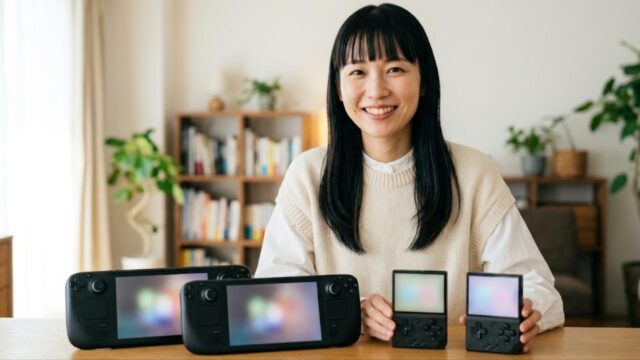
Different purpose. Handhelds are excellent for portability and 8/16-bit through PS1, and they’re cheap. A mini PC gives you a bigger ceiling, run-ahead with headroom, real shaders, and it’s your dumping workstation as well. Many people end up with both.

コメント