






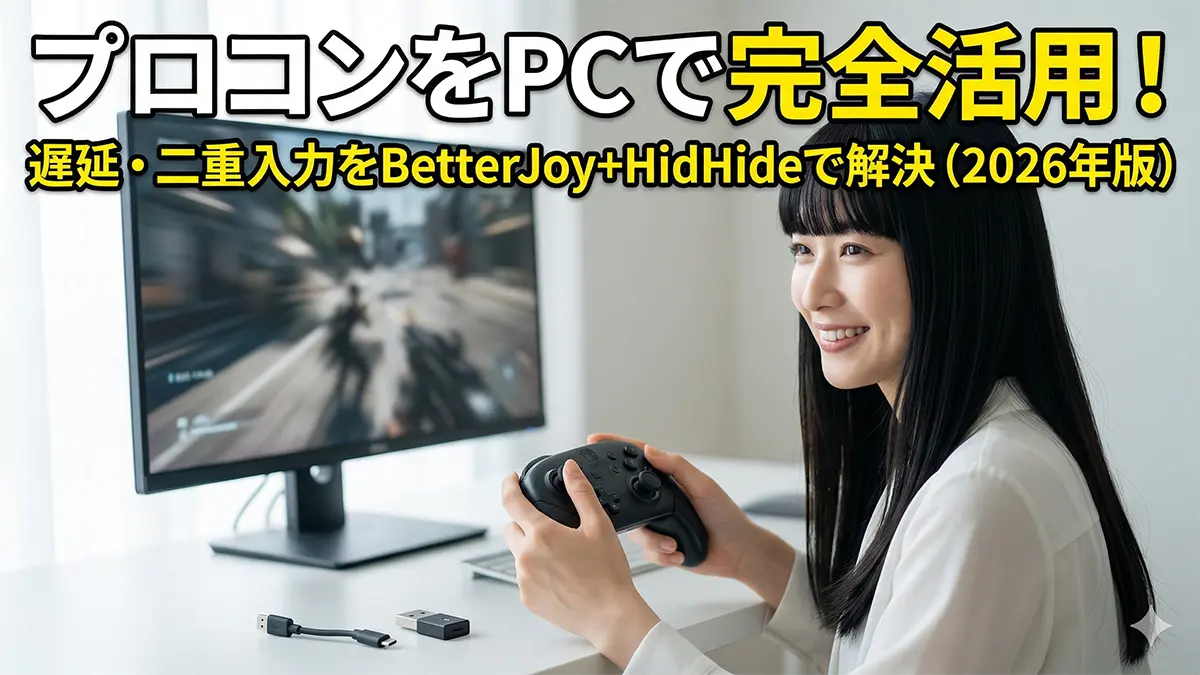
If your Nintendo Switch Pro Controller is connected to your PC but the buttons are mapped wrong, every press registers twice, or the Bluetooth link keeps dropping, you do not have a broken controller. You have a driver-layer problem, and two pieces of software solve almost all of it: BetterJoy, which exposes the pad to Windows as an XInput device, and HidHide, which stops Windows from showing the raw controller to games at the same time. Wireless dropouts are a third, separate problem, and they are usually the Bluetooth adapter rather than any setting you can change.
Find your situation in the table and skip straight to the section that applies.
| What you are seeing | What to do | Section |
|---|---|---|
| You only play games launched through Steam | Steam Input alone is enough. You do not need BetterJoy | The three ways to use a Pro Controller on PC |
| You want it to work in emulators and non-Steam games too | BetterJoy plus ViGEmBus, so the whole system sees XInput | Setting up BetterJoy and ViGEmBus |
| One button press registers as two (“double input”) | HidHide, to hide the physical controller from everything except BetterJoy | Stopping double input with HidHide |
| Wireless keeps cutting out mid-game | Test wired first. If wired is clean, the adapter is the problem | Fixing dropouts and latency |
| You do not want to configure anything | Buy a hardware adapter and skip the software layer entirely | The three ways to use a Pro Controller on PC |
Everything below was checked against the current stable releases of each tool as of August 13, 2026, on a Windows 11 machine running build 22631. Version numbers move, so always pull the newest stable build from the official repository rather than copying a version number out of an article.
- Why Steam Input is not the whole answer
- The three ways to use a Pro Controller on PC
- Prepare properly, or you will be troubleshooting instead
- Connecting the Pro Controller to Windows 11
- Setting up BetterJoy and ViGEmBus
- BetterJoy questions people actually search for
- Stopping double input with HidHide
- Using gyro on PC
- Fixing dropouts and latency
- Troubleshooting table
- When to stop configuring and buy hardware
- Summary
Why Steam Input is not the whole answer
In English-language forums, the standard reply to “Switch Pro Controller PC” questions is “just use Steam Input.” That advice is correct as far as it goes. Steam has native Switch Pro Controller support, it handles rumble and gyro, and it requires zero extra software. If every game you care about launches through Steam, you can stop reading after the next section.
The problem is scope. Steam Input works by injecting a virtual controller into processes that Steam itself launches. Outside that boundary, the translation does not exist. That means:
- Standalone emulators launched from a desktop shortcut see the raw Pro Controller as a generic HID device, not an Xbox pad, so button labels and axis order come out wrong.
- Non-Steam launchers, browser games, and older Windows titles get the same raw device.
- Legacy DirectInput-era titles, including long-running MMOs such as Final Fantasy XI, were never written with XInput in mind and need a device that behaves like a plain Xbox controller at the operating system level.
- Gyro sensitivity tuning in Steam is fine for Steam games, but BetterJoy gives finer control and can also feed raw motion data to emulators over a network protocol, which Steam cannot do.
You can add non-Steam games to your library as shortcuts to widen the net, but this is fragile and it breaks whenever a launcher spawns a child process. BetterJoy solves the problem one layer lower, where every application benefits automatically.
The three ways to use a Pro Controller on PC
1. Steam Input only
Open Steam, go to the controller settings, and enable Switch Pro Controller support. That is the whole procedure. Latency is fine in modern Steam titles and nothing else needs to be installed. The limitation is the one described above: it stops at Steam’s boundary.
2. BetterJoy plus ViGEmBus (system-wide XInput)
This is the real fix. BetterJoy reads the Pro Controller’s raw HID reports and hands them to ViGEmBus, a kernel driver that creates a virtual gamepad Windows reports as “Xbox 360 Controller for Windows.” From that point on, every application on the machine — Steam or not, emulator or not — sees a standard Xbox pad. Combined with ViGEmBus on Windows 11 build 22631, this configuration has been stable in testing, and it is the only route that keeps full gyro fidelity available to third-party software.
The cost is setup time and the fact that BetterJoy must be running for the controller to work. It sits in the system tray, so in practice this means adding one more startup item.
3. 8BitDo Wireless USB Adapter 2 (hardware)
The 8BitDo Wireless USB Adapter 2 is a small dongle that does the translation in firmware. You pair the Pro Controller to the dongle, and the PC sees an Xbox-compatible gamepad from the moment it enumerates — no drivers, no tray application, no HidHide, and no double input, because there is only ever one device on the bus. It also works from a cold boot, with no tray application that has to start first.
The trade-offs are real but small: it occupies a USB port, your PC’s internal Bluetooth radio is no longer part of the chain, and switching between multiple controllers means re-pairing to the dongle. It typically sells for around 20 USD on Amazon.com and is widely stocked in North America, the UK, and Australia, so availability is not a concern (price checked August 13, 2026).
Which one to choose
| Criterion | Steam Input | BetterJoy + HidHide | 8BitDo adapter |
|---|---|---|---|
| Setup effort | Minimal | Moderate, several steps | Plug in and pair |
| Works outside Steam | Poorly | Yes, everywhere | Yes, everywhere |
| Gyro control | Good inside Steam | Best, including emulator motion feeds | Basic |
| Risk of double input | Low | High until HidHide is configured | None |
| Ongoing cost | Free | Free | Around 20 USD |
Prepare properly, or you will be troubleshooting instead
Most “BetterJoy not working” threads come down to one of the four points below rather than a bug in the software. Handle these first.
Run as administrator, and not from Program Files
BetterJoy needs to talk to a kernel driver, so it must run elevated. It also writes its configuration next to its own executable, which means placing the extracted folder inside Program Files or leaving it in Downloads can result in settings that silently fail to save. Extract it somewhere your user account can write freely — a folder such as C:\Tools works well — and always start it with “Run as administrator.”
Remove HidGuardian before you start
Older guides, some of them still ranking well in search, recommend HidGuardian. Do not use it. HidGuardian is the discontinued predecessor; HidHide is its supported successor, from the same developer ecosystem as ViGEmBus. Leftover HidGuardian installations conflict with BetterJoy and produce exactly the symptom people find hardest to diagnose: the controller connects, then disconnects the moment BetterJoy starts, or stops being recognised at all. Uninstall it completely before installing HidHide.
Wired for setup, wireless for play
Do the initial configuration over USB-C. It removes an entire category of variables while you are confirming that ViGEmBus and HidHide are behaving. Once everything works, switch to Bluetooth if you prefer. Bluetooth adds a small amount of input latency — typically in the region of 10 to 15 ms — which is irrelevant for most single-player games and noticeable only if you are playing competitively. Wired is the lower-latency option, but the cable adds strain on the USB-C port and gets in the way if you use gyro aiming, which involves a lot of physical controller movement.
If you go wired, use a cable rated for data, not a charge-only cable, and plug into a rear port wired directly to the motherboard. Front-panel headers and unpowered hubs can deliver enough current to charge the controller while still dropping data packets.
Where to download, and is BetterJoy still maintained?
This is the question English-speaking readers ask most often, and the answer matters for safety as much as for function. BetterJoy is a community project with an uneven release cadence — long quiet stretches followed by fixes — so check the release page for the current stable build rather than trusting a version number quoted elsewhere. It is not abandoned, but it is also not on a corporate release schedule, and that gap is exactly what reupload sites exploit.
Download all three tools only from their official GitHub repositories, from the release Assets section, and take the .msi or .zip published there. Mirrors, aggregator “download” pages, and forum reuploads are frequently outdated and are a known vector for bundled malware. Searching for the project name on GitHub gets you to the right place in one step.
| Tool | What it does | Source |
|---|---|---|
| ViGEmBus | Kernel driver that creates the virtual “Xbox 360 Controller for Windows” | Official GitHub repository |
| BetterJoy | Reads the Pro Controller and feeds ViGEmBus | Official GitHub repository |
| HidHide | Hides the physical controller from selected applications | Official GitHub repository |
Connecting the Pro Controller to Windows 11
Bluetooth pairing
- Open Settings, then Bluetooth & devices, then Add device, and choose Bluetooth.
- Hold the small sync button on the top edge of the Pro Controller until the four player LEDs sweep back and forth.
- Select Pro Controller when it appears in the list.
One placement detail that is worth more than any registry tweak: if you are using a USB Bluetooth dongle, do not plug it into a rear USB 3.0 port. USB 3.0 signalling generates broadband noise in the 2.4 GHz range, which is the same band Bluetooth uses, and a dongle sitting directly next to those ports will drop connections. Use a front port, or better, a short USB 2.0 extension cable so the dongle sits on the desk with line of sight to the controller.
USB connection
Plug the supplied USB-C cable into a rear motherboard port. This is the most stable configuration and the one to use while configuring everything else.
Setting up BetterJoy and ViGEmBus
Install ViGEmBus first
Install ViGEmBus before touching BetterJoy, then reboot. To confirm it worked, open Devices and Printers and look for “Xbox 360 Controller for Windows.” If that entry is not there, nothing downstream will work — BetterJoy without ViGEmBus is just a program that displays gyro data, because it has nothing to write the translated input into.
Start BetterJoy correctly
Extract the archive, then run BetterJoyForCemu.exe as administrator. A small window opens. When the controller is detected properly, its icon lights up green. If the icon is red or nothing appears at all, remove the pairing in Windows Bluetooth settings and pair again from scratch; a half-completed pairing is the usual cause.
Recommended settings
Open the detail panel using the arrow button on the right edge of the window.
| Setting | Recommended | Why |
|---|---|---|
| ShowAsXInput | On | This is the setting that makes the controller usable in the overwhelming majority of PC games |
| UseGhosting | Off | Redundant once HidHide is doing the hiding, and the two can conflict |
| StartInTray | On | Keeps BetterJoy out of the way on startup |
BetterJoy questions people actually search for
| Question | Answer |
|---|---|
| What does BetterJoy actually do? | It makes a Pro Controller or Joy-Con appear to Windows as an Xbox controller, so any XInput game works with no remapping |
| Is it still maintained? | Yes, though releases are irregular. Take the newest stable build from the official repository and nowhere else |
| Do I need ViGEmBus? | Yes. It is the driver that creates the virtual pad. Without it BetterJoy runs but produces no usable controller |
| Does it need administrator rights? | Yes. Without elevation it cannot reach the driver and the controller will not be recognised |
| Is BetterJoy causing my double input? | No. Double input happens because the real and virtual devices are both visible to the game. HidHide fixes it |
| Anything special for Steam? | Turn off Steam’s Switch Pro Controller support. Leaving it on means two translation layers running at once, which produces erratic behaviour |
Stopping double input with HidHide
Why it happens
Once BetterJoy is running, two gamepads exist on your system:
- the physical Pro Controller, connected over Bluetooth or USB and visible as a generic HID / DirectInput device
- the virtual Xbox 360 controller that BetterJoy created through ViGEmBus
Games that poll both APIs receive the A button twice — once from each device — and act on both. That is the entire mechanism behind “double input Pro Controller.” The fix is not to change any game setting. It is to make the physical device invisible to everything except BetterJoy.
Configuring HidHide
- Open the HidHide configuration client and go to the Devices tab. Tick Nintendo Switch Pro Controller, then tick Enable device hiding at the bottom of the window. The second checkbox is the one people forget, and nothing works without it.
- Go to the Applications tab and add the executables that are still allowed to see the hidden device. At minimum, add BetterJoyForCemu.exe. Adding Steam.exe as well is sensible if you use Steam.
Order matters. If you change HidHide settings while BetterJoy is already running, the change will not take effect for that session. Close BetterJoy, reconnect the controller, then start BetterJoy again.
If double input still happens
- Confirm that Enable device hiding is actually ticked, not just the device itself.
- Confirm that no HidGuardian remnants are left on the system. They conflict directly and must be fully removed.
- Check whether you changed settings after launching the game. Many titles enumerate controllers once at startup and never re-check. Quit the game, restart BetterJoy, then launch the game again.
Using gyro on PC
Gyro only produces results when both sides are configured. Enabling it in BetterJoy alone does nothing, because something has to consume the motion data.
In the BetterJoy config panel:
- Non-Original Controller — set to True only if you are using a third-party Pro Controller clone. Leave it False for a first-party Nintendo pad.
- Gyro To Mouse — set to True to translate motion into mouse movement. This is what lets you use gyro aiming in games that have no native gyro support at all.
- Sensitivity — tune to your display resolution. A 4K monitor generally wants a higher value than a 1080p one, since the same physical tilt has to cover more pixels.
For emulators, BetterJoy includes a built-in UDP server that broadcasts motion data in real time. In Cemu, Dolphin, or any emulator that supports it, select DSU Client as the motion source and point it at 127.0.0.1. With this configured, a single Pro Controller can stand in for hardware that would otherwise require a Wii Remote, and pointer-driven sections become far more comfortable than they are on a stick.
Fixing dropouts and latency
If the connection stutters or cuts out, plug in a cable and test again. If wired is clean, the problem is the wireless link, not BetterJoy, and no amount of software configuration will fix it. Work through these in order.
Move the dongle away from the PC. This is the single most effective change. Electromagnetic noise from the chassis, and specifically from USB 3.0 ports, interferes with the 2.4 GHz band. Running a USB 2.0 extension cable and placing the dongle on the desk within about a metre of the controller, with clear line of sight, resolves a large share of dropout complaints on its own.
Disable power management on the Bluetooth radio. Right-click the Start button and open Device Manager. Expand Bluetooth, right-click your adapter (often listed as Generic Bluetooth Radio), choose Properties, open the Power Management tab, and clear “Allow the computer to turn off this device to save power.” Some recent Windows 11 drivers do not expose a Power Management tab at all. If yours does not, open Control Panel, go to Power Options, edit your active plan’s advanced settings, and disable USB selective suspend instead.
Replace an ageing adapter. If you are still on a Bluetooth 4.0 dongle from several years ago, replacing it is the shortest path to a stable link. Buy from a manufacturer that publishes driver updates rather than a 5 USD no-name dongle; in testing, the difference between a bargain-bin adapter and a mainstream Bluetooth 5.3 unit showed up as more than three seconds of extra re-pairing delay after waking the PC from sleep. Newer Bluetooth revisions also handle congested environments better, though how much better depends heavily on your room, so treat this as a likely improvement rather than a guarantee.
Troubleshooting table
| Symptom | Likely cause | Fastest fix |
|---|---|---|
| BetterJoy icon never turns green | Incomplete Bluetooth pairing, or ViGEmBus not installed | Reinstall ViGEmBus, reboot, then re-pair the controller |
| Inputs register twice, or the character drifts | Both physical and virtual devices are visible | Hide the Pro Controller in HidHide and tick Enable device hiding |
| Controller stopped being detected entirely | HidHide allow-list is wrong, or HidGuardian remnants | Add BetterJoyForCemu.exe under Applications; remove HidGuardian |
| Gyro does nothing | Emulator side not configured | Enable DSU Client at 127.0.0.1, and check the axis assignment in BetterJoy |
| Settings reset every launch | Folder is write-protected | Move the folder out of Program Files or Downloads |
| Works wired, drops wirelessly | Adapter or interference | Extend the dongle away from the case; disable power management |
When to stop configuring and buy hardware
Driver-level compatibility has a long tail. Certain motherboard-integrated Bluetooth chipsets, and machines upgraded in place from older Windows 10 installations, carry driver conflicts that no reasonable amount of configuration will clear. If you have worked through the steps above twice and the link is still unreliable, the software route is not going to reward more of your time. A hardware adapter moves the translation off your PC entirely and removes the double-input problem by design, because the operating system only ever sees one device.
Summary
For a Switch Pro Controller to behave on PC the way it does on the console, two things have to be true: it has to present itself as an Xbox pad, and the raw device has to be invisible to games. BetterJoy with ViGEmBus handles the first, HidHide handles the second. It is a one-time setup that then applies to everything on the machine — emulators, launchers, decades-old titles, and current Steam releases alike.
In order:
- Install ViGEmBus, reboot, and confirm “Xbox 360 Controller for Windows” appears in Devices and Printers.
- Run BetterJoyForCemu.exe as administrator from a writable folder, over USB first, and enable ShowAsXInput.
- If inputs double up, configure HidHide, remembering to tick Enable device hiding and to whitelist BetterJoyForCemu.exe.
- If wireless is unstable, extend the dongle away from the case and disable Bluetooth power management before spending money on anything.
コメント