




You launch Snes9x, press a button, and… nothing happens.
That usually does not mean you are bad at emulator setup. In most cases, the problem comes down to one of four things: the controller was connected after Snes9x launched, Windows is not seeing it correctly, another app is intercepting input, or the pad is using the wrong input mode.
In this guide, I’ll show you the fastest way to get a controller working in Snes9x on Windows 11 without wasting your whole evening in menu screens.
Quick fix: Close Snes9x, plug the controller in before launching it, open Input > Input Configuration, select Joypad #1, make sure Enabled is checked, and remap the buttons. If it still does not work, test joy.cpl, close Steam and other remapping tools, and check whether your controller supports XInput.
Snes9x controller setup: the correct order
When a controller does not respond, the fastest fix is to stop changing random settings and go through the basics in the right order.
1) Plug in the controller before opening Snes9x
Snes9x can be picky about devices that are connected after the emulator has already started. So do this first:
- Close Snes9x completely.
- Plug your controller directly into a USB port on the PC.
- Avoid USB hubs for the first test if possible.
- Wait until Windows finishes detecting the device.
- Launch Snes9x again.
If the controller was connected too late, this alone may solve the problem.
2) Open Input Configuration and check the important options
In Snes9x, go to Input > Input Configuration.
Then confirm the following:
- The controller profile is set to Joypad #1.
- Enabled is checked.
- If your build has multiple input device types, make sure Snes9x is set to use SNES Joypad(s), not mouse or another device mode.
After that, click each button field and press the matching button on your controller to map it.
If the mapping works, you will usually see something like J0 Button 0, J0 Button 1, and so on.
3) Leave diagonal inputs unassigned unless you really need them
You may see separate entries for diagonal directions such as up-left or down-right. In most cases, leave those blank.
Snes9x usually handles diagonal movement correctly when you press two directions together. Manually assigning diagonals can sometimes create strange movement or accidental inputs.
If your movement feels wrong, clear those diagonal bindings and test again.
If it still does not work: 3 things to check
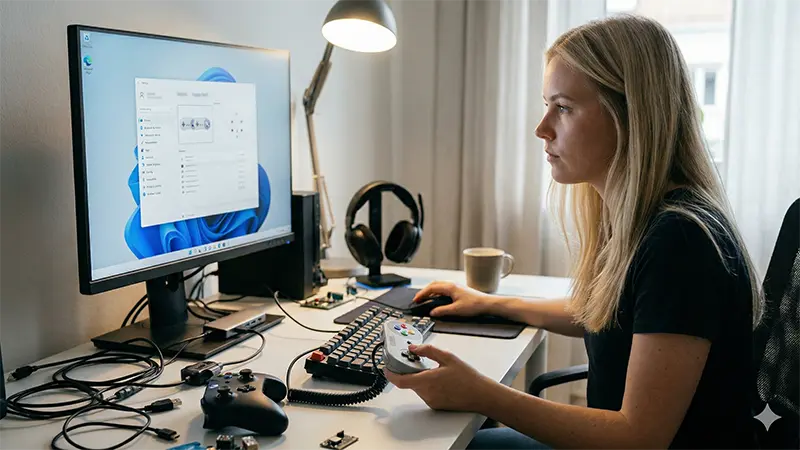
If you already mapped the buttons but the controller still does nothing in-game, the issue may be outside Snes9x.
1) Check whether Windows detects the controller properly
Before blaming the emulator, confirm that Windows can actually see the device.
- Press Windows + R.
- Type
joy.cpland press Enter. - Look for your controller in the Game Controllers window.
If the controller does not appear there, the problem is at the Windows or hardware level. Try these:
- Use a different USB port.
- Connect directly instead of through a hub.
- Try another cable if your controller uses one.
- Test the controller on another PC.
If it does appear in joy.cpl and the buttons respond in Properties, move on to the next check.
2) Close Steam Input and other remapping tools
If your controller moves the mouse cursor, triggers the wrong buttons, or behaves strangely outside the game, another program may be intercepting the input.
The most common example is Steam Input, but similar problems can also come from tools like JoyToKey, reWASD, or DS4Windows.
For the quickest test, fully close those apps before launching Snes9x.
- If you use Steam, right-click the Steam icon in the system tray and choose Exit.
- Do not assume clicking the X button is enough. Steam often keeps running in the background.
Once those apps are closed, relaunch Snes9x and test again.
3) Check XInput vs DirectInput compatibility
If Windows detects the controller and no other software is interfering, but the mapping still feels broken inside Snes9x, the input standard may be the real issue.
- DirectInput: older standard, common on cheap USB pads.
- XInput: Xbox-style input standard, usually more trouble-free on modern Windows PCs.
If your controller has a switch labeled something like X/D or MODE, try changing it to XInput and test again.
With some budget controllers, spending an hour fighting DirectInput quirks is simply not worth it. In that case, switching to a controller with solid XInput support is often the faster solution.
The low-friction hardware option
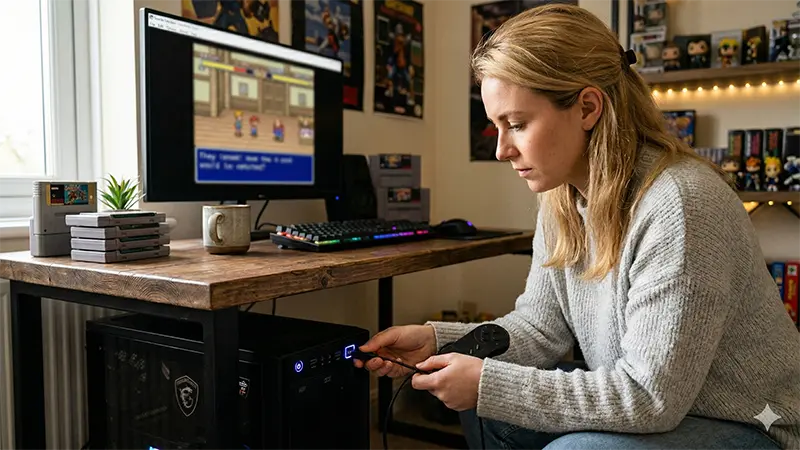
If your goal is simple—plug in a controller and play old SNES games without debugging Windows all night—then controller choice matters more than people expect.
Why the 8BitDo SN30 Pro is often the safe pick
For retro games on PC, the 8BitDo SN30 Pro is a common recommendation because it combines a SNES-style layout with better compatibility than many generic USB pads.
- XInput support on Windows reduces setup headaches.
- The button layout feels natural for SNES and Super Famicom games.
- Build quality is usually more consistent than ultra-cheap no-name controllers.
Recommended gear: If you want to minimize compatibility problems, use an XInput-capable pad and avoid the very cheapest USB controllers unless you are willing to troubleshoot. Check current price here.
What if you want to use an original controller?
If you prefer real hardware, a USB adapter is the usual route. Just remember that old controllers may have worn membranes, weak contacts, or cable issues. Sometimes the “emulator problem” is really a controller maintenance problem.
If you go with a cheap USB pad instead, at least check whether it supports XInput or has a hardware switch for X/D mode before buying.
Conclusion
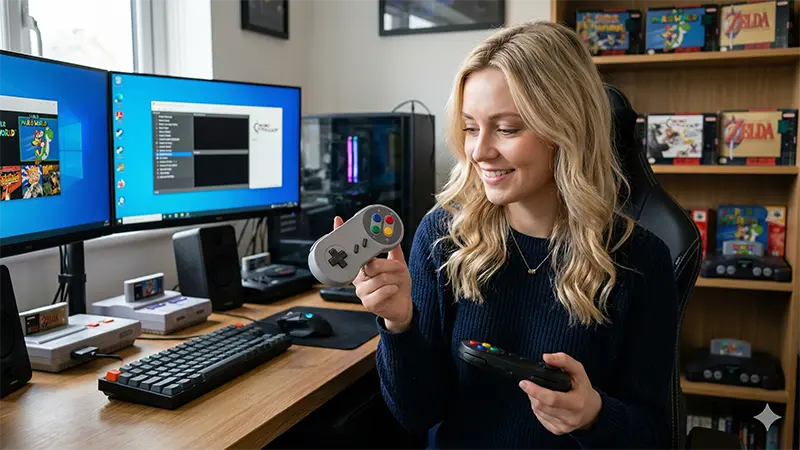
If your controller is not working in Snes9x, the fastest fix is usually this:
- Plug it in before starting Snes9x.
- Set it to Joypad #1 and make sure Enabled is checked.
- Confirm Windows sees it with
joy.cpl. - Close Steam Input and other remapping tools.
- Try XInput mode if your controller supports it.
That order solves a surprising number of “Snes9x won’t detect my controller” cases without touching anything complicated.
Legal note: This article covers controller setup only. For games and BIOS files, use media you legally own and follow the copyright rules in your country. Preservation matters, but so does staying on the right side of the law.
More Snes9x guides
コメント