

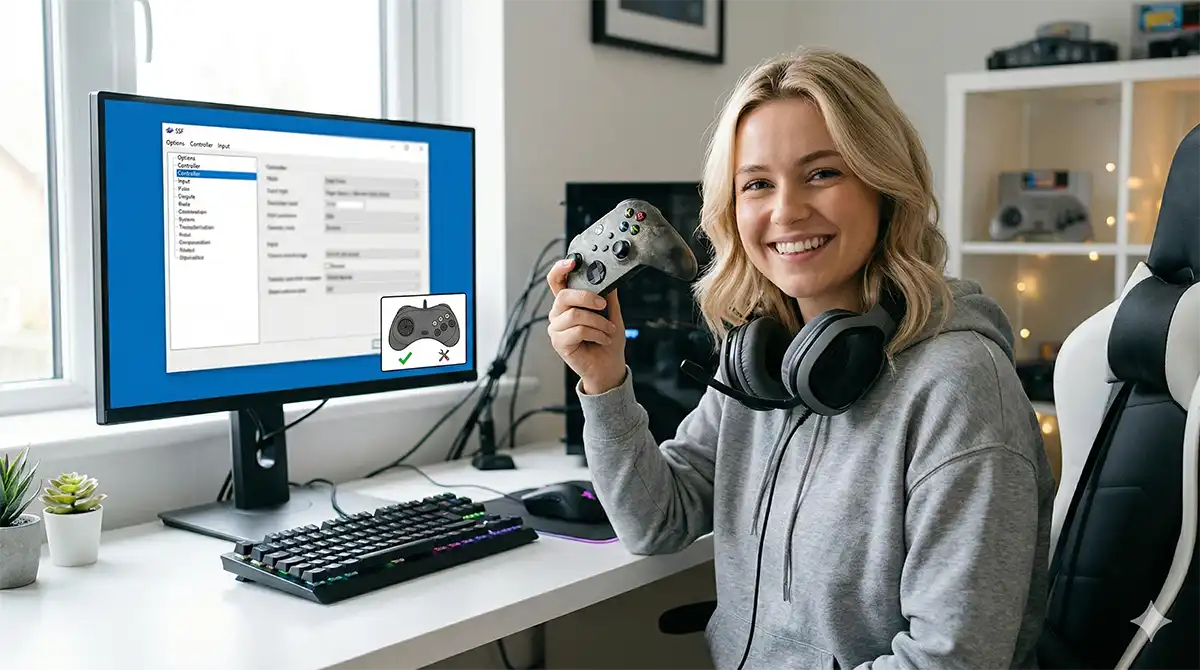
If SSF “doesn’t see” your controller (or buttons don’t respond), don’t waste hours in Windows settings.
In most cases, the fix is inside SSF itself: you simply need to match SSF’s input mode to your controller:
XInput (modern pads) vs DirectInput (older pads/adapters).
- 1) Quick Fix (Most Common): XInput vs DirectInput
- 2) Basic Setup: Control Pad (Digital / D-Pad)
- 3) Analog Setup: Multi Controller (3D Pad / Racing Controllers)
- 4) Mouse Setup (Saturn Mouse Supported Games)
- 5) Turbo / Rapid Fire Setup
- 6) Bonus: Virtua Cop “Mouse + Turbo” Comfort Mode
- 7) If It Still Doesn’t Work: 5-Minute Checklist
- 8) Recommended Gear (Comfort + Retro Feel)
- 9) Legal / Preservation Note
- 10) More SSF & Retro Setup Guides
1) Quick Fix (Most Common): XInput vs DirectInput
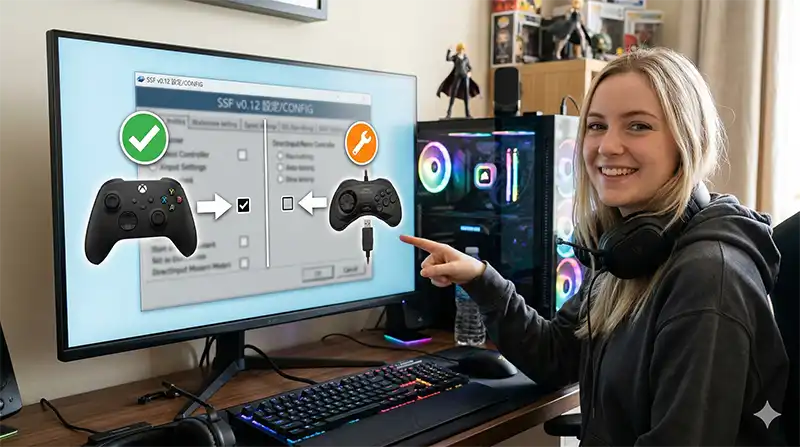
This is the #1 reason SSF won’t recognize a controller.
Open SSF, then go to:
- Option → Option (settings window)
- Open the Program1 tab
- Find the checkbox labeled XInput
Set it like this:
- Most modern controllers (Xbox-style / many USB pads): turn XInput = ON
- Older controllers / some classic USB adapters: turn XInput = OFF (use DirectInput)
Once this is correct, controller mapping in the next section will actually respond.
2) Basic Setup: Control Pad (Digital / D-Pad)
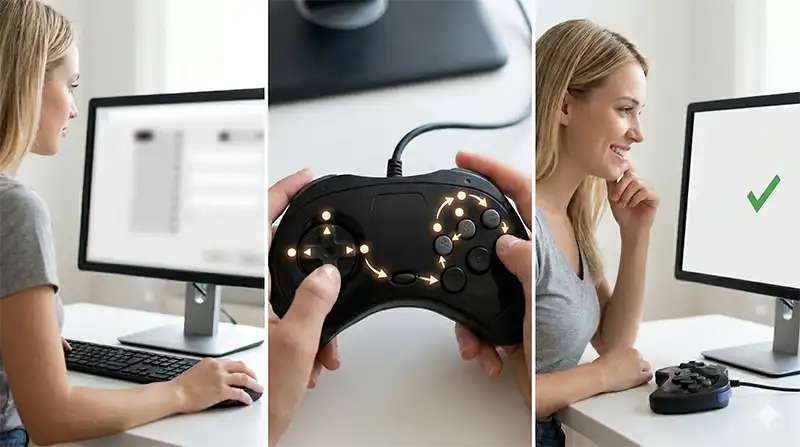
This is the standard setting for most Saturn games.
- Open Option → Option
- Go to the Controller tab
- In the device type dropdown, select Control Pad
- Click Redefine
SSF will prompt you to assign Saturn buttons in order. Press the corresponding button on your controller as each prompt appears:
UP → DOWN → LEFT → RIGHT → A → B → C → X → Y → Z → START
Important: “Rapid~” prompts (Turbo button assignment)
After the normal button mapping, SSF will show a second round labeled Rapid~.
This is where you choose which inputs will be used for SSF’s turbo feature.
- If you want turbo for a button, map it during the Rapid~ prompts.
- If you don’t need turbo, you can map “unused” Rapid~ prompts to any harmless key/button (even the same one repeatedly).
When the redefine window closes, the basic controller setup is complete.
3) Analog Setup: Multi Controller (3D Pad / Racing Controllers)
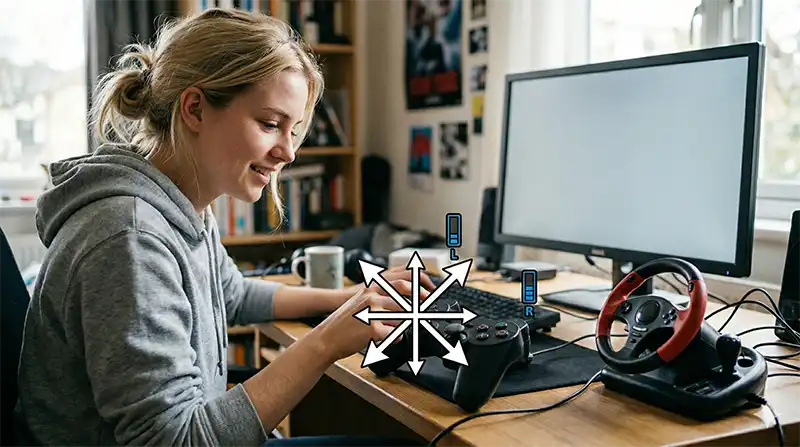
Use this for games that support Saturn’s Multi Controller / analog input (ex: 3D Control Pad-style support, racing controllers).
- Open Option → Option → Controller tab
- In the device type dropdown, select Multi Controller
- Assign the normal buttons in the same order as Control Pad:
UP → DOWN → LEFT → RIGHT → A → B → C → X → Y → Z → START - Then assign analog inputs when prompted:
- INPUT FOR X AXIS: move your analog stick left/right
- INPUT FOR Y AXIS: move your analog stick up/down
- INPUT FOR AL: press your analog L input (if available)
- INPUT FOR AR: press your analog R input (if available)
Tip: Some modern controllers don’t expose “analog L/R” the way SSF expects. If a prompt won’t register, assign a spare button and keep going.
4) Mouse Setup (Saturn Mouse Supported Games)
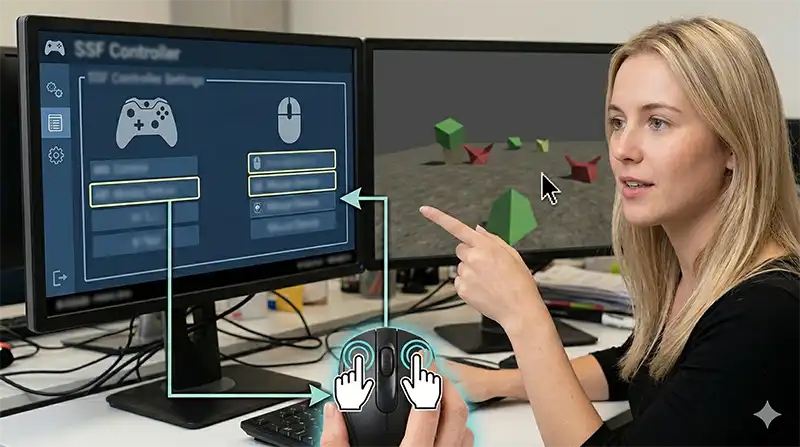
Yes—Sega Saturn had a mouse, and some games support it. SSF can emulate this via your PC mouse (and you can even map mouse buttons).
- Open Option → Option → Controller tab
- Select device type: Mouse
- Assign:
- Left Button
- Right Button
- Then you’ll see the Rapid~ prompts (turbo assignment). If you don’t need turbo, map them to any spare key/button.
Mouse setup is done—surprisingly simple.
5) Turbo / Rapid Fire Setup
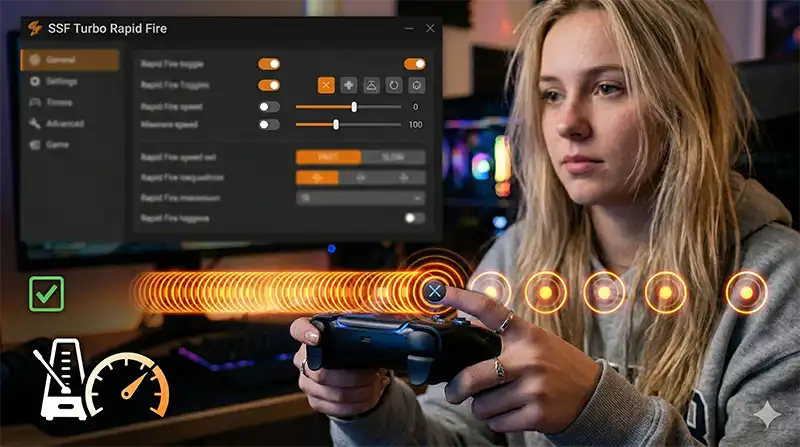
You don’t need a dedicated turbo controller. SSF can generate turbo internally.
- Open Option → Option
- Go to the Controller (Rapid) tab
- Turn Enable = ON (this is mandatory)
- Select which controller device you want turbo applied to
- Choose a turbo rate for each button
SSF offers multiple turbo intervals, for example:
1/30 sec, 1/20 sec, 1/15 sec, 1/12 sec, 1/6 sec, 1/5 sec, 1/4 sec, 1/3 sec, 1/2 sec.
If turbo feels “too fast” and doesn’t register well in a specific game, slow the interval and test again.
Also remember: turbo only works for the inputs you assigned during the Rapid~ prompts in Redefine.
6) Bonus: Virtua Cop “Mouse + Turbo” Comfort Mode
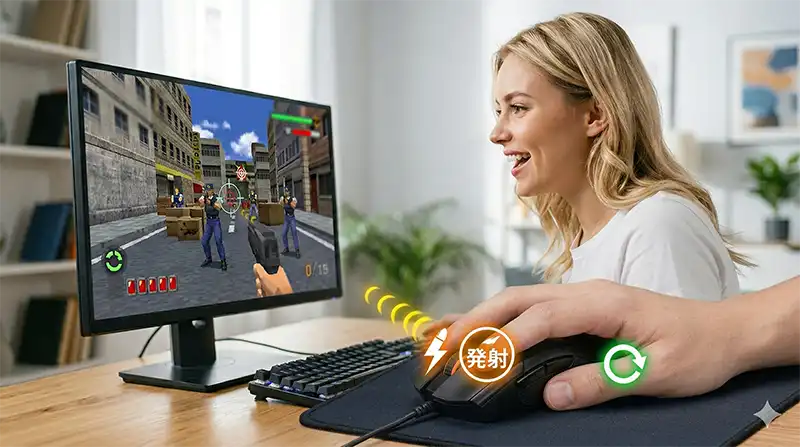
Original Virtua Cop was built for the Virtua Gun. On modern displays, light guns usually don’t work properly.
But here’s the fun part: Virtua Cop supports the Saturn mouse.
With mouse mode, reload becomes much more comfortable:
- Gun: reload by aiming off-screen and pulling the trigger
- Mouse: reload with right-click (instant reload)
And if you assign turbo (Rapid) to mouse buttons, it can feel like a “machine gun mode” for pure stress relief.
Try it if you own Virtua Cop / Virtua Cop 2 and want a modern-comfort play style.
7) If It Still Doesn’t Work: 5-Minute Checklist
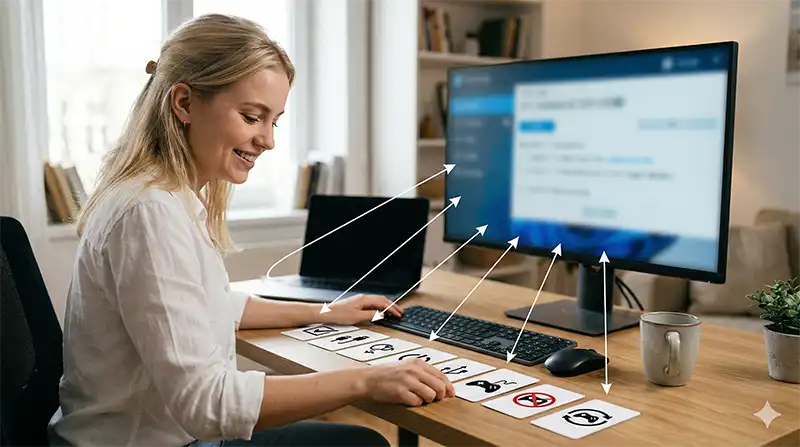
- Re-check Program1 → XInput (ON for most modern pads, OFF for older DirectInput devices).
- Reconnect before launching SSF: unplug/replug the controller, then restart SSF.
- Try a different USB port (avoid unstable hubs while troubleshooting).
- Confirm Windows sees the controller: open the Game Controllers panel (Windows “Set up USB game controllers”) and test button response.
- Close input-hooking software temporarily (Steam Input, controller mappers, overlays) and test again.
- Redo mapping: Controller tab → choose device type → Redefine again.
8) Recommended Gear (Comfort + Retro Feel)
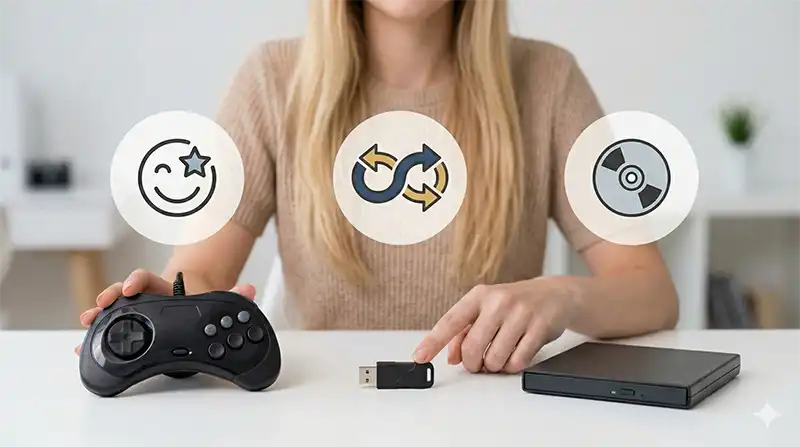
If you’re tired of input-mode headaches, using “known-good” controllers/adapters saves time (and feels better).
Below are reader-friendly picks you can check—choose based on what you want:
- Saturn-style USB controller (retro feel):
👉 Check Saturn-style USB controller reviews - Quality adapter for using modern controllers on retro hardware (optional):
👉 Check controller adapter reviews - External optical drive (useful for disc-based Saturn workflow):
👉 Check external drive reviews
9) Legal / Preservation Note
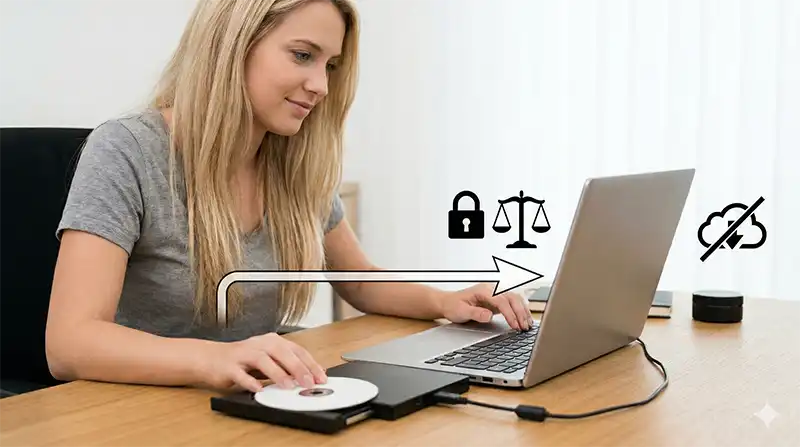
This site assumes you play using games you own (original discs or disc images you personally dumped for private use).
Sharing or downloading copyrighted BIOS/ROM files from the internet is illegal in many regions—please keep things clean and preservation-focused.
10) More SSF & Retro Setup Guides
- Start here (EN):How to Play Sega Saturn Games on PC with SSF (Windows 11)
- Dump your own Saturn disc image (JP):How to create a Sega Saturn CD image with SSF tools
- BIOS dumping guide (JP):Sega Saturn BIOS dumping methods (comparison)
- Windows 11 note (JP):Why SSF CEP doesn’t work on Windows 11 (and realistic alternatives)
- Legacy-friendly dumping method (EN):How to Dump Retro Games to PC using Retro Freak (The Easiest Way)
If this guide saved you time and you want to support future “tested, practical” retro setup research, you can use the affiliate links above.
Thank you!

コメント